How to Use Proxies When Capturing Screenshots
There are a few reasons why you might want to use proxies when capturing screenshots using our screenshot API:
- You need to capture multiple screenshots of the same page/site. Because we route your screenshot requests via a finite number of servers/IPs, when you make hundreds or thousands of requests in a short period of time to capture the same page/site, the target site might temporarily start blocking our IPs or showing CAPTCHAs.
- You want to capture how a page/site looks to users in a particular country/city. If the site shows different content to users in different countries, because we route your screenshot requests through servers in the US, the screenshot would show what a user in the US would see, and not what a user in, say, Germany would see on the page/site.
- You are already experiencing CAPTCHAs, and you want to reduce their number. Some sites are stricter than others when dealing with bots/crawlers, so you may experience CAPTCHAs even without making excessive screenshot attempts. Using proxies, specifically residential proxies, is one of the ways you can prevent CAPTCHAs on these sites.
Here’s how you can start using proxies with our screenshot API.
1. Sign up with a proxy provider
There are two types of proxies that you can try using with Screenshot Scout: datacenter proxies and residential proxies.
Residential proxies have the potential to be much more effective than datacenter proxies, but they are also more expensive. That’s why we advise you to start with datacenter proxies and see if they can work for your use case.
There are multiple proxy providers you can choose from, including Evomi, Decodo, and Webshare.
We will use Evomi, specifically their residential proxies, as an example to show how you can use proxies with Screenshot Scout.
2. Get the proxy URL
Go to your client panel with the proxy provider you chose, and get the proxy URL. Make sure the proxy URL is in this format: http://user:pass@host:port
In the case of Evomi, it would look like this:
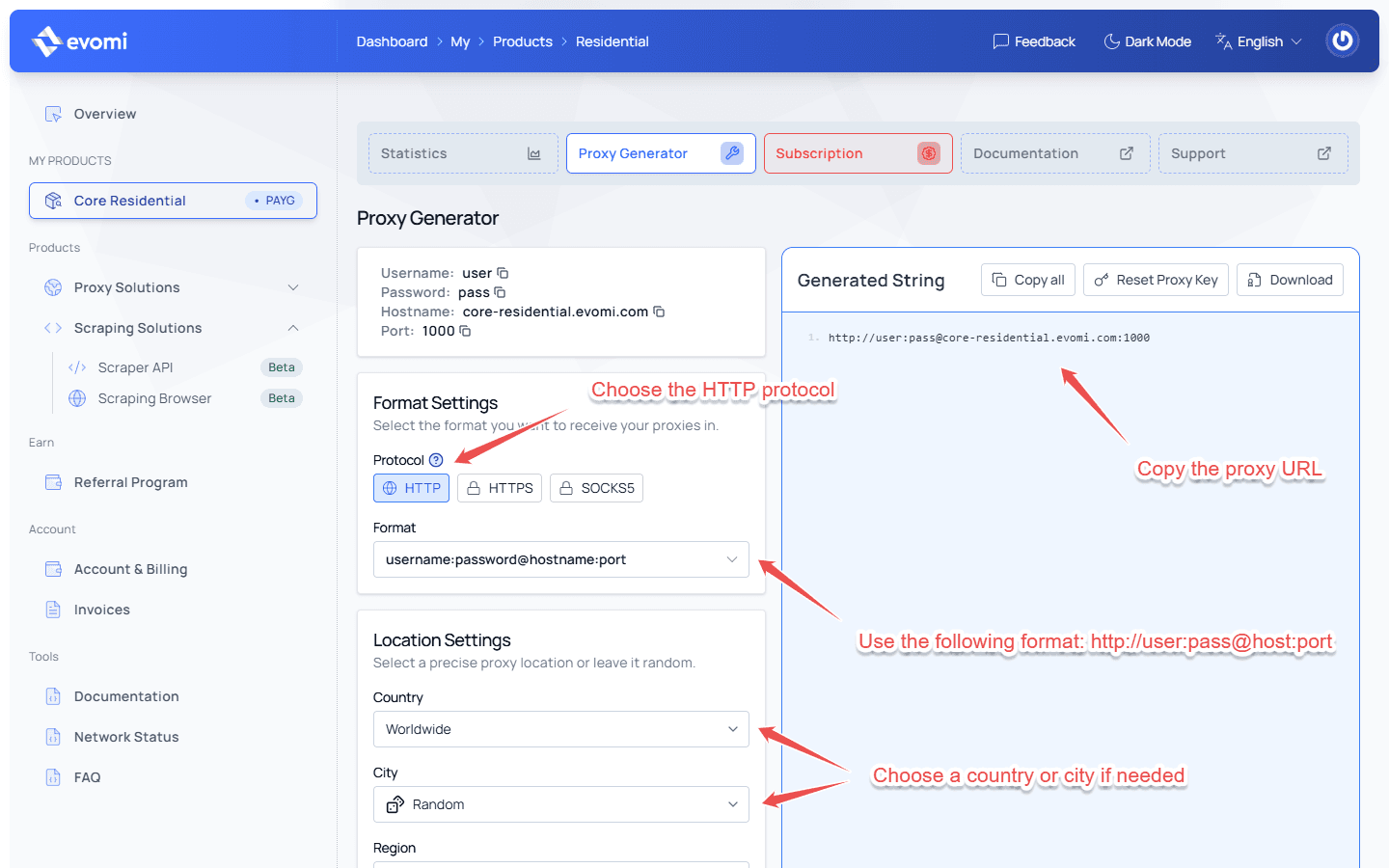
Also note that many proxy providers allow you to specify a country and/or city right in the proxy URL. So if you need us to route your screenshot requests through a proxy in a specific country/city, make sure you choose the desired country and/or city before copying the proxy URL.
3. Use the proxy URL when using Screenshot Scout
Once you have your proxy URL, pass it as a URL param to our screenshot API endpoint. In the case of Evomi, the request URL will look something like this (unencoded for readability):
https://api.screenshotscout.com/v1/capture?access_key=YOUR_ACCESS_KEY&url=https://example.com/&proxy=http://user:pass@core-residential.evomi.com:1000Recommendations
Here are some recommendations for using proxies with our screenshot API:
- Try using datacenter proxies first and see if they work for your use case. If not, switch to rotating residential proxies. Quick rule of thumb: if you need to screenshot multiple different websites, start with datacenter proxies. If you need to capture the same website multiple times, possibly hundreds of times, it might make sense to start with residential rotating proxies right away.
- If you need the screenshot to look exactly how a visitor in a specific location will see the website, use a proxy in that location. If not, the country will be chosen randomly, depending on the proxy provider you chose.
- If you are using proxies for the sole purpose of accessing the website from a country other than the US (that’s where we route all screenshot requests from by default), and you are on one of our paid plans, consider using the country option instead of using proxies.
- Sometimes, when using proxies, you may experience a higher number of failed screenshots, mostly due to network errors on the proxy provider side. If an error occurs, we will return an error code and message. You can then retry the screenshot request.