
For most use-cases, the best option in Java is Playwright, Microsoft's browser automation framework, whose Java binding drives a real browser directly.
To take a screenshot in Java with Playwright, first add the dependency to your pom.xml and install the Chromium browser it drives:
<dependency>
    <groupId>com.microsoft.playwright</groupId>
    <artifactId>playwright</artifactId>
    <version>1.61.0</version>
</dependency>
mvn compile exec:java "-Dexec.mainClass=com.microsoft.playwright.CLI" "-Dexec.args=install chromium"Then take a screenshot:
package com.screenshotscout.examples.playwright;

import com.microsoft.playwright.Browser;
import com.microsoft.playwright.Page;
import com.microsoft.playwright.Playwright;
import java.nio.file.Paths;

public class Screenshot {
    public static void main(String[] args) {
        String url = "https://screenshotscout.com/";

        try (Playwright playwright = Playwright.create();
             Browser browser = playwright.chromium().launch()) {
            Page page = browser.newPage(new Browser.NewPageOptions().setViewportSize(1920, 1080));
            page.navigate(url);
            page.screenshot(new Page.ScreenshotOptions().setPath(Paths.get("screenshot.png")));
        }
    }
}
The code above produces a 1920x1080px viewport screenshot and saves it to your local disk as screenshot.png.
Although Playwright is the default option I would suggest for most screenshot tasks, there are other options as well that might fit better depending on your use-case:
| Tool | Performance | Reliability | Setup / DX | Cost | Best for |
|---|---|---|---|---|---|
| Playwright | ★★★★☆ | ★★☆☆☆ | ★★★★☆ | Free | Most DIY website screenshots in Java |
| Selenium | ★★★☆☆ | ★★☆☆☆ | ★★★☆☆ | Free | Existing Selenium/WebDriver stacks |
| jvppeteer | ★★☆☆☆ | ★★☆☆☆ | ★★★☆☆ | Free | A Puppeteer-style API in pure Java, no Node.js |
| Screenshot Scout (screenshot API) | Offloaded to the API provider's infrastructure | ★★★★☆ | ★★★★★ | Free / $ per use | Production, scale, reliability |
A note on the table: the Performance and Reliability scores come from the benchmarks I ran, while the Setup / DX score is my subjective opinion from working with each tool. The "Best for" call is my subjective opinion too, based on performance, reliability, setup / DX, and price together.
The two ways to take webpage screenshots in Java
We tested 4 tools in this article, and there are more, but before you choose a tool, you're choosing between two approaches:
- Run a headless browser yourself, or
- Offload running a headless browser to a third party: a screenshot API.
Running a headless browser yourself is heavy on resources. As our benchmarks below show, it needs hundreds of megabytes of RAM per screenshot, sometimes more than 1GB. The CPU cost is similar: for the heaviest of the tools, a single render occupied 80% of a 2vCPU box for almost 2.8 seconds in our tests, and the others were close to that.
There's a second consideration with the DIY route. Whichever tool you choose, anything beyond a basic screenshot (removing cookie banners, ads, and chat widgets, getting past CAPTCHAs, or reliably capturing a full page) usually means adding a third-party package, and sometimes no package exists and you have to implement it yourself. In Java this comes up more often than in Node.js or PHP, where the off-the-shelf tooling is more developed.
On the plus side, doing it yourself is free, until you need scale, at which point you're paying for a separate VPS or cloud instance anyway.
Go with a screenshot API instead and the rendering moves off your infrastructure to the API's, so your own resource use stays small. Cookie banners, ads, chat widgets, CAPTCHAs, and full-page capture are all handled for you as well.
The downside is money: a screenshot API is free up to a point, often around a hundred screenshots a month, though that allowance varies from one API to the next. Past it, you pay.
Playwright
Playwright is Microsoft's browser automation framework, and its official Java binding is my default choice for taking screenshots in Java.
Of the libraries we tested, it provides the best developer experience (a screenshot takes only a few lines), it's actively maintained, and it has built-in full-page capture that some of the other options lack. It was also the most balanced library on performance: the lightest on RAM, the lowest on CPU of the three, and close to the fastest.
On the cons side, its built-in full-page capture is not reliable. In our benchmark it scored 0%, because Playwright's full-page screenshot doesn't scroll the page top to bottom before capturing, so lazy-loaded images never load and end up missing from the screenshot. There is an off-the-shelf stealth package for Playwright Java, but in our testing it did nothing to help with bot protection: Playwright with the stealth plugin scored the same as the bare libraries. More on both of these further down.
Setup
If you skipped the quick example above, add the Playwright dependency to your pom.xml and install the browser before running the examples in this section:
<dependency>
    <groupId>com.microsoft.playwright</groupId>
    <artifactId>playwright</artifactId>
    <version>1.61.0</version>
</dependency>
mvn compile exec:java "-Dexec.mainClass=com.microsoft.playwright.CLI" "-Dexec.args=install chromium"Viewport screenshot
Here's how you capture a viewport screenshot in Java with Playwright:
package com.screenshotscout.examples.playwright;

import com.microsoft.playwright.Browser;
import com.microsoft.playwright.Page;
import com.microsoft.playwright.Playwright;
import java.nio.file.Paths;

public class Screenshot {
    public static void main(String[] args) {
        String url = "https://screenshotscout.com/";

        try (Playwright playwright = Playwright.create();
             Browser browser = playwright.chromium().launch()) {
            Page page = browser.newPage(new Browser.NewPageOptions().setViewportSize(1920, 1080));
            page.navigate(url);
            page.screenshot(new Page.ScreenshotOptions().setPath(Paths.get("screenshot.png")));
        }
    }
}
In the code snippet above, setViewportSize(1920, 1080) sets the viewport to 1920x1080px and setPath(Paths.get("screenshot.png")) saves the screenshot as screenshot.png to your disk. The try-with-resources block closes Playwright and the browser for you.
Full-page screenshot
Here's how you capture a full-page screenshot in Java with Playwright:
package com.screenshotscout.examples.playwright;

import com.microsoft.playwright.Browser;
import com.microsoft.playwright.Page;
import com.microsoft.playwright.Playwright;
import java.nio.file.Paths;

public class FullPageScreenshot {
    public static void main(String[] args) {
        String url = "https://screenshotscout.com/";

        try (Playwright playwright = Playwright.create();
             Browser browser = playwright.chromium().launch()) {
            Page page = browser.newPage(new Browser.NewPageOptions().setViewportSize(1920, 1080));
            page.navigate(url);
            page.screenshot(new Page.ScreenshotOptions()
                    .setPath(Paths.get("full_page_screenshot.png"))
                    .setFullPage(true));
        }
    }
}
The only difference from a viewport screenshot is the .setFullPage(true) call in the options. It's worth understanding the limitation here, though.
Playwright captures the full page without scrolling it from top to bottom first. That matters on most modern pages, because images below the fold are lazy-loaded: they only begin loading once they are scrolled into view. Since Playwright never scrolls, those images never load, and they are absent from the final screenshot.
This is why Playwright scored 0% (0/20) in our full-page benchmark. There are two ways to work around it. The first is to scroll the page yourself, capture each viewport as you go, then stitch the captures together (the scroll-and-stitch method, which most screenshot APIs use under the hood). The second is the two-pass measure-and-resize workaround I show in the Selenium section below.
Screenshot a specific element
Here's how you take a screenshot of an element on the page in Java with Playwright, and not the entire viewport:
package com.screenshotscout.examples.playwright;

import com.microsoft.playwright.Browser;
import com.microsoft.playwright.Locator;
import com.microsoft.playwright.Page;
import com.microsoft.playwright.Playwright;
import java.nio.file.Paths;

public class ElementScreenshot {
    public static void main(String[] args) {
        String url = "https://screenshotscout.com/";
        String selector = "#pricing";

        try (Playwright playwright = Playwright.create();
             Browser browser = playwright.chromium().launch()) {
            Page page = browser.newPage(new Browser.NewPageOptions().setViewportSize(1920, 1080));
            page.navigate(url);
            page.locator(selector).screenshot(new Locator.ScreenshotOptions()
                    .setPath(Paths.get("element_screenshot.png")));
        }
    }
}
To capture a screenshot of an element, you first specify the CSS selector of the element you want to capture, then take the screenshot on the Locator for that selector instead of on the whole page.
Selenium
Selenium is the long-standing browser automation project for the JVM. Its Java binding lets you drive a real browser from Java, and since Selenium 4.6 it ships with Selenium Manager, which downloads and manages the matching driver and browser for you.
In our testing it was middle of the group on performance: slower than Playwright and jvppeteer on wall time, but lighter on RAM than jvppeteer. It has the same off-the-shelf uBlock Origin Lite path to reliably remove ads, and somewhat reliably remove cookie banners, that the other libraries use.
Selenium doesn't have a native full-page screenshot method. The workaround is a common measure-and-resize technique, done twice with a short wait in between, which produces full-page screenshots that are usable for most production tasks. It isn't specific to Selenium (the same approach works with Playwright or jvppeteer), but it's what I ran here, and in the benchmark it was the only library to score above 0% on that test, at 78.9%. I show it below.
On the negative side, it's the most verbose of the three libraries, and it has no off-the-shelf stealth package that works on a modern JDK (more on that in the bot protection section).
Setup
To use Selenium for screenshots in Java, add the dependency to your pom.xml:
<dependency>
    <groupId>org.seleniumhq.selenium</groupId>
    <artifactId>selenium-java</artifactId>
    <version>4.45.0</version>
</dependency>
Selenium Manager will provision the driver for you, so there's no separate driver to install. Just make sure a Chrome/Chromium browser is available in the environment you're running in.
Viewport screenshot
Here's how you take a viewport screenshot in Java using Selenium:
package com.screenshotscout.examples.selenium;

import java.io.File;
import java.nio.file.Files;
import java.nio.file.Path;
import org.openqa.selenium.OutputType;
import org.openqa.selenium.TakesScreenshot;
import org.openqa.selenium.chrome.ChromeDriver;
import org.openqa.selenium.chrome.ChromeOptions;

public class Screenshot {
    public static void main(String[] args) throws Exception {
        String url = "https://screenshotscout.com/";

        ChromeOptions options = new ChromeOptions();
        options.addArguments("--headless=new");
        options.addArguments("--window-size=1920,1080");

        ChromeDriver driver = new ChromeDriver(options);
        try {
            driver.get(url);
            File screenshot = ((TakesScreenshot) driver).getScreenshotAs(OutputType.FILE);
            Files.copy(screenshot.toPath(), Path.of("screenshot.png"), java.nio.file.StandardCopyOption.REPLACE_EXISTING);
        } finally {
            driver.quit();
        }
    }
}
Note that with Selenium you specify the window size, not the viewport size, so the --window-size=1920,1080 arguments don't produce a 1920x1080 image. The window includes the browser's own UI, so the actual capture is smaller: in our run, this code produced a 1920x937px screenshot. Also note the driver.quit() in the finally block. Without it, the Chrome process keeps running after your program finishes, which becomes a problem quickly if you're taking screenshots in a loop.
Full-page screenshot
Here's how you take a full-page screenshot in Java using Selenium:
package com.screenshotscout.examples.selenium;

import java.io.File;
import java.nio.file.Files;
import java.nio.file.Path;
import java.util.Map;
import org.openqa.selenium.Dimension;
import org.openqa.selenium.OutputType;
import org.openqa.selenium.chrome.ChromeDriver;
import org.openqa.selenium.chrome.ChromeOptions;

public class FullPageScreenshot {
    public static void main(String[] args) throws Exception {
        String url = "https://screenshotscout.com/";
        int viewportWidth = 1920;
        int viewportHeight = 1080;

        ChromeOptions options = new ChromeOptions();
        options.addArguments("--headless=new");
        options.addArguments("--window-size=" + viewportWidth + "," + viewportHeight);

        ChromeDriver driver = new ChromeDriver(options);
        try {
            driver.get(url);
            resizeToFullPage(driver, viewportWidth, viewportHeight);
            Thread.sleep(2000);
            resizeToFullPage(driver, viewportWidth, viewportHeight);
            Thread.sleep(2000);
            File screenshot = driver.getScreenshotAs(OutputType.FILE);
            Files.copy(screenshot.toPath(), Path.of("full_page_screenshot.png"), java.nio.file.StandardCopyOption.REPLACE_EXISTING);
        } finally {
            driver.quit();
        }
    }

    private static void resizeToFullPage(ChromeDriver driver, int viewportWidth, int viewportHeight) {
        Map<String, Object> metrics = driver.executeCdpCommand("Page.getLayoutMetrics", Map.of());
        Map<?, ?> contentSize = (Map<?, ?>) metrics.get("contentSize");
        int contentWidth = (int) Math.ceil(((Number) contentSize.get("width")).doubleValue());
        int contentHeight = (int) Math.ceil(((Number) contentSize.get("height")).doubleValue());
        int frameWidth = ((Number) driver.executeScript("return window.outerWidth - window.innerWidth;")).intValue();
        int frameHeight = ((Number) driver.executeScript("return window.outerHeight - window.innerHeight;")).intValue();
        driver.manage().window().setSize(new Dimension(
                Math.max(contentWidth, viewportWidth) + frameWidth,
                Math.max(contentHeight, viewportHeight) + frameHeight
        ));
    }
}
Because Selenium doesn't have a native option to capture full-page screenshots, we use a common workaround:
- Navigate to the page
- Get the actual page width and height beyond just the visible viewport via CDP (
Page.getLayoutMetrics) - Resize the window to the actual page width and height (plus the browser frame delta)
- Take a screenshot
This approach not only lets us take a full-page screenshot in the absence of a built-in full-page option, it also fixes a major downside you commonly see with full-page screenshots, which is the absence of lazy-loaded images. When you resize the window to the actual page size, it brings the rest of the page into view and triggers the lazy-loaded images, so they show up in the screenshot.
You'll notice we measure and resize twice, with a 2-second wait in between. This is deliberate. If you measure and resize only once, part of the footer ends up cut off, which happens because after the first resize, some lazy-loaded images that weren't loaded during the first measurement start loading, and the page height grows past what we measured. Measuring and resizing a second time, after a short wait, catches that new height. In our benchmark, this two-pass measure-and-resize is what took Selenium's full-page score to 78.9% (15/19; 1 N/A), the best of any DIY tool we tested, while the single-pass approach would have left the footer truncated.
A word on fairness here, since this choice affects Selenium's score. The strictly idiomatic Selenium full-page workaround is a single measure-and-resize pass, and that single pass is what we used in our earlier Python screenshot benchmarks article, where on its own it usually left the footer cut off, for the reason described above. I found the second pass only after publishing that article, and it worked far better. Holding Selenium to the single pass purely because it's the textbook version would understate what a competent developer would actually ship: the two-pass version is only a small step from the idiomatic one, and clearly better. So I judged it would be unfair not to use it, and I ran the two-pass version in both the benchmark and the example above. That keeps it within the fairness rule I set for these benchmarks: the obvious minimal fix, not bespoke code written to win.
There are a few downsides to the whole measure-and-resize approach, even with two passes:
- The two-pass approach worked on the pages I tested, but highly dynamic pages might need more than 2 iterations, and the wait might need to be longer than 2 seconds. Considering that, capturing full-page screenshots this way can take a while.
- On a few pages in our benchmark, the window ended up slightly taller than the final content, leaving a thin blank white band below the footer.
- I considered the measure-and-resize approach for Screenshot Scout's own full-page rendering, but decided against it. The reason is this: on very tall pages, somewhere around 100,000 pixels, resizing the window to that height would reliably crash the headless browser. The scroll-and-stitch approach we use instead doesn't have this problem.
Two alternatives are worth a brief mention, though we tested neither, so treat them as pointers rather than recommendations. Selenium 4 has a native full-page screenshot, but only on Firefox, via ((FirefoxDriver) driver).getFullPageScreenshotAs(...). Chrome, Edge, and Safari don't support it, and since our benchmark ran on Chrome, it wasn't available to us. There are also Java libraries that handle the scroll-and-stitch for you, such as aShot (its viewportPasting strategy) or Shutterbug.
Screenshot a specific element
Here's how to take a screenshot of a specific element in Java using Selenium:
package com.screenshotscout.examples.selenium;

import java.io.File;
import java.nio.file.Files;
import java.nio.file.Path;
import org.openqa.selenium.By;
import org.openqa.selenium.OutputType;
import org.openqa.selenium.WebElement;
import org.openqa.selenium.chrome.ChromeDriver;
import org.openqa.selenium.chrome.ChromeOptions;

public class ElementScreenshot {
    public static void main(String[] args) throws Exception {
        String url = "https://screenshotscout.com/";
        String selector = "#pricing";

        ChromeOptions options = new ChromeOptions();
        options.addArguments("--headless=new");
        options.addArguments("--window-size=1920,1080");

        ChromeDriver driver = new ChromeDriver(options);
        try {
            driver.get(url);
            WebElement element = driver.findElement(By.cssSelector(selector));
            File screenshot = element.getScreenshotAs(OutputType.FILE);
            Files.copy(screenshot.toPath(), Path.of("element_screenshot.png"), java.nio.file.StandardCopyOption.REPLACE_EXISTING);
        } finally {
            driver.quit();
        }
    }
}
You first specify the CSS selector you want to capture, then find that element on the page, then take the screenshot of that element.
jvppeteer
jvppeteer is a community Java port of Puppeteer. It talks to a headless Chromium over the DevTools Protocol, and, like Puppeteer, it manages the browser binary for you, so you get a Puppeteer-style API in pure Java without pulling in Node.js.
If you already know Puppeteer, the API will feel familiar. In our benchmarks it was also the fastest of the four tools on wall time, at 2.8s per screenshot. Those are the upsides.
The downsides are worth considering. jvppeteer was the heaviest of the three libraries on both RAM and CPU. Its built-in full-page capture has the same problem as Playwright's: it doesn't scroll before capturing, so lazy-loaded images are missing, which left it at 0% on our full-page benchmark. There's also no mature off-the-shelf stealth package for it, so it performs the same as the other libraries on bot protection.
All in all, I'd reach for jvppeteer if you specifically want a Puppeteer-style API in Java with a managed Chromium and no Node.js, and you're comfortable depending on a smaller community project.
Setup
Add the dependency to your pom.xml:
<dependency>
    <groupId>io.github.fanyong920</groupId>
    <artifactId>jvppeteer</artifactId>
    <version>3.6.4</version>
</dependency>
jvppeteer downloads and manages its own Chrome for Testing binary, which the example below triggers with Puppeteer.downloadBrowser().
Viewport screenshot
Here's how you take a viewport screenshot in Java using jvppeteer:
package com.screenshotscout.examples.jvppeteer;

import com.ruiyun.jvppeteer.api.core.Browser;
import com.ruiyun.jvppeteer.api.core.Page;
import com.ruiyun.jvppeteer.cdp.core.Puppeteer;
import com.ruiyun.jvppeteer.cdp.entities.LaunchOptions;
import com.ruiyun.jvppeteer.cdp.entities.Viewport;

public class Screenshot {
    public static void main(String[] args) throws Exception {
        String url = "https://screenshotscout.com/";

        Puppeteer.downloadBrowser();
        Browser browser = Puppeteer.launch(LaunchOptions.builder()
                .defaultViewport(new Viewport(1920, 1080))
                .build());
        try {
            Page page = browser.newPage();
            page.goTo(url);
            page.screenshot("screenshot.png");
        } finally {
            browser.close();
        }
    }
}
The code snippet above produces a 1920x1080px viewport screenshot.
Full-page screenshot
Here's how you take a full-page screenshot in Java using jvppeteer:
package com.screenshotscout.examples.jvppeteer;

import com.ruiyun.jvppeteer.api.core.Browser;
import com.ruiyun.jvppeteer.api.core.Page;
import com.ruiyun.jvppeteer.cdp.core.Puppeteer;
import com.ruiyun.jvppeteer.cdp.entities.LaunchOptions;
import com.ruiyun.jvppeteer.cdp.entities.ScreenshotOptions;
import com.ruiyun.jvppeteer.cdp.entities.Viewport;

public class FullPageScreenshot {
    public static void main(String[] args) throws Exception {
        String url = "https://screenshotscout.com/";

        Puppeteer.downloadBrowser();
        Browser browser = Puppeteer.launch(LaunchOptions.builder()
                .defaultViewport(new Viewport(1920, 1080))
                .build());
        try {
            Page page = browser.newPage();
            page.goTo(url);
            ScreenshotOptions options = new ScreenshotOptions("full_page_screenshot.png");
            options.setFullPage(true);
            page.screenshot(options);
        } finally {
            browser.close();
        }
    }
}
jvppeteer behaves the same way as Playwright here. It doesn't scroll the page before capturing, so any lazy-loaded images below the fold never load and are missing from the screenshot. It scored 0% in our benchmark for the same reason, and the same fixes apply: scroll and stitch the page yourself, or use the measure-and-resize workaround from the Selenium section.
Screenshot a specific element
Here's how you take a screenshot of an element in Java using jvppeteer:
package com.screenshotscout.examples.jvppeteer;

import com.ruiyun.jvppeteer.api.core.Browser;
import com.ruiyun.jvppeteer.api.core.ElementHandle;
import com.ruiyun.jvppeteer.api.core.Page;
import com.ruiyun.jvppeteer.cdp.core.Puppeteer;
import com.ruiyun.jvppeteer.cdp.entities.LaunchOptions;
import com.ruiyun.jvppeteer.cdp.entities.Viewport;

public class ElementScreenshot {
    public static void main(String[] args) throws Exception {
        String url = "https://screenshotscout.com/";
        String selector = "#pricing";

        Puppeteer.downloadBrowser();
        Browser browser = Puppeteer.launch(LaunchOptions.builder()
                .defaultViewport(new Viewport(1920, 1080))
                .build());
        try {
            Page page = browser.newPage();
            page.goTo(url);
            ElementHandle element = page.waitForSelector(selector);
            element.screenshot("element_screenshot.png");
        } finally {
            browser.close();
        }
    }
}
You wait for the element matching your CSS selector, then take the screenshot on that element handle.
Screenshot Scout
Screenshot Scout is a screenshot API: you send a GET/POST request to a single endpoint and get the screenshot back in the response, either as raw binary or as JSON with a link to the image file.
Under the hood, every screenshot API (Screenshot Scout included) is built on a browser automation framework, and the promise is to fix the issues you run into running a headless browser yourself.
Here's what you get with Screenshot Scout (full disclosure: it's our own product, though most of the pros and cons below apply to any screenshot API, to a degree):
- No rendering load on your RAM/CPU: because screenshot rendering is offloaded to the API's infrastructure, all your side does is send an HTTP request. Your own machine never launches a browser, so it uses a small fraction of the RAM and CPU that a library running locally does.
- Improved cookie banner removal: in our testing, Screenshot Scout removed cookie banners far more reliably than the libraries, at 95.8%.
- Better bot protection bypass: Screenshot Scout scored 89.5% at avoiding bot protection measures, far ahead of every library we tested.
- More reliable full-page than the browser-native options, but not the best here: Playwright and jvppeteer both scored 0% on full-page (missing lazy-loaded images), and Screenshot Scout scored 50%. Full disclosure though: Selenium actually beat us on this benchmark at 78.9%, using the measure-and-resize workaround shown above. Screenshot Scout uses scroll-and-stitch, which fixes lazy-loaded images and footer truncation but can introduce seam artifacts.
- No maintenance required: if you run the browser yourself, you have to keep the tool and every off-the-shelf package up to date (the ones for removing annoyances, bypassing bot protection, and so on), or their reliability degrades over time. Any custom code you write on top, such as a cookie-banner clicker, has to be updated each time you encounter a new edge case. With a screenshot API, this is all handled for you.
- Additional built-in functionality: most screenshot APIs include extras like caching, S3-compatible storage, and geographical routing. Screenshot Scout exposes around 70 screenshot options.
Besides the benefits, there are also downsides to using Screenshot Scout:
- Slower per screenshot: it was the slowest of the four in our testing, for two reasons. First, its default readiness signal waits for the network to go quiet instead of firing on the load event, which produces a better screenshot but takes longer. Second, its own infrastructure adds latency the local libraries never pay: DB reads and writes, storage reads and writes, and so on.
- May cost money: a few hundred screenshots a month is free. Past that, you'll need to pay.
Here's the verdict: use Screenshot Scout when you need production scale and reliability (annoyances removed, bot protection handled, and so on). If you don't, use whichever library we tested best fits your needs.
Setup
Screenshot Scout needs no browser and no extra dependency, just the HTTP client built into the JDK. Sign up and grab your access key in your client panel, then set it as the SCREENSHOT_SCOUT_ACCESS_KEY environment variable that the examples below read.
Viewport screenshot
Here's how you take a viewport screenshot in Java using Screenshot Scout:
package com.screenshotscout.examples.screenshotscout;

import static java.net.URLEncoder.encode;
import static java.nio.charset.StandardCharsets.UTF_8;

import java.net.URI;
import java.net.http.HttpClient;
import java.net.http.HttpRequest;
import java.net.http.HttpResponse;
import java.nio.file.Files;
import java.nio.file.Path;

public class Screenshot {
    public static void main(String[] args) throws Exception {
        String accessKey = System.getenv("SCREENSHOT_SCOUT_ACCESS_KEY");
        String url = "https://screenshotscout.com/";

        String endpoint = "https://api.screenshotscout.com/v1/capture?access_key=%s&url=%s"
                .formatted(encode(accessKey, UTF_8), encode(url, UTF_8));
        byte[] screenshot = HttpClient.newHttpClient()
                .send(HttpRequest.newBuilder(URI.create(endpoint)).build(), HttpResponse.BodyHandlers.ofByteArray())
                .body();
        Files.write(Path.of("screenshot.png"), screenshot);
    }
}
It's as simple as this:
- Send a GET request to the capture endpoint, passing your access key, target URL, and any other screenshot options.
- Receive raw bytes in response and save them as a file.
Full-page screenshot
Here's how you take a full-page screenshot in Java using Screenshot Scout:
package com.screenshotscout.examples.screenshotscout;

import static java.net.URLEncoder.encode;
import static java.nio.charset.StandardCharsets.UTF_8;

import java.net.URI;
import java.net.http.HttpClient;
import java.net.http.HttpRequest;
import java.net.http.HttpResponse;
import java.nio.file.Files;
import java.nio.file.Path;

public class FullPageScreenshot {
    public static void main(String[] args) throws Exception {
        String accessKey = System.getenv("SCREENSHOT_SCOUT_ACCESS_KEY");
        String url = "https://screenshotscout.com/";

        String endpoint = "https://api.screenshotscout.com/v1/capture?access_key=%s&url=%s&full_page=true"
                .formatted(encode(accessKey, UTF_8), encode(url, UTF_8));
        byte[] screenshot = HttpClient.newHttpClient()
                .send(HttpRequest.newBuilder(URI.create(endpoint)).build(), HttpResponse.BodyHandlers.ofByteArray())
                .body();
        Files.write(Path.of("full_page_screenshot.png"), screenshot);
    }
}
The only thing you need to do is pass the full_page=true option to the capture endpoint. No need to scroll the page or resize the viewport, as you would when running a headless browser yourself.
Screenshot a specific element
Here's how you take an element screenshot in Java using Screenshot Scout:
package com.screenshotscout.examples.screenshotscout;

import static java.net.URLEncoder.encode;
import static java.nio.charset.StandardCharsets.UTF_8;

import java.net.URI;
import java.net.http.HttpClient;
import java.net.http.HttpRequest;
import java.net.http.HttpResponse;
import java.nio.file.Files;
import java.nio.file.Path;

public class ElementScreenshot {
    public static void main(String[] args) throws Exception {
        String accessKey = System.getenv("SCREENSHOT_SCOUT_ACCESS_KEY");
        String url = "https://screenshotscout.com/";
        String selector = "#pricing";

        String endpoint = "https://api.screenshotscout.com/v1/capture?access_key=%s&url=%s&selector=%s"
                .formatted(encode(accessKey, UTF_8), encode(url, UTF_8), encode(selector, UTF_8));
        byte[] screenshot = HttpClient.newHttpClient()
                .send(HttpRequest.newBuilder(URI.create(endpoint)).build(), HttpResponse.BodyHandlers.ofByteArray())
                .body();
        Files.write(Path.of("element_screenshot.png"), screenshot);
    }
}
You pass the CSS selector of the element you want through the selector option, and the API returns just that element.
Benchmarks
To decide which tool to recommend as the default, and which tool suits which use-case, I measured Playwright, Selenium, jvppeteer, and Screenshot Scout across two groups of benchmarks: performance and reliability.
Here are the performance benchmarks:
- Wall time (s): the time from sending a screenshot request to receiving the final image.
- Peak RAM (MB): the highest RAM used by the whole process tree during a single screenshot.
- CPU-seconds: the total local CPU time the process tree consumed for one screenshot.
- Avg cores used: how many CPU cores were busy on average during a capture. This is calculated, not measured directly.
- CPU load (% of 2-core VPS): how busy the whole box was during a capture, expressed as a percentage of its 2 vCPUs. Also calculated.
Here are the reliability benchmarks:
- Cookie banner removal (%): how often the cookie banner was removed from the page.
- Ad removal (%): how often the ads were removed from the page.
- Full-page capture (%): how often the full-page screenshot matched the page exactly. I graded this strictly: a single missing lazy-loaded image, or a footer cut off even slightly, counted as a failure.
- Bot protection bypass (%): how often the tool got past bot protection without being detected. I use "bypass" as shorthand, as nothing was actively circumvented: the tool was simply configured correctly and given an off-the-shelf stealth package where one existed.
Methodology
Here's how the benchmarks were run and graded, and how you can reproduce them:
- Environment: everything ran inside a Docker container built from the repo's Dockerfile (base image
maven:3.9.11-eclipse-temurin-17, i.e. Ubuntu 24.04 "noble") on a Hetzner CCX13: an AMD EPYC-Milan with 2 vCPU and ~7.7 GB RAM. The container ran Java 17.0.17 (Eclipse Temurin) and Maven 3.9.11. - Versions and date: Playwright 1.61.0, Selenium 4.45.0, jvppeteer 3.6.4, and playwright-stealth-4j 1.1.3 (bot protection only); resource usage was sampled with OSHI 7.3.2. Each tool used its own browser: Playwright its bundled Chromium, Selenium a Chrome for Testing build (major version 149) provisioned by Selenium Manager, and jvppeteer its own managed Chrome for Testing. Ad and cookie blocking used uBlock Origin Lite 2026.516.1652 with the default ruleset plus the cookie, overlay, social, and notification annoyance rulesets. Measured July 2026.
- Performance method: I captured the same page, Screenshot Scout's homepage, 20 times per tool. All metrics were measured together, in isolation for each capture, and I then took the median of each. Sampling covered the full process tree, including child browser processes, via OSHI. Each capture used a cold start (launch, capture, close), and two warm-up captures were run first, recorded but excluded from the medians.
- Reliability method: each of the four reliability benchmarks used a fixed set of 20 to 24 real pages, each chosen because it had the specific feature being tested. Every page was captured once per tool. Each tool used its practical readiness trigger (Playwright, Selenium, and jvppeteer wait for the load event; Screenshot Scout uses its API default), plus a fixed 2-second wait before capturing so the tested feature had time to appear. The harness only produced the screenshots; the grading was done manually by me, inspecting each screenshot and marking it pass, fail, or N/A.
- Per-benchmark specifics: ad removal is judged on full-page screenshots, as ads usually sit below the first viewport; cookie banner removal and bot protection bypass use viewport screenshots; the full-page benchmark runs with all cleanup disabled. For blocking, the libraries all use uBlock Origin Lite, while Screenshot Scout uses
block_ads=trueandblock_cookie_banners=true. - The fairness rule: for each benchmark I used either an off-the-shelf package or a commonly accepted technique, and no bespoke code was written to win a benchmark. For Selenium's full-page benchmark, that meant the two-pass measure-and-resize, the obvious minimal fix rather than the strict single-pass textbook version (more on that above). For bot protection specifically, Playwright ran playwright-stealth-4j with matching Chrome options, while Selenium and jvppeteer ran bare, because neither has a comparable, widely adopted stealth package that works on a modern JDK. Screenshot Scout ran on its defaults, without any of the techniques to prevent CAPTCHAs.
- N/A handling: if a page couldn't be graded, either because the capture errored or because bot protection appeared before the page rendered, it was marked N/A and excluded from the calculations. Every score is passes divided by gradeable screenshots, and the counts are shown in the tables below and in the CSV files (inside the results.zip linked below), so everything is transparent.
- Who graded: manual visual inspection by me, Oleksii Velykyi, the founder of Screenshot Scout and the author of this article.
- Reproducibility: the code, the Dockerfile, and the lists of tested pages are public on GitHub at github.com/screenshotscout/java-screenshot-benchmarks. To reproduce the results, rebuild the image, run the container, and re-run everything. The full raw output of the run behind this article is available as two downloads: the results (results.zip, CSVs plus run metadata) and every screenshot (screenshots.zip).
Performance results
Here are the results of the performance tests:
| Tool | Wall time (s) | Peak RAM (MB) | CPU-seconds | Avg cores used | CPU load (% of 2-core VPS)* |
|---|---|---|---|---|---|
| Playwright | 2.9 | 711 | 4.07 | 1.39 | 69% |
| Selenium | 3.1 | 978 | 4.28 | 1.38 | 69% |
| jvppeteer | 2.8 | 1154 | 4.47 | 1.60 | 80% |
| Screenshot Scout (API) | 4.1 | 98 | 2.29 | 0.56 | 28% |
* CPU load = avg cores used ÷ 2 vCPUs.
Let's look at each metric.
Wall time
jvppeteer is the fastest of the four at 2.8s per screenshot, with Playwright close behind at 2.9s, while Screenshot Scout is the slowest at 4.1s. Screenshot Scout is slower for two reasons:
- It waits for a different signal than the libraries do. Playwright/Selenium/jvppeteer capture as soon as the load event fires, while Screenshot Scout waits until the network goes quiet. The load event fires sooner, which is why the libraries record lower wall times, but it can also mean capturing before every lazy-loaded image has finished loading. So the libraries gain some speed at the cost of quality.
- A local library render involves only the machine it runs on. An API request also reads from and writes to Screenshot Scout's database and object storage, which adds latency the libraries don't incur.
It's worth noting that the three libraries finished within 300ms of each other (2.8-3.1s), so wall time alone isn't a strong reason to choose between them. The larger differences are in RAM and CPU.
Peak RAM
jvppeteer is the heaviest option on RAM, with the peak at 1154MB per screenshot. Playwright is the lightest of the three libraries at 711MB. Screenshot Scout, on the other hand, is the lightest overall at 98MB, which is expected: it never launches a browser locally, so what you're seeing is just the Java client process making an HTTP request, not a Chromium rendering a page.
CPU usage
jvppeteer is the heaviest on CPU as well as on RAM, at 4.47 CPU-seconds per screenshot. Playwright is again the lightest of the libraries, at 4.07 CPU-seconds.
To put it simply, 4.47 CPU-seconds per screenshot works out to 1.60 vCPU-cores fully busy for the duration of a capture. On the 2-vCPU box we tested on, that comes out to 80% of the entire machine occupied rendering a single screenshot for the roughly 2.8 seconds it takes.
Those are averages, though, and they don't show the peaks. Here's what htop looked like during the jvppeteer benchmark:
Screenshot Scout consumed 2.29 CPU-seconds per screenshot, which needs a caveat, because it's the one number here that's easy to misread. That figure is not rendering: rendering happens on Screenshot Scout's infrastructure. It's the local JVM cold-starting on every single capture (the benchmark launches a fresh process per screenshot) plus the HTTP call. Every tool in this test pays that JVM startup cost, so for Screenshot Scout, where nothing else is happening locally, it's basically the Java runtime floor, about half of what the libraries spend. In a long-running service where the JVM is already warm, the per-screenshot local cost of the API path drops close to nothing, while the libraries keep paying for a full Chromium launch and render every time.
It's worth noting that the page tested here, Screenshot Scout's homepage, runs on Vercel and is very lightweight. Most pages you'd screenshot in the wild are heavier, and they take longer to render and use more CPU than these numbers suggest.
Summary
Choosing Screenshot Scout over Playwright/Selenium/jvppeteer means trading some latency for a large RAM offload and, in any warm long-running service, a large CPU offload as well. Choosing a library instead wins back that latency, but only if you have enough RAM and CPU to spare. If you don't, rendering screenshots locally will degrade the performance of everything else running on that server or cloud instance.
Among the libraries, Playwright is the most balanced: the lightest on RAM, the lowest on CPU, and close to the fastest. jvppeteer is the fastest on wall time, but the most resource-hungry on both RAM and CPU, which is what lowers its performance score. Selenium sits between the two.
It's also worth noting how the Java libraries compare to other languages. They were slower per screenshot than the ones in our PHP and Python benchmarks: 2.8-3.1 seconds per screenshot here, against 1.1-1.6 seconds for PHP and 2.1-2.2 seconds for Python. Much of that difference is JVM startup: because each capture launches a fresh JVM, Java pays a startup cost on every cold-start screenshot that PHP and Python don't. On RAM they are comparable, at 711-1154MB for Java against 873-1231MB for PHP and 623-903MB for Python. In a warm, long-running process the wall-time gap would narrow, but cold-start is what you would see in a per-invocation setup such as a serverless function.
Reliability results
Here are the reliability results:
| Tool | Cookie banner removal (%) | Ad removal (%) | Full-page capture (%) | Bot protection bypass (%) |
|---|---|---|---|---|
| Playwright | 45.8% (11/24) | 100% (19/19; 1 N/A) | 0% (0/20) | 11.1% (2/18; 2 N/A) |
| Selenium | 45.8% (11/24) | 100% (20/20) | 78.9% (15/19; 1 N/A) | 11.1% (2/18; 2 N/A) |
| jvppeteer | 43.5% (10/23; 1 N/A) | 100% (19/19; 1 N/A) | 0% (0/20) | 11.1% (2/18; 2 N/A) |
| Screenshot Scout | 95.8% (23/24) | 100% (20/20) | 50% (10/20) | 89.5% (17/19; 1 N/A) |
Let's look at each test.
Cookie banner removal
Below is the same page captured by all 4 tools (click to open in a new tab). Notice how the cookie banner still covers the content in the three library screenshots, while it's gone in the Screenshot Scout one.
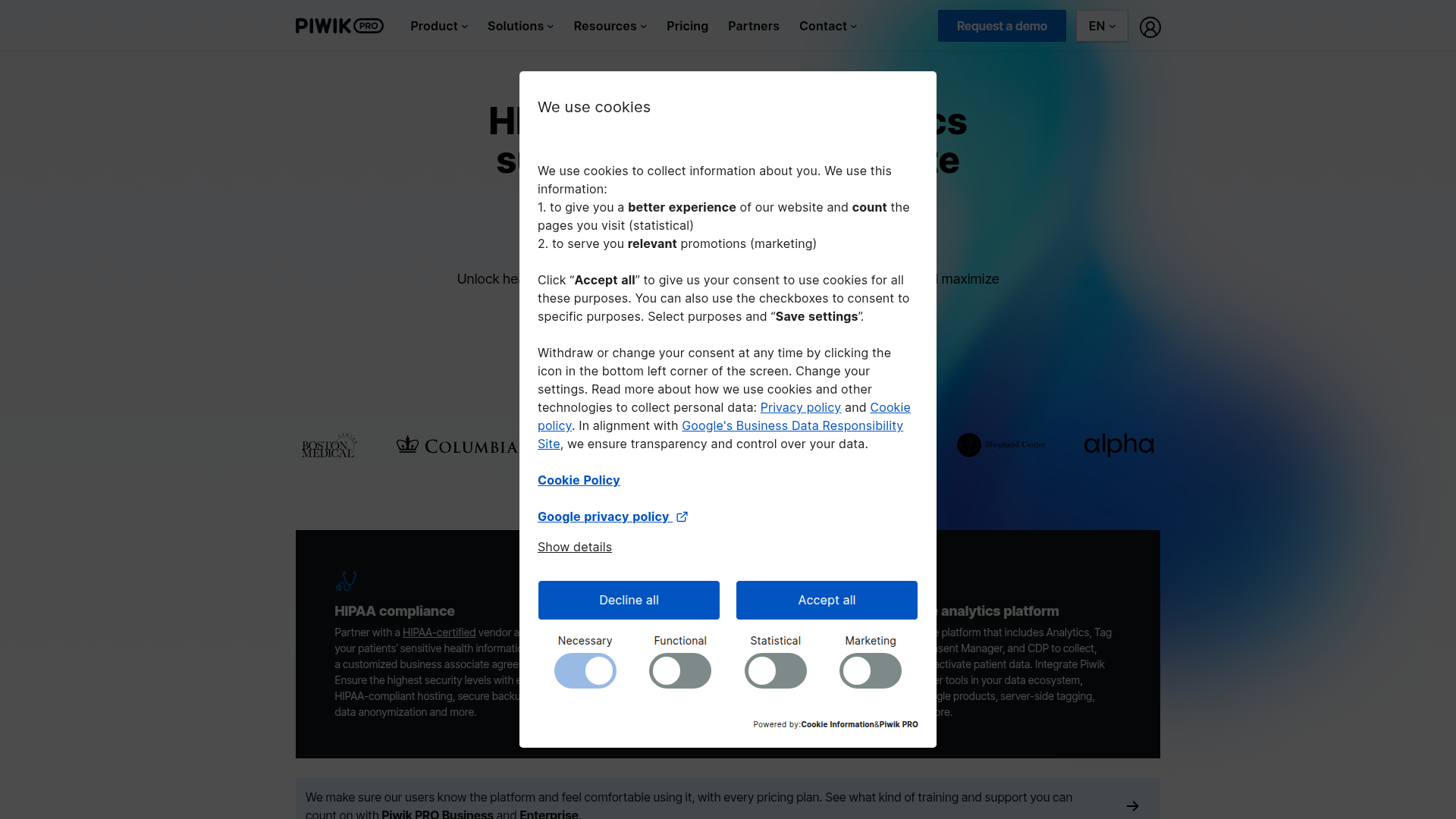
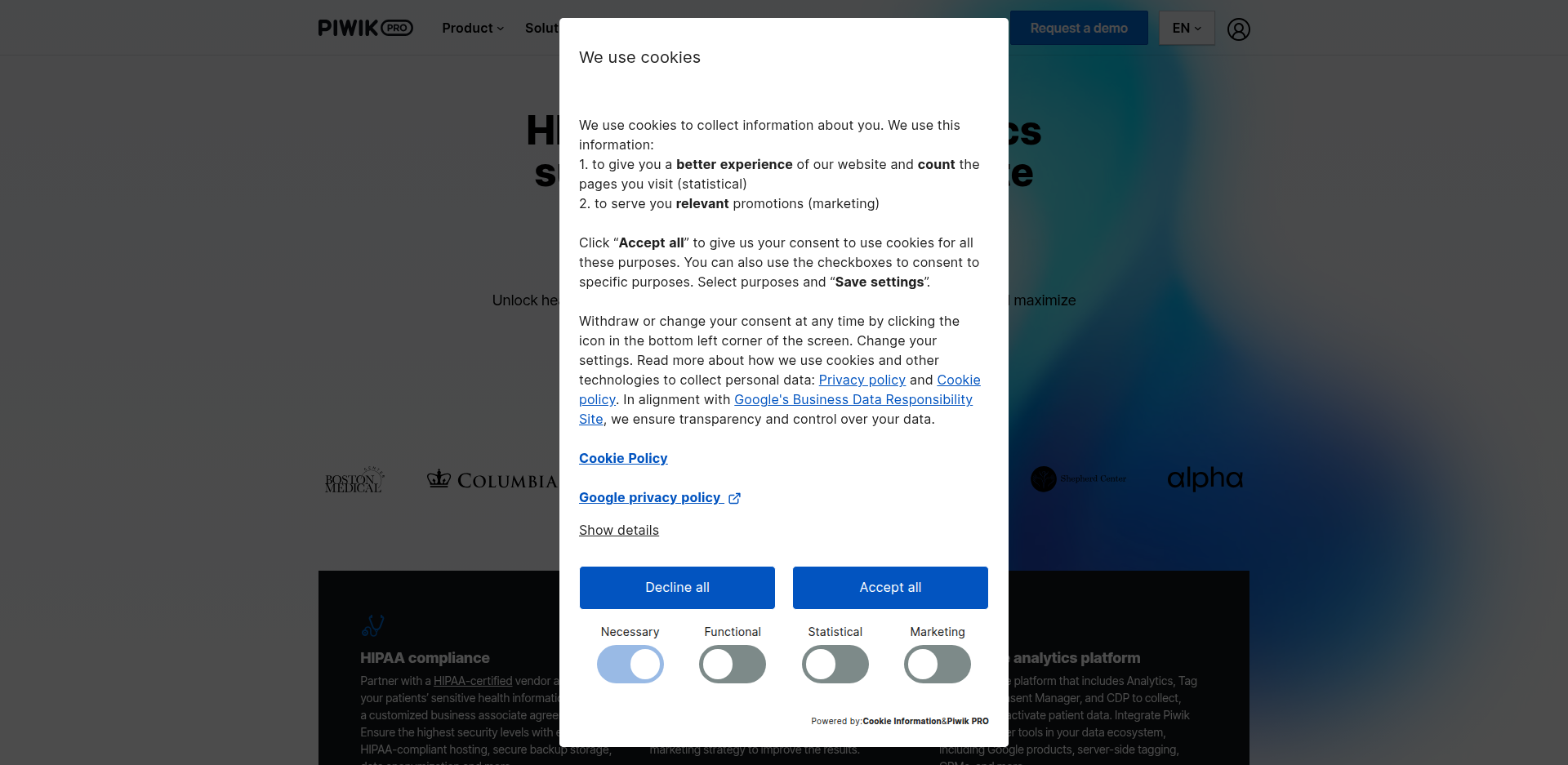
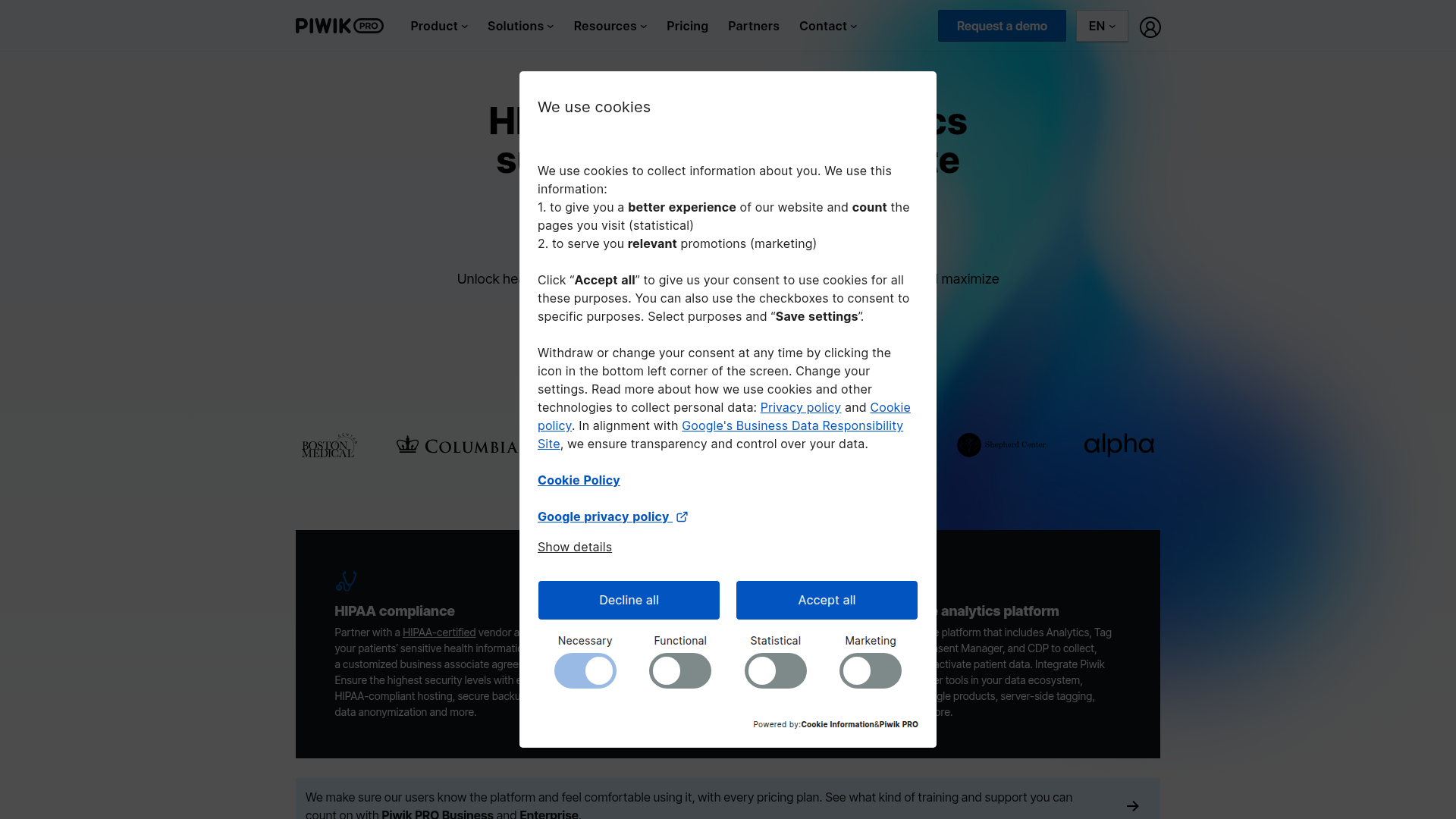

On the cookie banner removal test, Playwright and Selenium both scored 45.8% (11/24), jvppeteer scored 43.5% (10/23; 1 N/A), and Screenshot Scout scored 95.8% (23/24).
The libraries relied on uBlock Origin Lite alone. It reliably hides CMP-style consent banners (the common third-party consent tools), but not the custom cookie-consent boxes many sites build themselves. To get closer to Screenshot Scout's score, you would need to write a custom JavaScript clicker that finds each banner and clicks its Accept, Deny, or Close button. Note that some cookie banners live inside the shadow DOM, which makes them difficult to click with JavaScript.
Ad removal
Below is the same page captured by all 4 tools (click to open in a new tab), with the ads removed in every case.
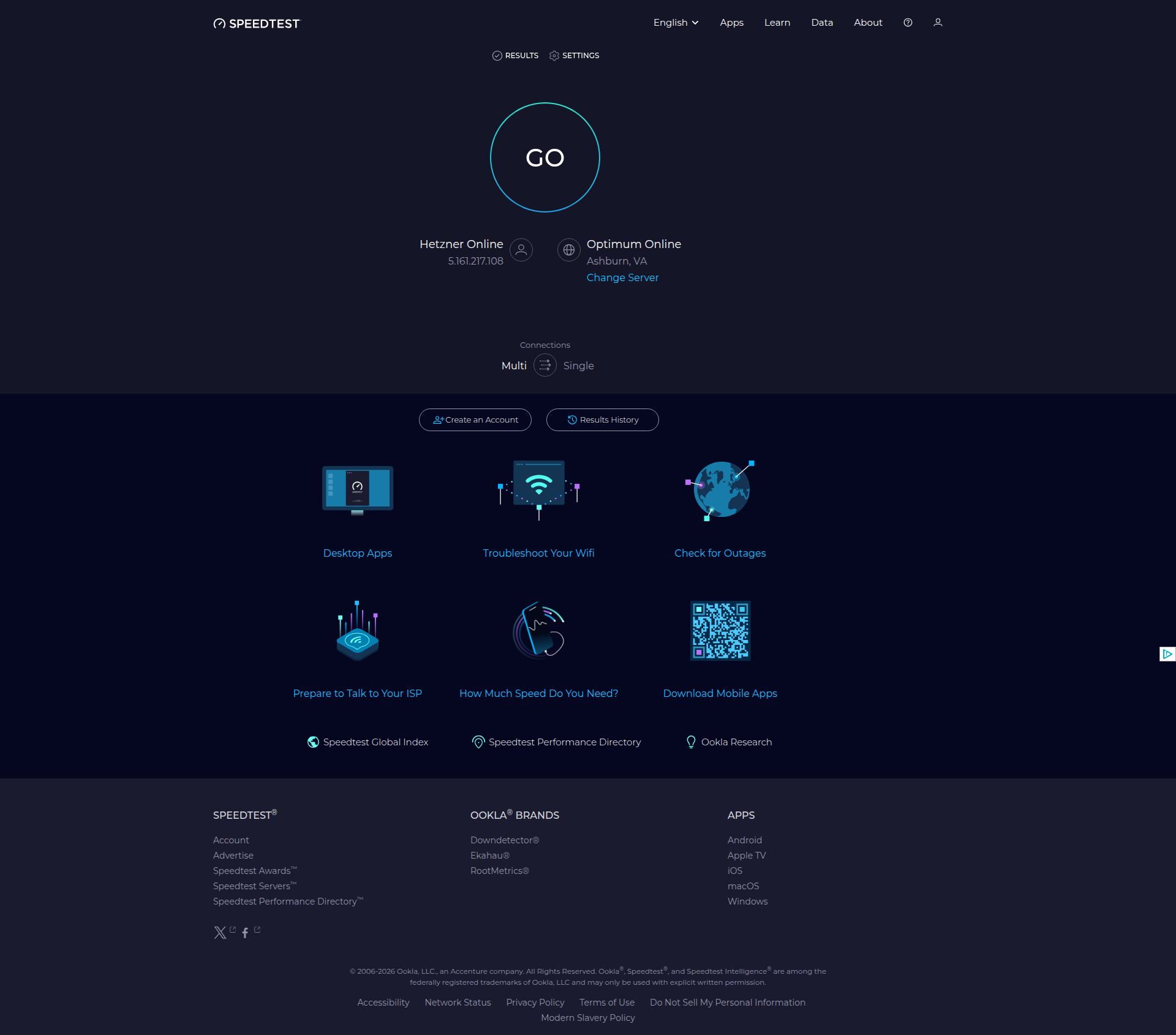
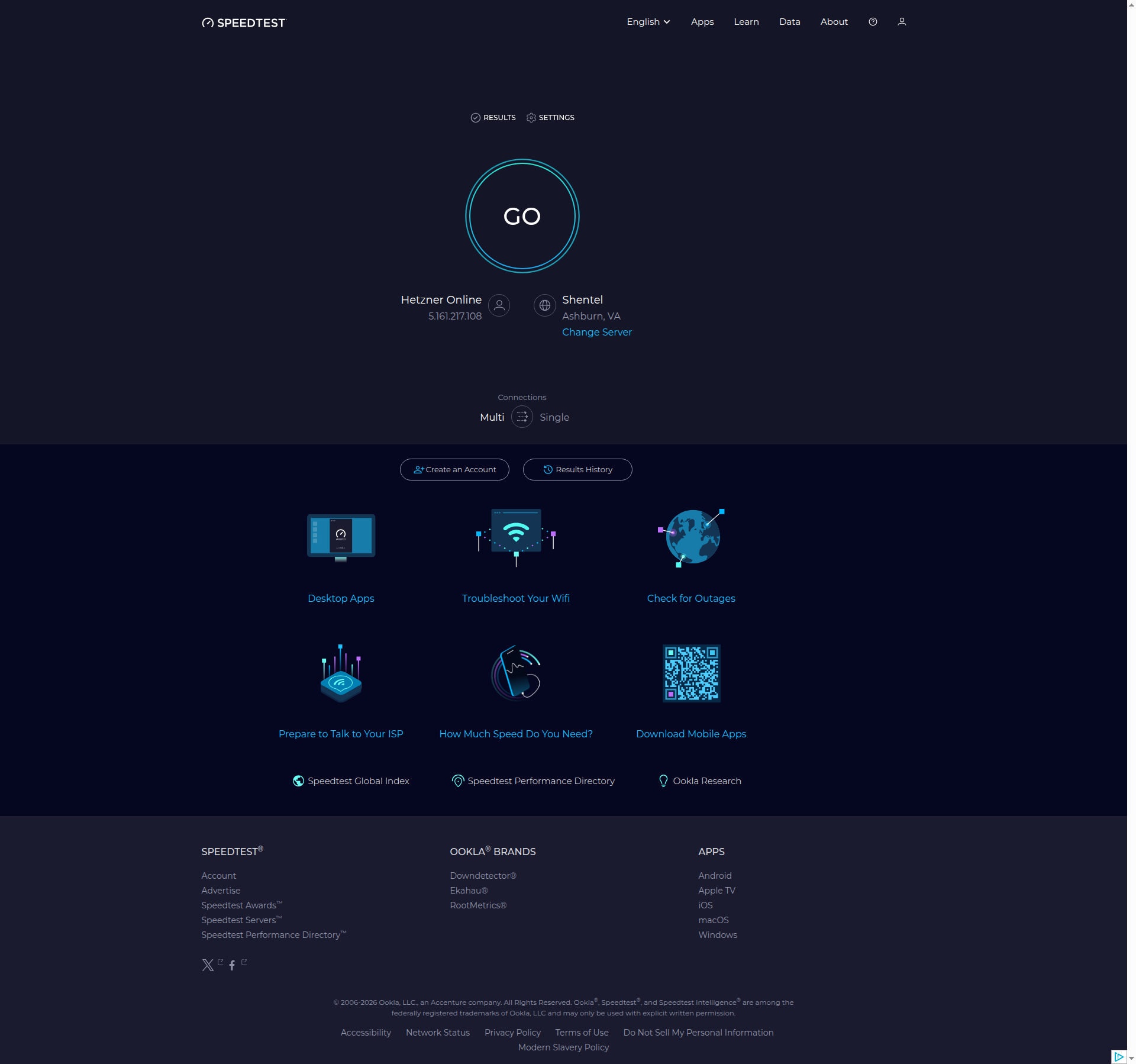
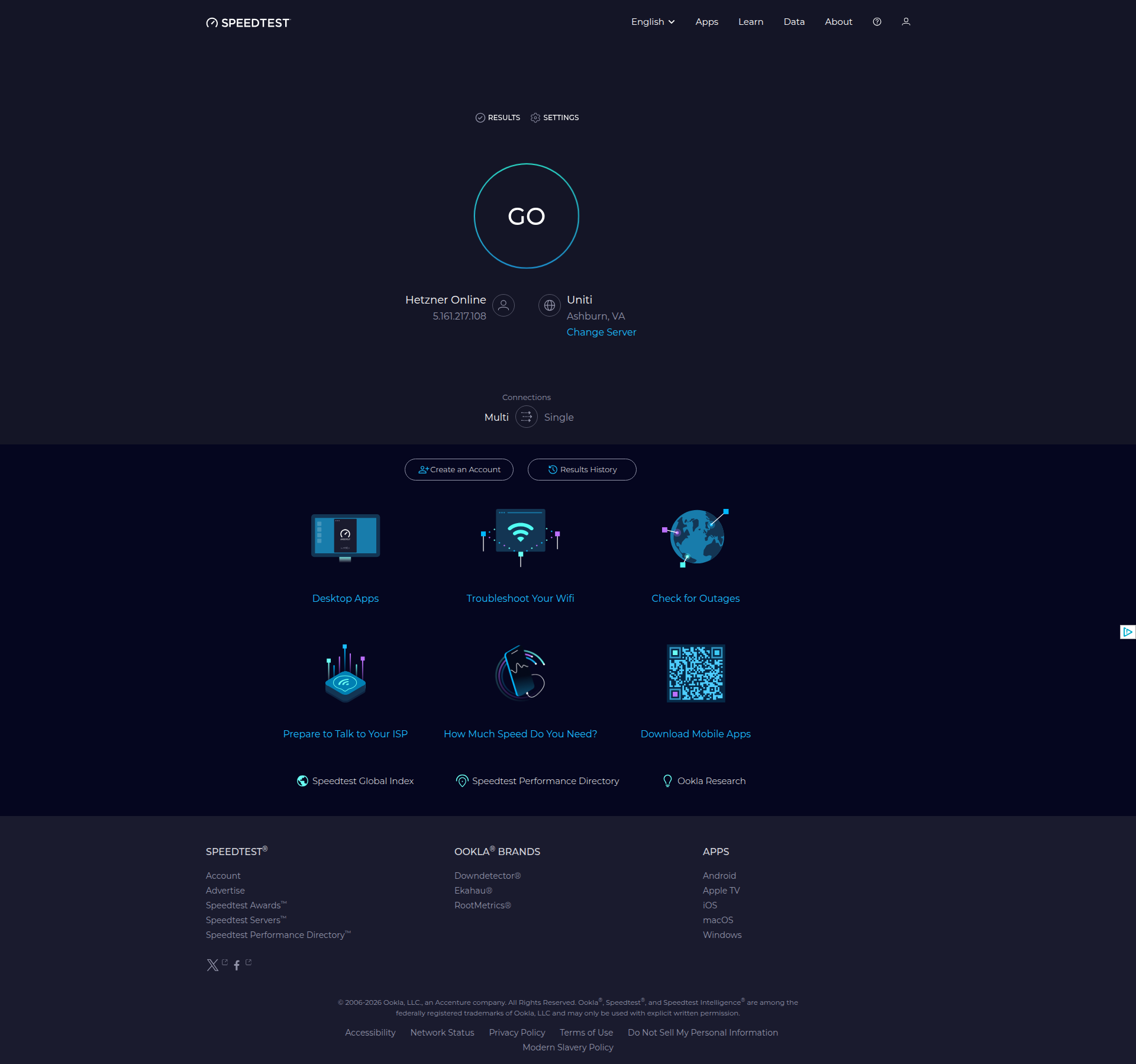
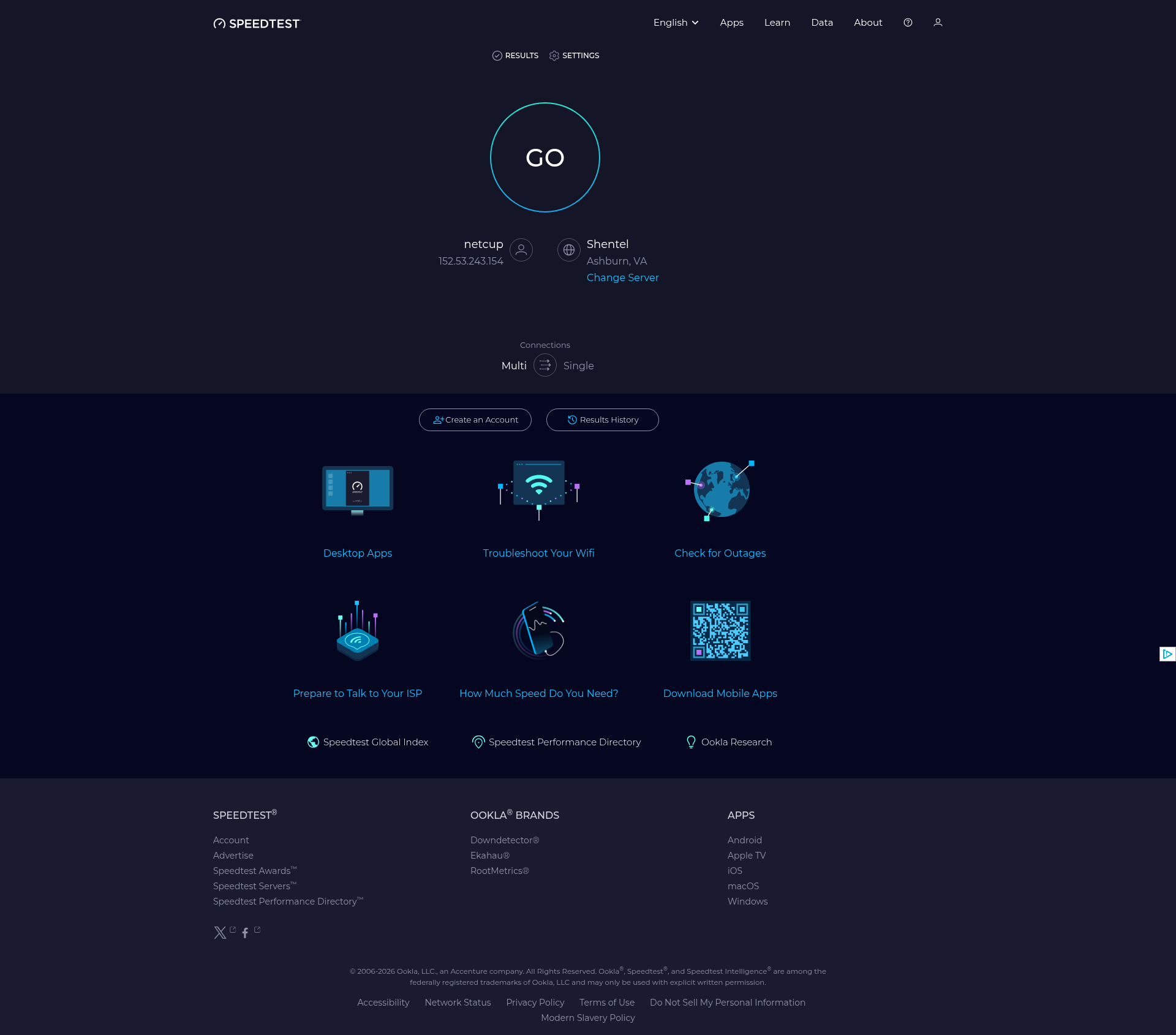
All 4 tools scored 100% and removed the ads on the page. The three libraries all use uBlock Origin Lite for this, so it's no surprise their scores are identical.
So if all you need is to remove ads, there's no need for a screenshot API. Any of the libraries will do.
A few things are worth noting here, though:
- Playwright's and jvppeteer's scores were calculated on a slightly smaller set (19 vs 20), as one screenshot each couldn't be graded.
- The ad's container doesn't always collapse when the ad is removed, so some screenshots show a blank gap where the ad used to sit. This varies from site to site.
- Only ad-network ads were removed. At least some native ads, served directly by the site rather than through an ad network, remained visible. So a 100% score here means the ad-network ads were cleared, not that every promotional element on the page was gone.
Full-page capture
Below is the same page captured full-page by all 4 tools (click to open in a new tab). On this particular page, Selenium and Screenshot Scout captured it correctly, while Playwright and jvppeteer missed the lazy-loaded images below the fold.
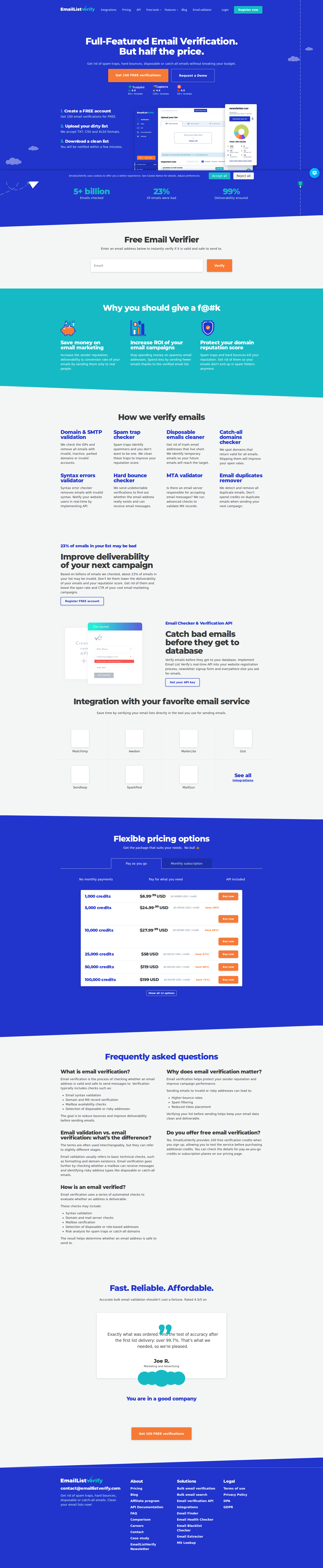
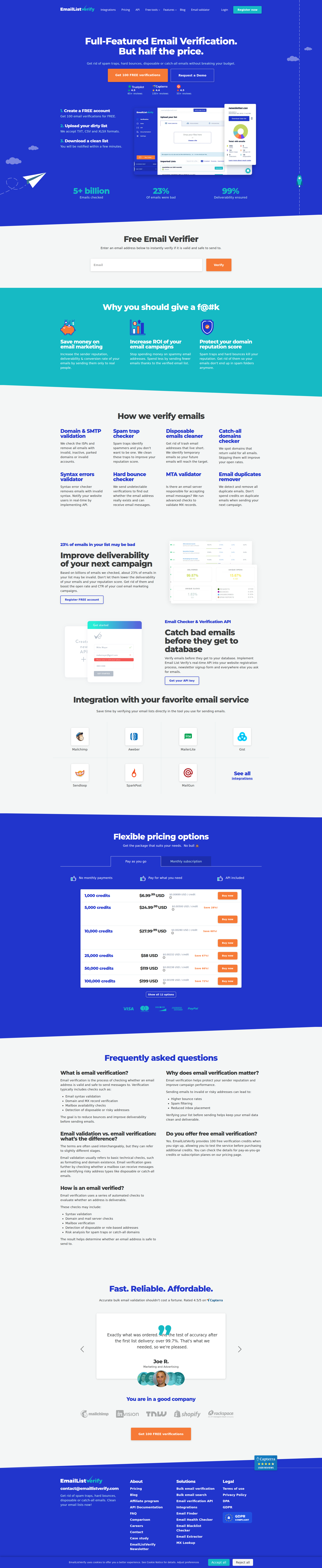
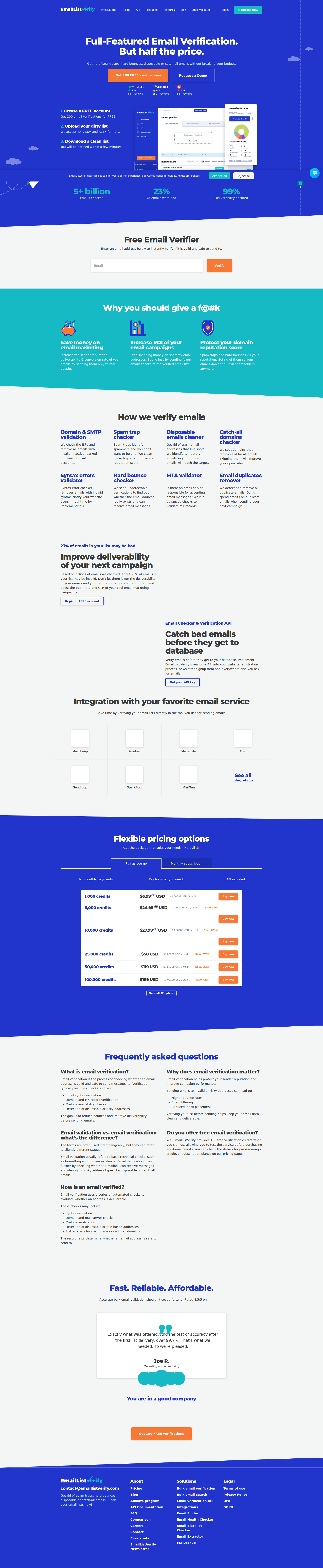
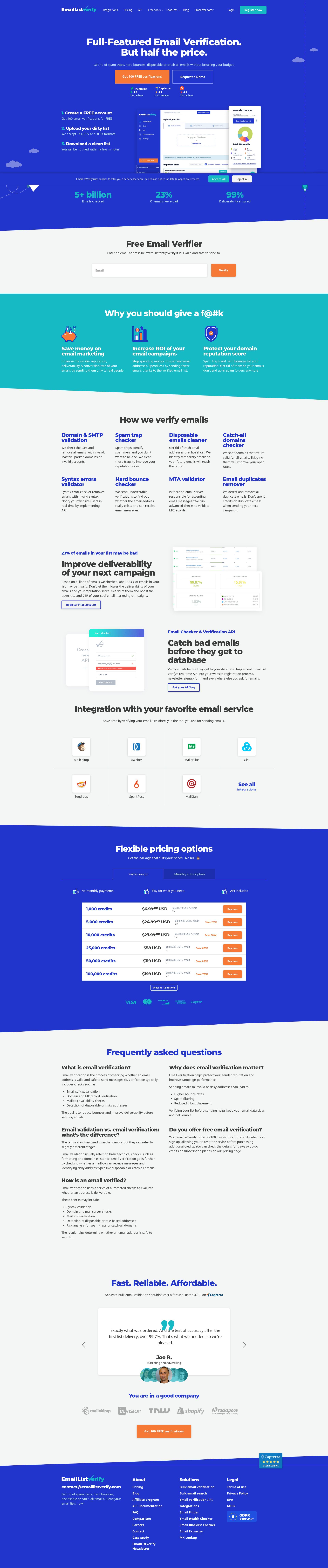
On the full-page capture test, Playwright scored 0% (0/20), Selenium scored 78.9% (15/19; 1 N/A), jvppeteer scored 0% (0/20), and Screenshot Scout scored 50% (10/20).
This is the one benchmark where a library outscored Screenshot Scout. Here's what happened with each tool, and how to fix it:
- Playwright: it doesn't scroll before capturing, so every screenshot was missing lazy-loaded images. There are two ways to fix it. The first is scroll-and-stitch: scroll the page top to bottom, capture each viewport, then stitch the captures together. The second is the measure-and-resize workaround from the Selenium section, though I didn't test that one with Playwright.
- Selenium: the best of the group at 78.9%, thanks to the two-pass measure-and-resize shown earlier. Most of the failures were minor: a couple of screenshots had a thin blank band below the footer, and one was missing the footer's social buttons. The exception was a page where a number of lazy-loaded images were missing.
- jvppeteer: the same as Playwright, missing lazy-loaded images across the board, hence the 0%. The same two fixes apply.
- Screenshot Scout: 50%, ahead of the two browser-native options at 0%, but behind Selenium's workaround. The reason for each failed screenshot is recorded in the
reliability_raw.csvfile inside the results.zip that accompanies this article, and they were more varied than for the other tools: a few were missing lazy-loaded content, one had a distorted header menu, and one had a blank band near the footer. Screenshot Scout uses scroll-and-stitch (scroll top to bottom, capture each viewport, then stitch the captures together), which avoids the missing-image problem but introduces one of its own: occasional distortion where the captures are joined.
It's worth noting that despite the imperfect scores, when I looked at the actual Selenium and Screenshot Scout screenshots, the large majority would be acceptable for most production use-cases. Most of Selenium's failures were small, and Screenshot Scout's seam distortion was rare, with the remaining issues minor.
Bot protection bypass
Below is a bot-protected page captured by all 4 tools (click to open in a new tab). The three libraries were all blocked, while Screenshot Scout captured the actual page.
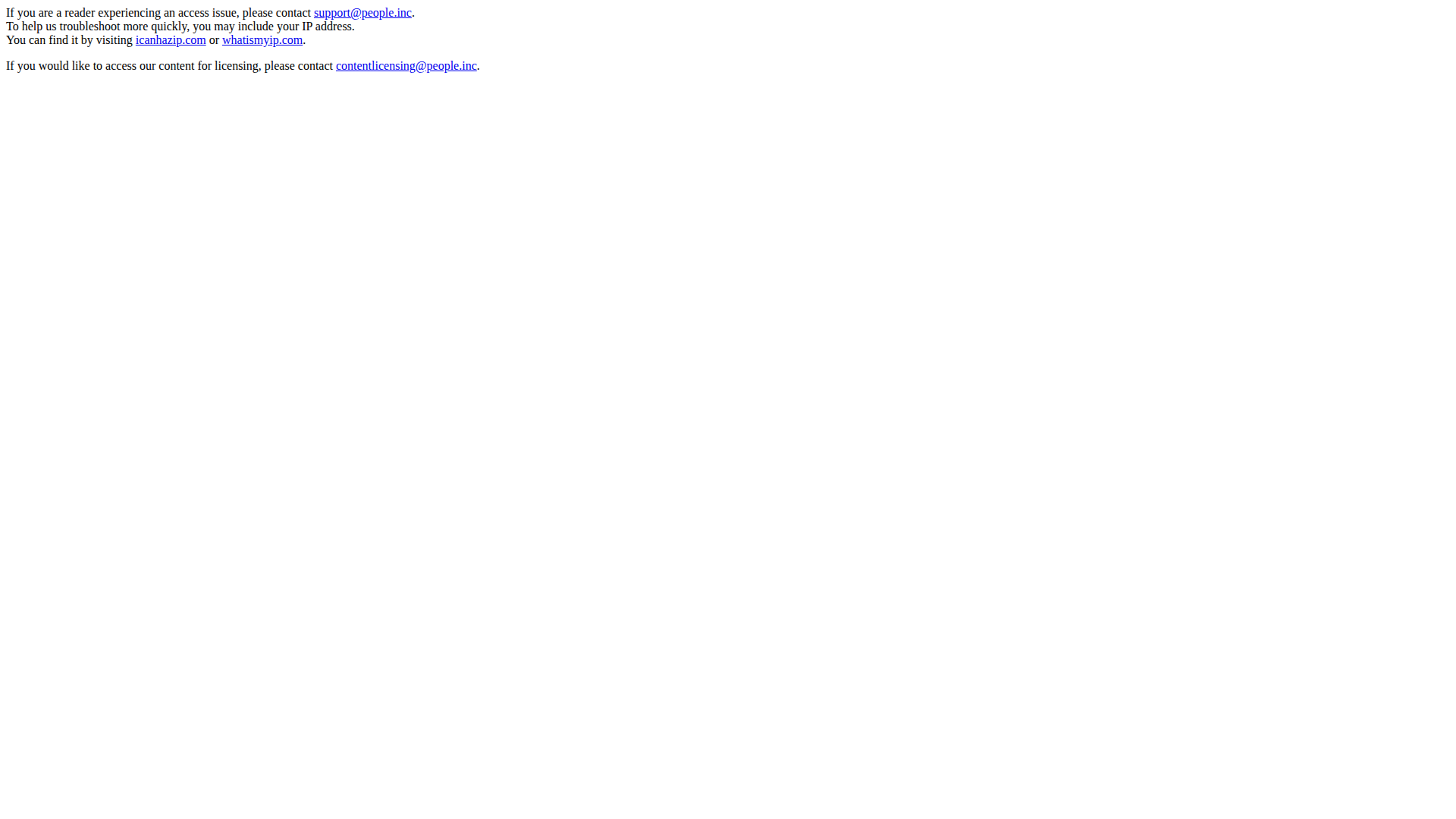
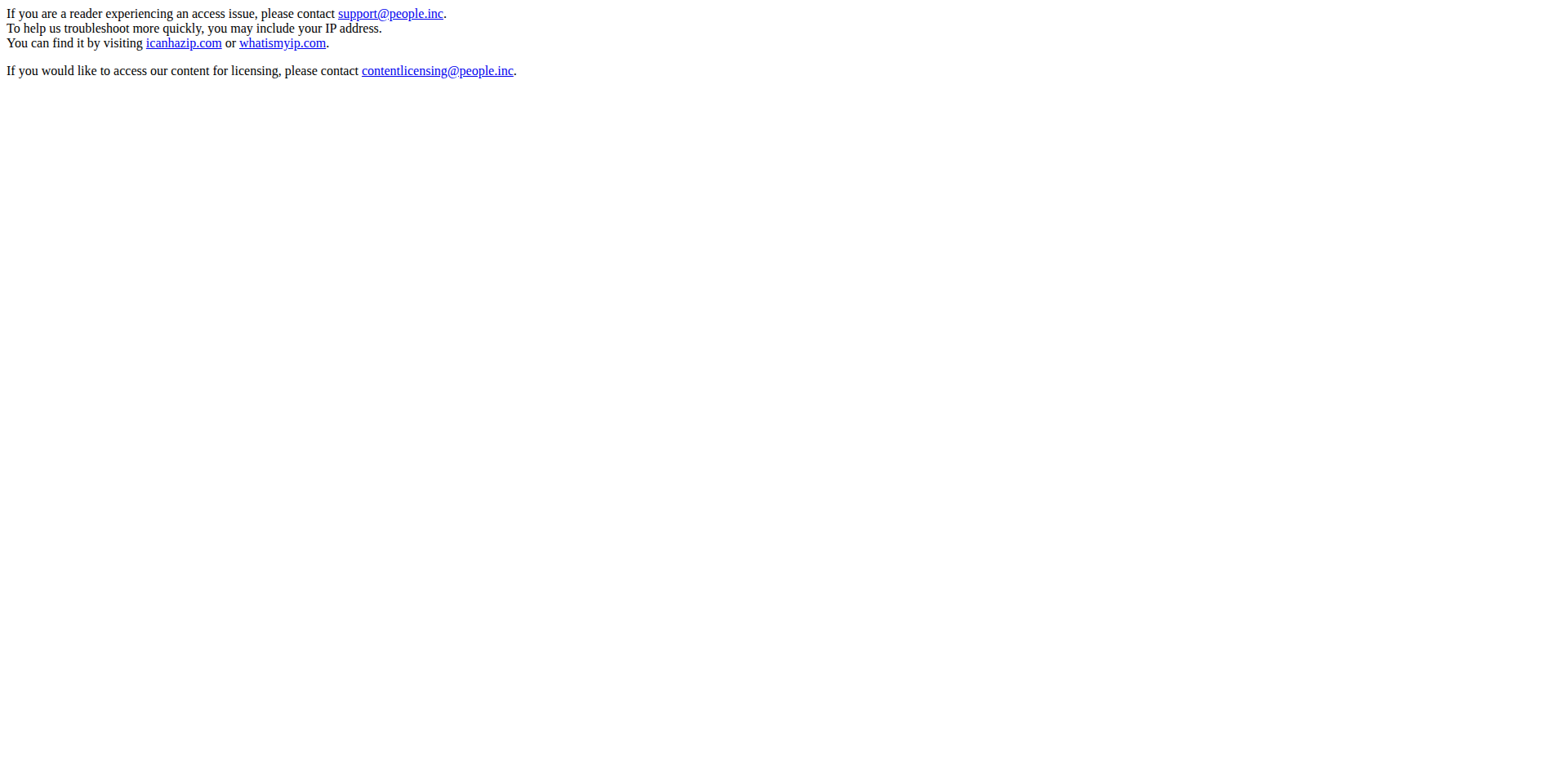
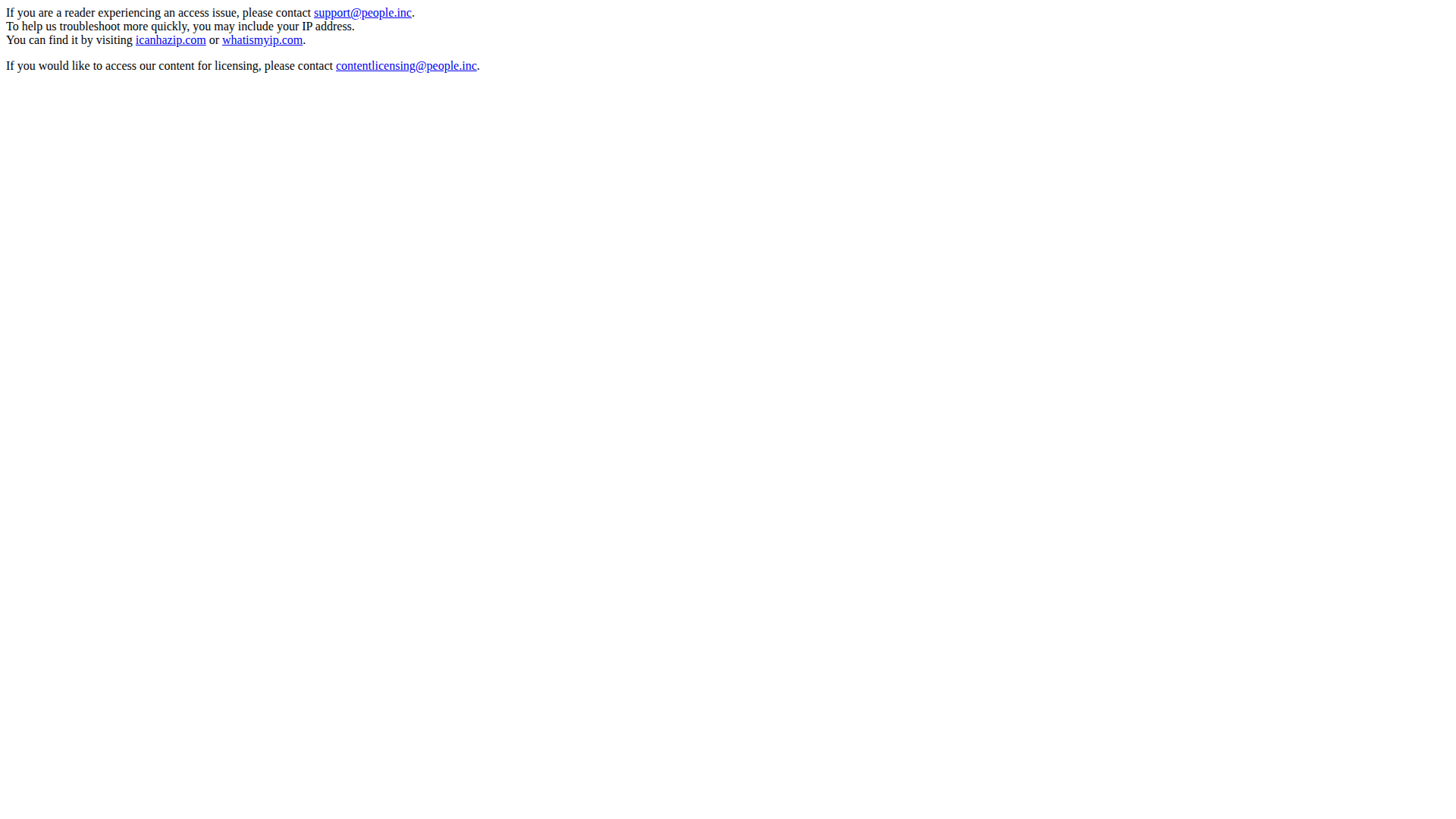
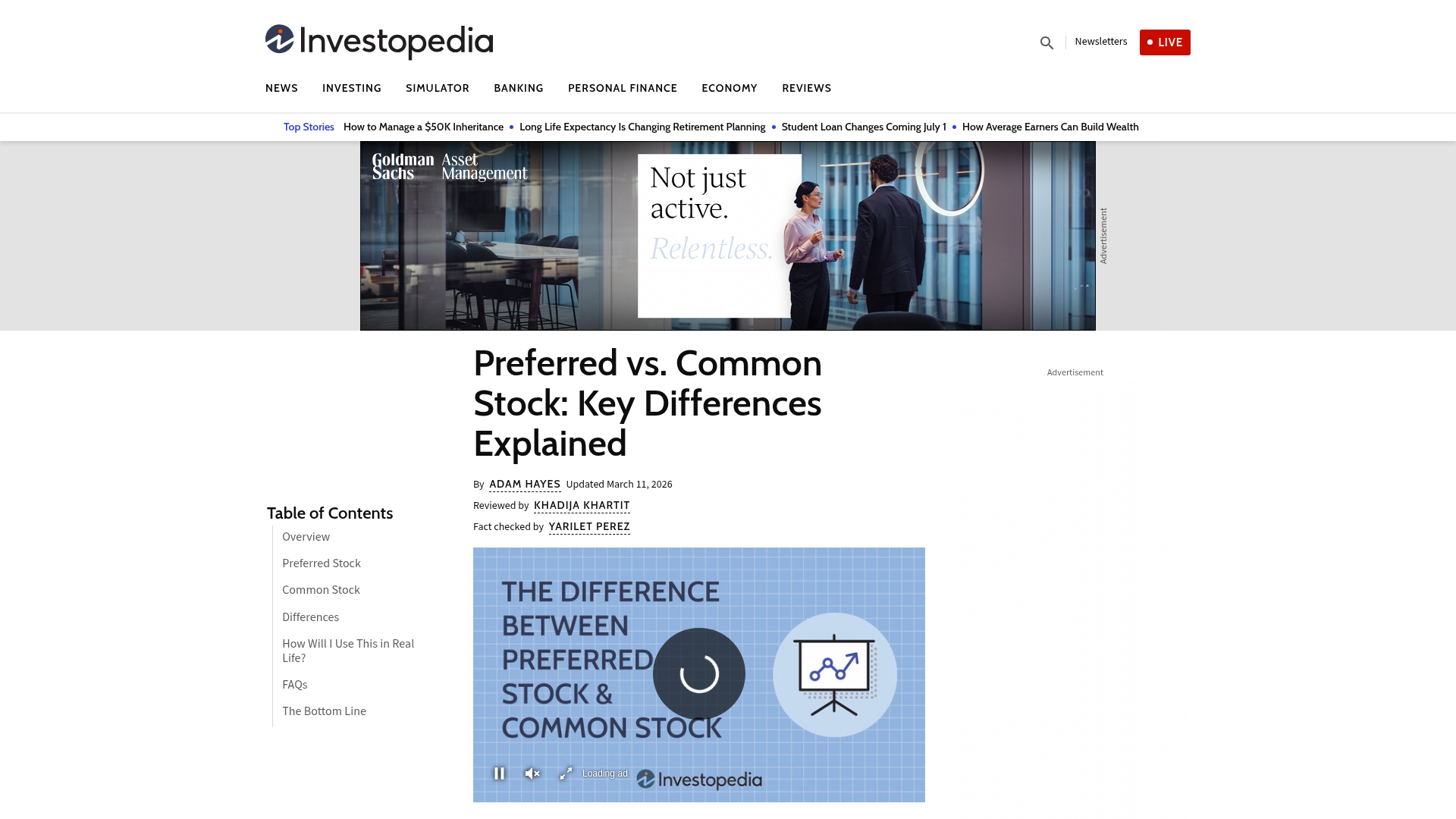
On the bot protection bypass test, Playwright, Selenium, and jvppeteer all scored 11.1% (2/18; 2 N/A), while Screenshot Scout scored 89.5% (17/19; 1 N/A).
Playwright's result surprised me, since it was the one library we ran with a stealth plugin, playwright-stealth-4j. So I decided to check by hand whether the plugin even did what it's supposed to. I captured bot.sannysoft.com, a client-side fingerprint test page, with Playwright twice, once bare and once with the plugin.
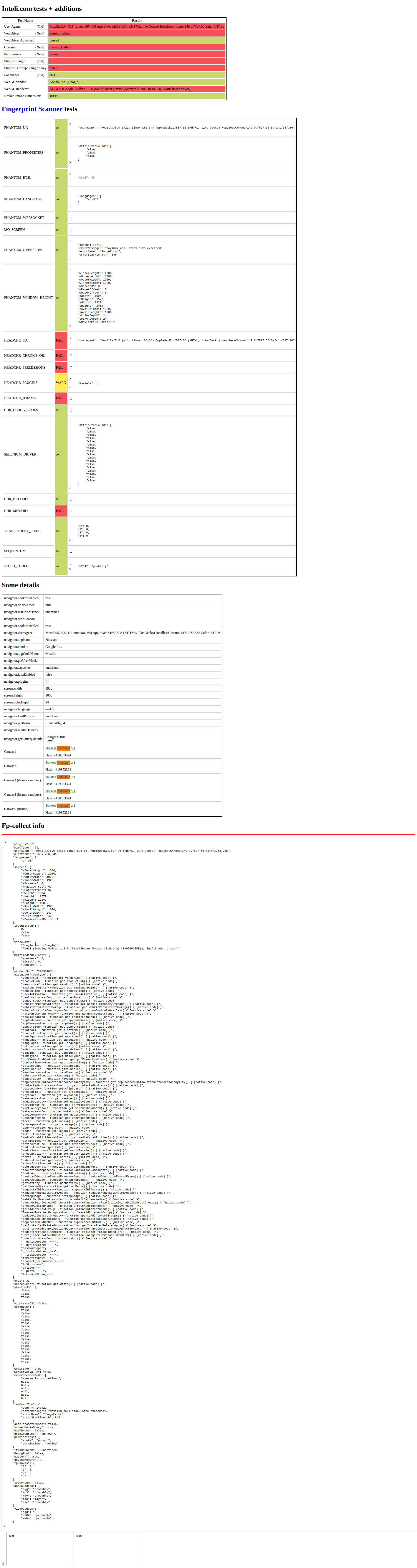
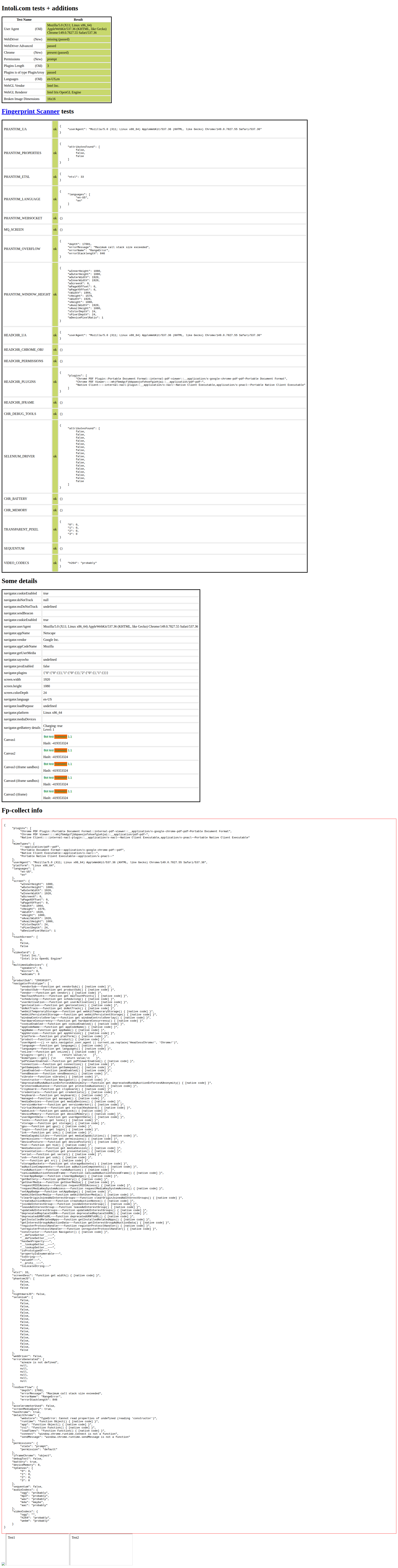
Without the plugin, the page flags the automation: the User Agent contains HeadlessChrome, navigator.webdriver is present, window.chrome is missing, and the plugins list is empty, several rows in red. With the plugin, those same checks turn green: the User Agent is plain Chrome, webdriver is hidden, window.chrome is back, and the plugins list is populated. So on the fingerprint test, the plugin clearly does its job.
None of that showed up in the benchmark, though. Despite passing the fingerprint test, the plugin changed nothing: Playwright with it scored the same 11.1% as Selenium and jvppeteer with no stealth. Clearing a static fingerprint test is evidently not the same thing as getting past production bot protection. I can't say for certain which signal the real sites used to catch it, so I'll leave that as an open observation rather than guess.
One caveat on the bot protection results as a whole: datacenter IPs affect them, and websites change their bot protection over time, so treat this benchmark as a point-in-time snapshot rather than a fixed ranking.
Summary
You could build most of this yourself. A cookie-banner clicker, a scroll-and-stitch routine for full-page capture, your own stealth setup: none of it is hard for a decent developer. The point was never that DIY is impossible. It's what it costs you to write and to keep working. That maintenance is exactly what a managed API takes off your plate.
The rates above are a snapshot, and they don't hold. Sites change their markup and their bot protection, browsers update, and the off-the-shelf filter and stealth lists fall behind, so DIY blocking and stealth numbers drift down unless you keep at them. With a screenshot API, that upkeep is handled for you.
Should you use Playwright, Selenium, jvppeteer, or Screenshot Scout?
Deciding between Playwright, Selenium, jvppeteer, or Screenshot Scout depends on your specific use-case. Use the decision matrix below:
- Use Playwright if you want the best all-around library for screenshots in Java. It has the cleanest, most modern API of the three, it's actively maintained, and it was the best-balanced performer in our benchmarks (the lightest on RAM, the lowest on CPU, and close to the fastest). On the downside, its built-in full-page capture misses lazy-loaded images, and cookie banners and CAPTCHAs aren't always handled, so fixing any of these takes some extra code.
- Use Selenium if you're already on a Selenium/WebDriver stack. The trade-offs are more verbose code and no working off-the-shelf stealth package on a modern JDK.
- Use jvppeteer if you specifically want a Puppeteer-style API in pure Java with a managed Chromium and no Node.js. Note, though, that it was the heaviest on RAM and CPU in our tests, and it has the same missing-lazy-loaded-images issue with full-page capture and the same weak bot protection as the others.
- Use Screenshot Scout if you need production-grade quality and scale. It's better than the libraries at removing cookie banners and avoiding CAPTCHAs, it offloads rendering so your own machine does almost no work in a warm service, and it needs no maintenance on your side. On the cons side, it's slower per screenshot, it may cost money depending on your volume, and the two-pass measure-and-resize workaround (run with Selenium) outscored it on full-page capture in this particular run.
Remember that you aren't only choosing between the tools. You're choosing between running a headless browser yourself and using a screenshot API.
Running a headless browser yourself means you need enough RAM and CPU to support it. It also means writing any functionality your tool doesn't provide (something needed more often in Java than in Node.js or PHP), and keeping the tool and its off-the-shelf packages up to date, since their reliability degrades if you don't.
With a screenshot API, all of this is handled for you, but it may cost money depending on your volume.
Frequently asked questions
Below are answers to common questions about taking website screenshots in Java.
What's the best way to take a website screenshot in Java?
For most cases, use Playwright. It's free, actively maintained, and the lightest library on RAM in our benchmarks. If you need scale, reliable cookie-banner removal, or bot protection bypass, use a screenshot API like Screenshot Scout instead.
Should I use Playwright, Selenium, or jvppeteer in Java?
Playwright is the best default: the lightest library on RAM and the simplest API. Pick Selenium if you're already using Selenium or the wider WebDriver ecosystem. jvppeteer suits teams who want the Puppeteer API, though it was the heaviest on RAM and CPU.
How do I take a full-page screenshot in Java?
Playwright and jvppeteer have a built-in full-page flag, but it misses lazy-loaded images. Selenium on Chrome has no native option; the two-pass measure-and-resize technique worked best in our tests. If you're using a screenshot API, it usually has a full-page option that captures the whole page instead of the viewport.
Why is my Java screenshot missing images?
Usually it's lazy-loaded images. On a viewport screenshot, they hadn't finished loading yet; on a full-page screenshot, they never started, because they never came into view. For a viewport screenshot, wait for networkidle2 instead of the load event (if your tool supports it), or add a short delay before capturing. For a full-page screenshot, use measure-and-resize (enlarge the viewport to the full page height) or scroll-and-stitch (scroll down and capture as you go); both bring the below-the-fold images into view so they load. If you don't want to fix this yourself, use Screenshot Scout (or another screenshot API), where both cases are handled for you.
How do I avoid bot blocks or CAPTCHAs when screenshotting in Java?
In our tests, all three libraries were blocked at about the same rate (11.1%), including the one running a stealth plugin. That plugin passed a static fingerprint test but made no difference against real sites. Residential proxies, or a commercial unlocker like Bright Data's Web Unlocker, tend to help more than stealth alone, though there's no guaranteed way through.
Is there a pure-Java way to screenshot a website with no browser?
Not for real websites. Rendering modern HTML, CSS, and JavaScript needs a browser engine, so you either drive one yourself (Playwright, Selenium, or jvppeteer) or call a screenshot API that runs one for you.
Can Java take a screenshot of the screen, not a webpage?
Yes, but that's a different task. Desktop screen capture uses java.awt.Robot, not a browser. This guide is about capturing webpages.