To take a screenshot in Python with Playwright, first install the Python package and Chromium browser binary:
python -m pip install playwright
python -m playwright install chromium
Then take a screenshot:
from playwright.sync_api import sync_playwright


url = "https://screenshotscout.com/"

with sync_playwright() as p:
    browser = p.chromium.launch()
    page = browser.new_page(viewport={"width": 1920, "height": 1080})
    page.goto(url)
    page.screenshot(path="screenshot.png")
    browser.close()
The code snippet above produces a viewport-sized screenshot of the URL you specify and saves it as screenshot.png on your local disk.
| Tool | Performance | Reliability | Setup / DX | Cost | Best for |
|---|---|---|---|---|---|
| Playwright | ★★★★☆ | ★★★☆☆ | ★★★★☆ | Free | Most DIY webpage screenshots |
| Selenium | ★★★☆☆ | ★★☆☆☆ | ★★★☆☆ | Free | When already on Selenium |
| Screenshot Scout (screenshot API) | Offloaded to the API provider's infrastructure | ★★★★☆ | ★★★★★ | Free / $ per use | Production, scale, reliability |
Whenever choosing between a browser automation framework and a screenshot API for your specific use-case, use the table above. In the table, the Performance and Reliability columns are based on our benchmark testing of the tools, while the Setup / DX column is my opinion based on experience working with the tools.
The two ways to take webpage screenshots in Python
Whenever you need to take a webpage screenshot in Python, you need to choose between using a browser automation framework (Playwright, Selenium) and a screenshot API (I suggest using Screenshot Scout because this is our main product, but you can use any other screenshot API, as they all share the same pros & cons when compared to browser automation frameworks).
If you decide to go with a browser automation framework (Playwright/Selenium), you will essentially be running a headless Chromium (or other browser) instance under the hood to navigate to webpages and take screenshots, which is resource-heavy and can demand hundreds of megabytes of RAM and roughly a full CPU core busy for the duration of each screenshot (we benchmarked all these, please refer to the benchmarks section below).
You should also understand that these browser automation frameworks are not screenshot frameworks, which means they don't have the built-in functionality for dealing with CAPTCHAs, cookie banners, ads, chat widgets, etc. You will need to use third-party, ready-made solutions to deal with these. You will also have to do some (or a lot of) extra coding depending on how reliably you want these to be dealt with.
When going with the screenshot API option, screenshot rendering is completely offloaded to the API's infrastructure and requires few resources on your end. CAPTCHAs, cookie banners, ads, chat widgets, the full-page issues that you often experience with browser automation frameworks, are all handled for you.
Browser automation frameworks are free to use, unless of course you choose to run screenshot rendering on a separate infrastructure. Screenshot APIs can either be free or paid, depending on the number of screenshots you need monthly.
Playwright
If you decide to go with a browser automation framework, Playwright is our default choice.
It's actively maintained, has the built-in functionality to capture full-page screenshots, and has multiple out-of-the-box solutions to reduce CAPTCHAs, block cookie banners, ads, and chat widgets.
Based on our benchmarks, it's faster than all the other options that we tested, and has low requirements on your local resources compared to Selenium.
Setup
If you skipped the quick example above, install Playwright before running the examples in this section:
python -m pip install playwright
python -m playwright install chromium
Viewport screenshot
Here's how you take a regular, viewport-sized screenshot of a webpage in Python using Playwright:
from playwright.sync_api import sync_playwright


url = "https://screenshotscout.com/"

with sync_playwright() as p:
    browser = p.chromium.launch()
    page = browser.new_page(viewport={"width": 1920, "height": 1080})
    page.goto(url)
    page.screenshot(path="screenshot.png")
    browser.close()
You specify the URL you want to capture, the viewport size (basically, the size of the browser window), and the output file name with extension. The file is then saved to your disk with the width and height equaling the specified viewport width and height. If you need to change the output image's width and height, you must save the image to the memory buffer first, resize it, then save the resized image to the disk.
Full-page screenshot
Here's how you take a full-page screenshot of a webpage in Python using Playwright:
from playwright.sync_api import sync_playwright


url = "https://screenshotscout.com/"

with sync_playwright() as p:
    browser = p.chromium.launch()
    page = browser.new_page(viewport={"width": 1920, "height": 1080})
    page.goto(url)
    page.screenshot(path="full_page_screenshot.png", full_page=True)
    browser.close()
To capture a full-page screenshot, specify full_page=True when calling the screenshot method.
Note though that although Playwright does have the built-in functionality to capture full-page screenshots, it doesn't scroll the page down top to bottom before capturing the screenshot. This results in a lot of lazy-loaded images missing in the resulting screenshot.
In our benchmark testing of full-page screenshots, Playwright scored 0%, with 20 out of 20 webpages tested missing at least some lazy-loaded images. To fix that, you will need to programmatically scroll the page top to bottom to trigger all lazy-loaded images, screenshot the visible viewport at every scroll, then stitch all the viewport-sized screenshots together. This is the exact method most screenshot APIs use to address the full-page issue of browser automation frameworks.
Screenshot a specific element
Here's how you screenshot an element on the page, and not the whole page:
from playwright.sync_api import sync_playwright


url = "https://screenshotscout.com/"
selector = "#pricing"

with sync_playwright() as p:
    browser = p.chromium.launch()
    page = browser.new_page(viewport={"width": 1920, "height": 1080})
    page.goto(url)
    page.locator(selector).screenshot(path="element_screenshot.png")
    browser.close()
You first locate the CSS selector you need to capture, then call the screenshot method on it.
Selenium
Selenium is another browser automation framework, similar to Playwright.
Selenium can control browsers such as Chrome/Chromium, Microsoft Edge, Firefox, and Safari through WebDriver, a W3C-standard browser automation protocol.
Unlike Playwright, it doesn't have built-in functionality to capture full-page screenshots (although there's a common fix with its pros and cons, more on this later).
It also performed the worst on the ability to avoid bot protective measures on websites, although this says more about the out-of-the-box solution used, not the automation framework.
Compared to Playwright, Selenium was also the heaviest tool we tested, with around 900MB of peak RAM per screenshot.
Considering the benchmark scores and also my experience working with Selenium creating the examples/benchmark project accompanying this article, I would suggest you use Selenium only when you already use Selenium in your project. Otherwise, use Playwright instead.
Setup
Before running the Selenium examples in this section, install Selenium and make sure Chrome or Chromium is installed:
python -m pip install seleniumModern Selenium uses Selenium Manager to find or download the matching browser driver automatically, so you usually do not need to install ChromeDriver manually.
Viewport screenshot
Here's how you take a viewport-sized (ish) screenshot in Python using Selenium:
from selenium import webdriver


url = "https://screenshotscout.com/"

options = webdriver.ChromeOptions()
options.add_argument("--headless=new")
options.add_argument("--window-size=1920,1080")

driver = webdriver.Chrome(options=options)
try:
    driver.get(url)
    driver.save_screenshot("screenshot.png")
finally:
    driver.quit()
Note that technically, you specify not the viewport size, but the window size. The code snippet above produces a screenshot with these dimensions: 1904x933px.
Full-page screenshot
Here's how you take a full-page screenshot in Python using Selenium:
from selenium import webdriver


url = "https://screenshotscout.com/"

options = webdriver.ChromeOptions()
options.add_argument("--headless=new")
options.add_argument("--window-size=1920,1080")

driver = webdriver.Chrome(options=options)
try:
    driver.get(url)
    metrics = driver.execute_cdp_cmd("Page.getLayoutMetrics", {})
    content_size = metrics["contentSize"]
    driver.set_window_size(content_size["width"], content_size["height"])
    driver.save_screenshot("full_page_screenshot.png")
finally:
    driver.quit()
Note that unlike Playwright, Selenium doesn't have built-in functionality for full-page screenshots. Instead, there's a standard, commonly accepted workaround: navigate to the page, measure the page's height via CDP, resize the window to the page's height, then capture the screenshot.
Because we resize the window height to the page's actual height, this triggers most lazy-loaded images on the page, which eliminates the issue you commonly see when taking screenshots with Playwright, where lazy-loaded images are absent from the full-page screenshots taken with the built-in full-page functionality (to be fair, you can apply the same technique in Playwright, although I would advise against it, more on this below).
There are a few downsides to this approach though:
- First, most screenshots end up with a cut-off footer. This could be happening because after we resize the window size, this triggers all lazy-loaded images on the page which makes the page taller than we measured just a moment ago, so we essentially screenshot only part of the page. As a result, Selenium scored only 5% on our full-page benchmark, with 19 screenshots of 20 experiencing either a cut-off footer (most cases) or an occasional lazy-loaded image missing (the minority of cases).
- Secondly, when developing Screenshot Scout, I was also considering this approach for taking full-page screenshots, as this seemed much easier than the scroll-and-stitch approach we eventually settled on. However, we noticed that when capturing very tall pages, usually as tall as 100,000 pixels or more, the Chromium instance would regularly crash.
Besides the commonly accepted workaround shown above, there's also a Python package called Selenium-Screenshot that uses the scroll-and-stitch method to capture full-page screenshots. I have no personal experience using this package, and I didn't use it for our examples or in our benchmarks, but reportedly, it has several issues:
- Visually torn or misaligned stitching.
- Repeated sticky/fixed elements, like headers, cookie banners, and more, that appear multiple times throughout the full-page screenshot, often in every viewport screenshot.
Consider trying both methods if you need to capture full-page screenshots in Python with Selenium. Depending on your specific use-case, one method might be more suitable than the other.
Screenshot a specific element
Here's how you screenshot a specific CSS selector in Python using Selenium:
from selenium import webdriver
from selenium.webdriver.common.by import By


url = "https://screenshotscout.com/"
selector = "#pricing"

options = webdriver.ChromeOptions()
options.add_argument("--headless=new")
options.add_argument("--window-size=1920,1080")

driver = webdriver.Chrome(options=options)
try:
    driver.get(url)
    element = driver.find_element(By.CSS_SELECTOR, selector)
    element.screenshot("element_screenshot.png")
finally:
    driver.quit()
Screenshot Scout (the screenshot API)
Screenshot Scout is a screenshot API. You send a GET/POST request to an endpoint, and in return you receive either the screenshot itself in the form of raw binary, or a JSON with the URL of the screenshot.
Screenshot Scout, just like any other screenshot API you can find, is built on top of a browser automation framework, and aims to fix the common issues you experience when using browser automation frameworks directly when taking screenshots.
Using Screenshot Scout has these advantages:
- Far lighter on your local resources: because screenshot rendering happens on Screenshot Scout's infrastructure, it requires significantly less RAM and CPU than running Playwright or Selenium locally does.
- Better at removing cookie banners: in our testing, Screenshot Scout was able to remove cookie banners far more consistently than Playwright or Selenium with an off-the-shelf cookie banner blocker.
- Better bot protection bypass: it also got past websites' bot protective measures more reliably than either framework.
- Better full-page capture: though no tool captured full-page screenshots reliably according to our testing, Screenshot Scout far more often produced correct full-page screenshots than the other tools. Note: we were strict when running this benchmark, and marked screenshots as failed at the slightest sign of discrepancy from the webpages themselves. Most of the failed screenshots were still usable for most production use-cases.
- Low maintenance: When using browser automation frameworks directly, reliability, specifically cookie banners, ads, and chat widgets removal rates, as well as bot protection bypass rates, can degrade if the browser automation framework and the used plugins/extensions are not upgraded timely. With screenshot APIs, this is all handled for you.
- Additional screenshot API-specific functionality: many screenshot APIs, including Screenshot Scout, provide additional functionality like caching, S3-compatible storage integration, geographical routing, etc.
There are some downsides to using Screenshot Scout as well:
- Slower per screenshot: a single API call is slower than when running Playwright or Selenium locally, mostly due to latency within Screenshot Scout's infrastructure and a different webpage navigation approach.
- Another dependency: you are adding an additional dependency to your project.
- May cost money: Depending on the number of screenshots you require monthly, the free plan might not be enough.
To sum this up, use Screenshot Scout when you need production scale and reliability. If not, use Playwright instead.
Viewport screenshot
Here's how you take a viewport-sized screenshot in Python using Screenshot Scout:
import os

import requests


access_key = os.environ["SCREENSHOT_SCOUT_ACCESS_KEY"]
url = "https://screenshotscout.com/"

response = requests.get(
    "https://api.screenshotscout.com/v1/capture",
    params={"access_key": access_key, "url": url},
)
response.raise_for_status()

with open("screenshot.png", "wb") as file:
    file.write(response.content)
You need to specify your access key (which you can get in your client panel with Screenshot Scout), the URL of the webpage, as well as any other screenshot option you need, then send a GET/POST request to the screenshot endpoint. In return you will receive either raw binary (the default), or a JSON with the screenshot URL (if response_type=json is specified).
Full-page screenshot
Here's how you take a full-page screenshot in Python using Screenshot Scout:
import os

import requests


access_key = os.environ["SCREENSHOT_SCOUT_ACCESS_KEY"]
url = "https://screenshotscout.com/"

response = requests.get(
    "https://api.screenshotscout.com/v1/capture",
    params={"access_key": access_key, "url": url, "full_page": "true"},
)
response.raise_for_status()

with open("full_page_screenshot.png", "wb") as file:
    file.write(response.content)
Screenshot a specific element
Here's how you take a screenshot of a specific CSS selector in Python using Screenshot Scout:
import os

import requests


access_key = os.environ["SCREENSHOT_SCOUT_ACCESS_KEY"]
url = "https://screenshotscout.com/"
selector = "#pricing"

response = requests.get(
    "https://api.screenshotscout.com/v1/capture",
    params={"access_key": access_key, "url": url, "selector": selector},
)
response.raise_for_status()

with open("element_screenshot.png", "wb") as file:
    file.write(response.content)
Benchmarks
To compare Playwright, Selenium, and Screenshot Scout, we decided to measure them on two groups of benchmarks: performance benchmarks (how much local resources are required to run the tool on your server/cloud instance) and reliability benchmarks (whether the output is usable or not).
For performance benchmarks, we measured these:
- Wall time (s): how long it takes to get the requested screenshot.
- Peak RAM (MB): how much RAM was required at peak when requesting a screenshot.
- CPU-seconds: how much local CPU time the benchmark process tree consumed.
- Avg cores used: how many CPU cores were busy on average when generating a screenshot. This is a calculated metric.
- CPU load (% of 2-core VPS): how busy the entire VPS was during screenshot rendering. This is a calculated metric.
For reliability benchmarks, we measured these:
- Cookie banner removal (%): the success rate of cookie banners removal.
- Ad removal (%): the success rate of ad removal.
- Full-page capture (%): the success rate of capturing full-page screenshots (no missing lazy-loaded images, cut-off footers, or other discrepancies from the page itself are expected).
- Bot protection bypass (%): the success rate of bypassing websites' bot protection measures. Important note: although we use the word "bypass" throughout the article, no tool tested actively attempts to bypass anything but rather tries to avoid any bot protective measures by the websites thanks to the proper configuration of the tool itself and the off-the-shelf stealth plugins used.
Methodology
Here's how the benchmarks were run, graded, and how you can reproduce the results:
- Environment: AMD EPYC-Milan, 2 vCPU, ~7.7 GB RAM, Debian 12 (bookworm), Python 3.12.13. Everything ran inside a Docker container (built from the Dockerfile in the repo) on a Linux VPS (Hetzner CCX13).
- Versions + date: Playwright 1.59.0, Selenium 4.44.0, requests 2.34.2; stealth via undetected-chromedriver 3.5.5 / playwright-stealth 2.0.3; resource use measured with psutil 7.2.2; ad/cookie blocking via uBlock Origin Lite 2026.516.1652. Measured June 2026.
- Performance benchmarks method: we captured the same page (Screenshot Scout's homepage) repeatedly 20 times (+2 warm-ups that were captured prior to the 20 captures and didn't take part in calculations); measured all the metrics together in isolation for each capture, then calculated the medians for each metric; metrics captured the full process tree, including child browser processes; cold-starts were used for each capture (launch, then capture, then close).
- Reliability benchmarks method: a fixed set of around 20 pages per feature tested (cookie banner removal, ad removal, full-page capture, bot protection bypass) was used, each chosen because it had the specific feature we needed to test; the benchmark scripts only produced the screenshots, the grading was done manually by visually inspecting the resulting screenshots and marking them as pass/fail/N-A.
- N/A handling: screenshots that couldn't be graded because of a rendering error or obstruction (bot protective measures from the website, cookie banner covering the page's content, etc.) were marked as N/A and excluded from benchmark calculations. Benchmark percentages are passes divided by gradable screenshots.
- The fairness rule: for each framework tested, I used only readily available off-the-shelf solutions (cookie banners & ads blocking, bot protection bypass) or a commonly adopted approach (full-page screenshots in Selenium) to complete a task. No extra code was written to win benchmarks.
- Visual-grading guide: only the tested feature was graded. If, for example, when testing ad removal, the ads were successfully removed, but the full-page screenshot was missing a lazy-loaded image, the screenshot would still be marked as successful for this test. For full-page testing, if a single lazy-loaded image was missing or a footer was even slightly cut-off, the screenshot would be marked as failed.
- Who graded & how: manual visual inspection by the author (Oleksii Velykyi).
- Reproducibility:
- The code, the lists of test pages, and the Dockerfile are public on GitHub: https://github.com/screenshotscout/python-screenshot-benchmarks. You can re-build the same Docker image, run it as a container, and re-run every test yourself.
- The full raw output of the run this article is based on is available as two downloadables: the results (results.zip, CSVs + run metadata) and every screenshot (screenshots.zip, ~350 MB).
Performance results
Here are the results I got from performance testing:
| Tool | Wall time (s) | Peak RAM (MB) | CPU-seconds | Avg cores used | CPU load (% of 2-core VPS)* |
|---|---|---|---|---|---|
| Playwright | 2.1 | 623 | 2.31 | 1.11 | 55% |
| Selenium | 2.2 | 903 | 2.55 | 1.14 | 57% |
| Screenshot Scout (API) | 3.3 | 41 | 0.77 | 0.23 | 12% |
* CPU load = avg cores used ÷ 2 vCPUs.
Let's take a closer look at each metric.
Wall time
Screenshot Scout is the slowest of the three at 3.3 seconds per API call, compared to 2.1 seconds and 2.2 seconds per screenshot render for Playwright and Selenium respectively. This is attributed to these two reasons:
- There's latency inside Screenshot Scout's infrastructure, mainly when saving and retrieving the rendered screenshot from Cloudflare R2, and also when making requests to the database. When running Playwright and Selenium locally, these delays are inherently absent.
- Screenshot Scout and Playwright/Selenium use different navigation methods. Specifically, they decide when a page is fully loaded at a different time. By default, Screenshot Scout considers the page fully loaded when there are no more than 2 active network connections present, which makes sure that most lazy-loaded images are fully loaded. Playwright and Selenium consider the page fully loaded when the load event is fired, which usually happens much sooner, but can leave some lazy-loaded images not fully loaded. So in a nutshell, by default, Screenshot Scout is slower but may produce better quality screenshots, and Playwright/Selenium are faster, but may produce lower-quality screenshots.
Peak RAM
Because Screenshot Scout does the rendering part on its own infrastructure, the RAM requirement on your local resources is significantly lower (41MB) compared to the requirements of running Playwright or Selenium locally (623MB and 903MB respectively).
CPU usage
Because Screenshot Scout runs rendering on its own infrastructure, it consumed only 0.77 CPU-seconds compared to 2.31 CPU-seconds consumed by Playwright and 2.55 CPU-seconds consumed by Selenium.
To put it simply, when creating a screenshot via Screenshot Scout, only 0.23 cores were fully busy creating the screenshot, while when running Playwright and Selenium locally, 1.11 and 1.14 CPU cores respectively were fully occupied by rendering the screenshot.
To put it into even more simple terms, on the 2-core VPS where we ran our benchmarks, Screenshot Scout fully occupied only 12% of the box, while Playwright and Selenium occupied 55% and 57% of the entire box respectively.
As an example, here's what htop showed when I ran the performance benchmarks on Playwright:
It's also worth noting that for the performance benchmarks, we tested the homepage of our own website, screenshotscout.com, which is hosted on Vercel and is extremely lightweight and fast. When testing a larger array of websites which you can find in the wild, it wasn't unusual to see both CPU cores loaded up to 100% for a longer period than merely 2-3 seconds.
Summary
As you can see from the performance benchmarks above, Screenshot Scout trades a little latency for massive local RAM/CPU offload. The CPU offload is especially important in my opinion, because if your entire box is just 1-2 vCPUs, it will be fully loaded for a few seconds, which will degrade the performance of anything else running on that box, including any production resources, like your website for example.
It's also worth noting how the Python libraries compare against other languages. In our testing, Playwright and Selenium produced screenshots slower but lighter on RAM than the libraries in our PHP screenshot benchmarks: 2.1-2.2 seconds per screenshot for the Python libraries against 1.1-1.6 seconds for the PHP ones, but only 623-903 MB of peak RAM for Python against 873-1231 MB for PHP.
Reliability results
Here are the results I got from reliability testing:
| Tool | Cookie banner removal (%) | Ad removal (%) | Full-page capture (%) | Bot protection bypass (%) |
|---|---|---|---|---|
| Playwright | 46% (11/24) | 100% (14/14; 6 N/A) | 0% (0/20) | 74% (14/19; 1 N/A) |
| Selenium | 46% (11/24) | 100% (14/14; 6 N/A) | 5% (1/20) | 11% (2/18; 2 N/A) |
| Screenshot Scout | 96% (23/24) | 100% (19/19; 1 N/A) | 45% (9/20) | 95% (18/19; 1 N/A) |
Let's see how each tool performed on each test.
Cookie banner removal
Here's the same page captured by all 3 tools (click to open in a new tab). Notice how the cookie banner still covers content in the Playwright and Selenium screenshots, but is missing in the Screenshot Scout screenshot.
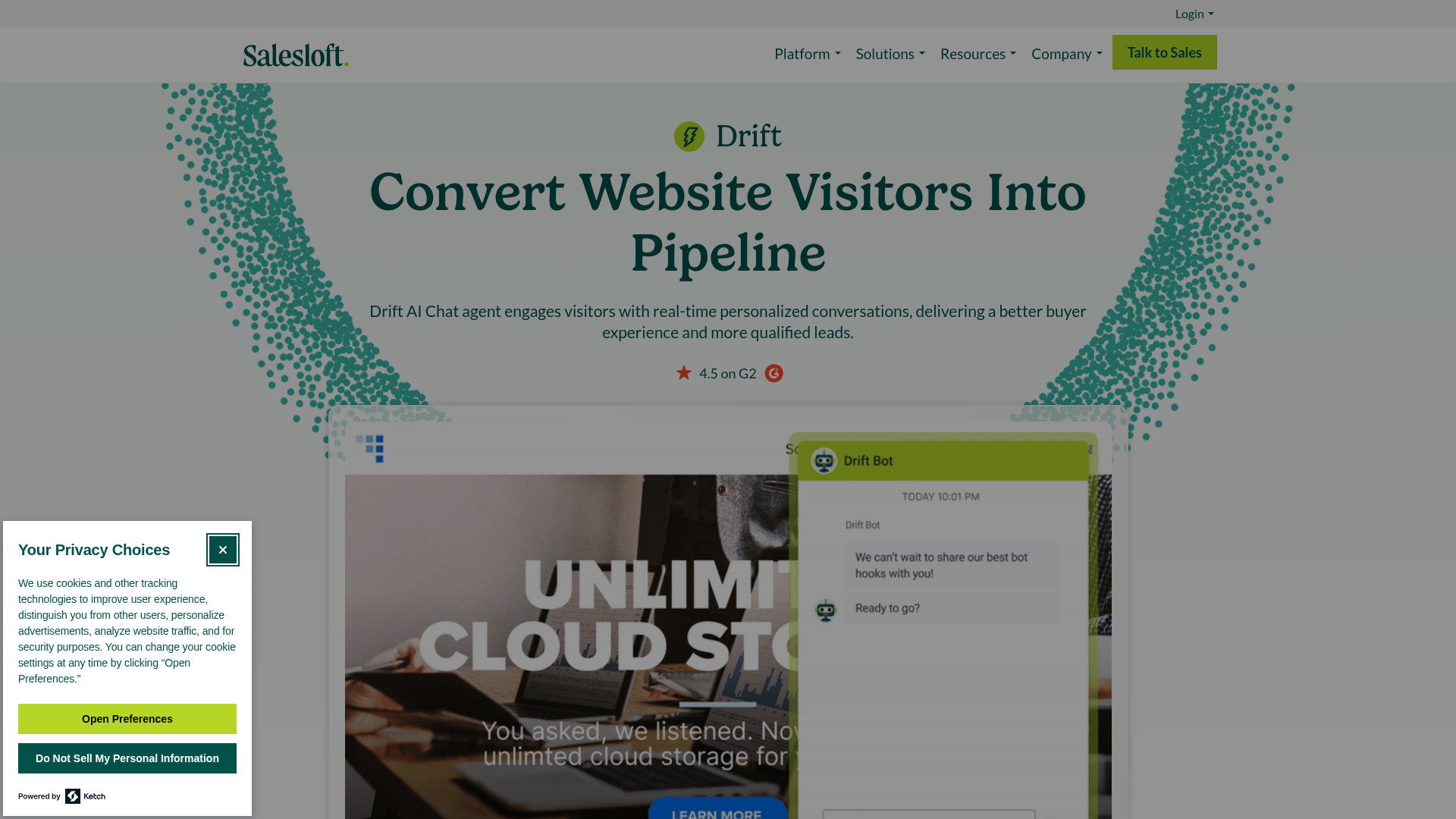
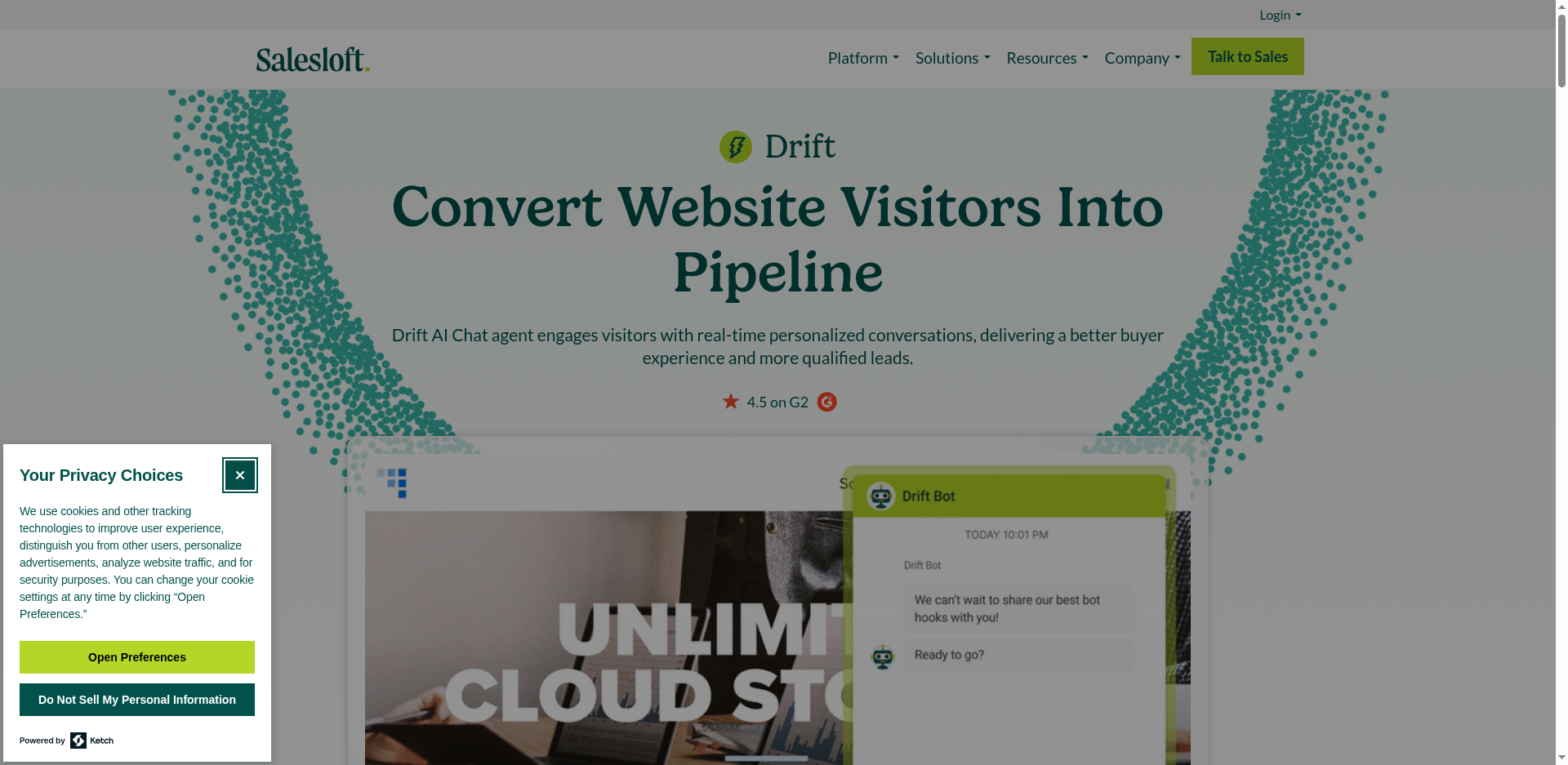
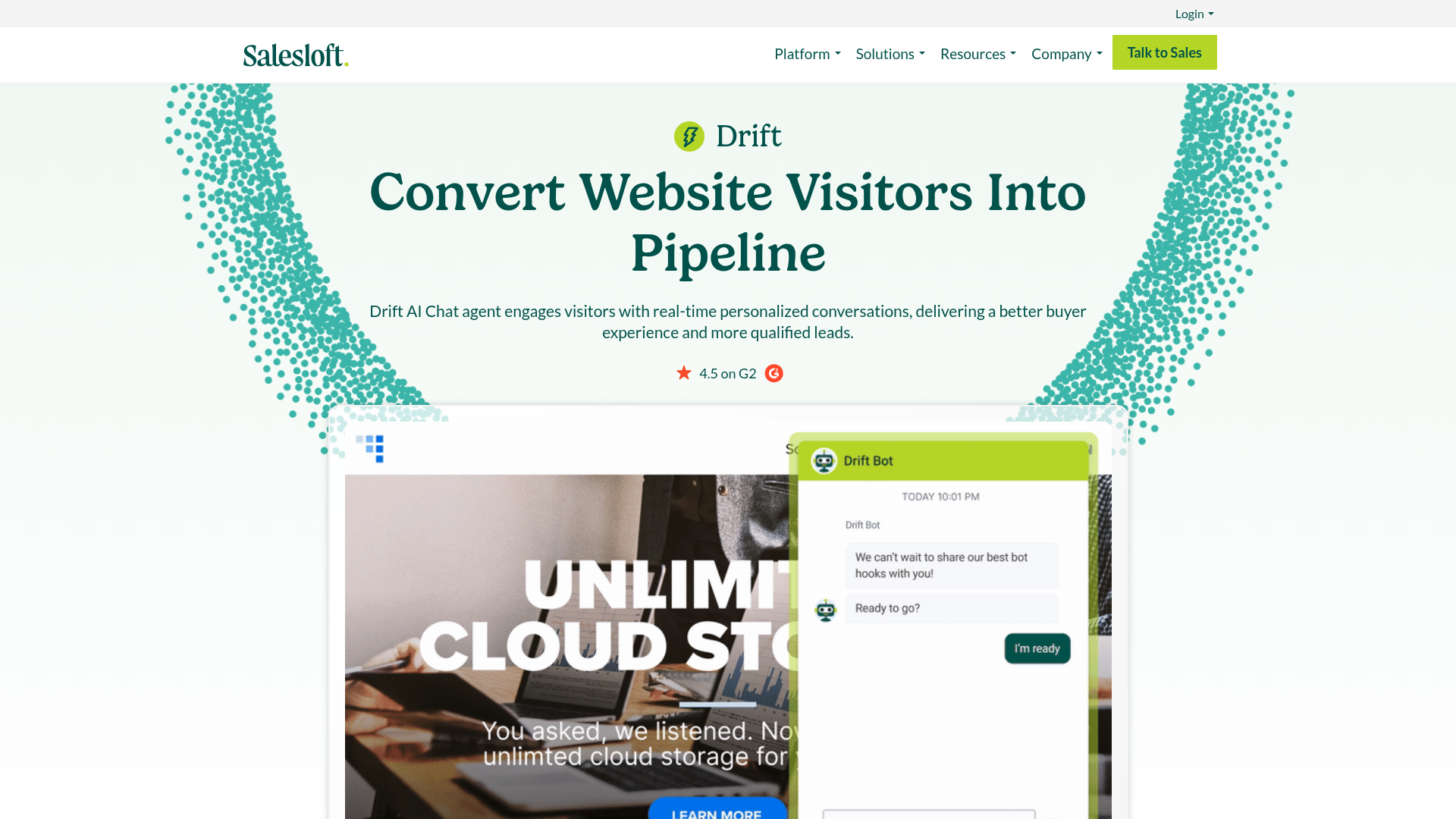
Screenshot Scout managed to remove cookie banners in 96% of cases (23/24), compared to Playwright's 46% (11/24) and Selenium's 46% (11/24). As you can see, using uBlock Origin Lite alone for blocking cookie banners with Playwright and Selenium wasn't enough to get high results. It's worth noting though that there's a clean path to get the scores to the same level where Screenshot Scout sits. To achieve that, you will need to code a custom cookie banner clicker that clicks Approve/Decline/Close buttons to close the banner using JavaScript.
Ad removal
All three tools successfully removed the ads on the page, which you can see in the screenshots below (click to open in a new tab).
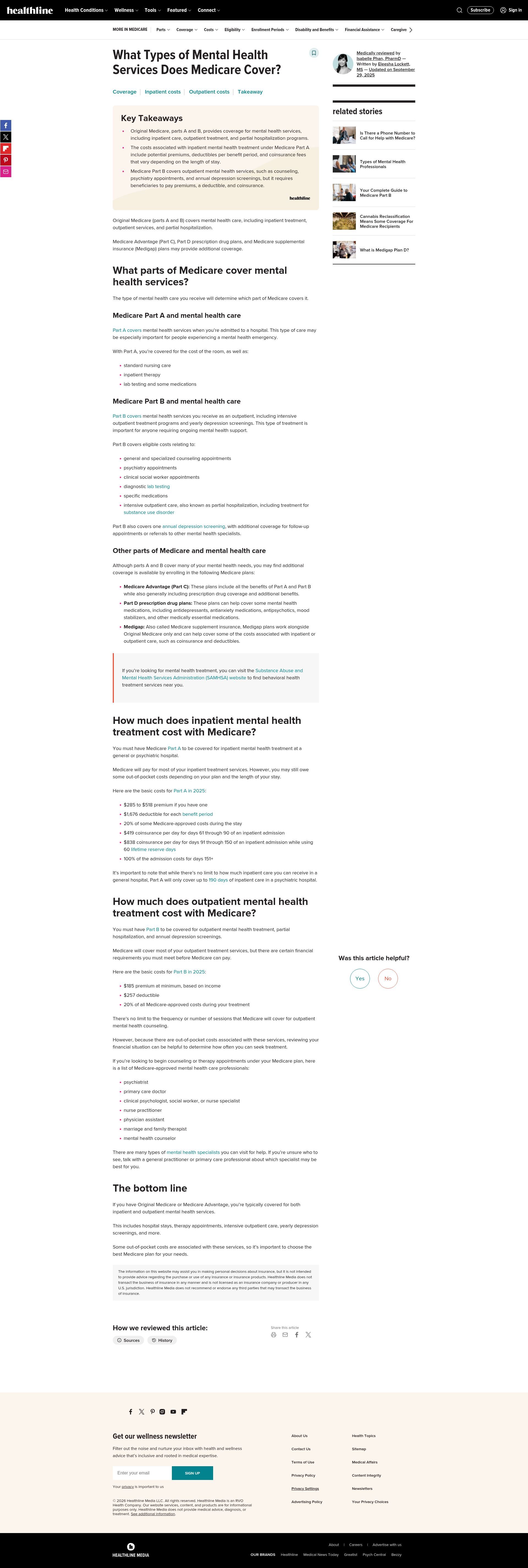
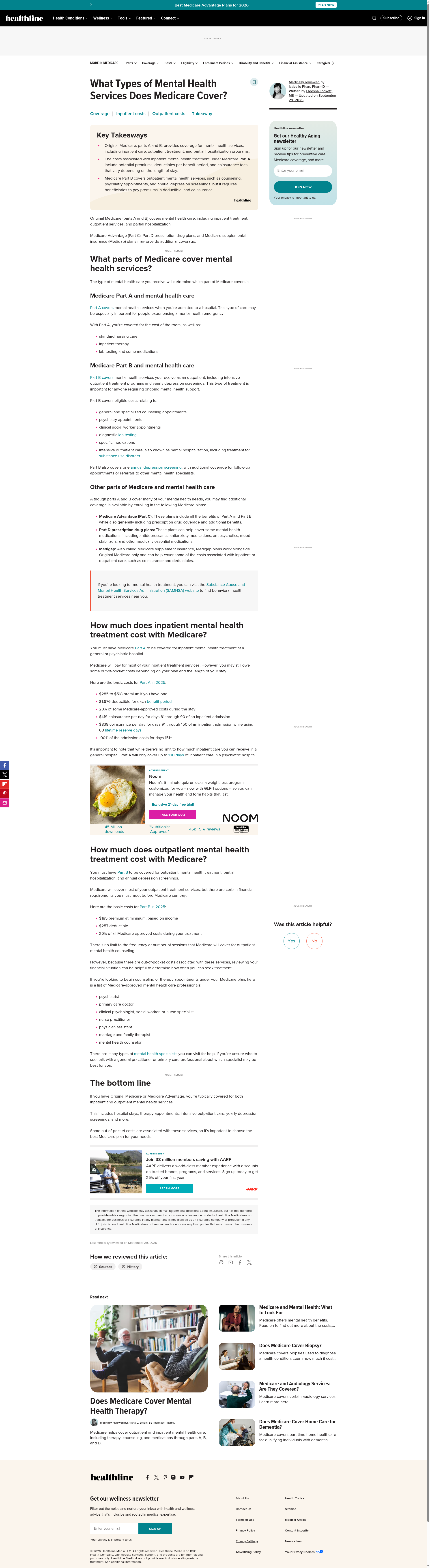
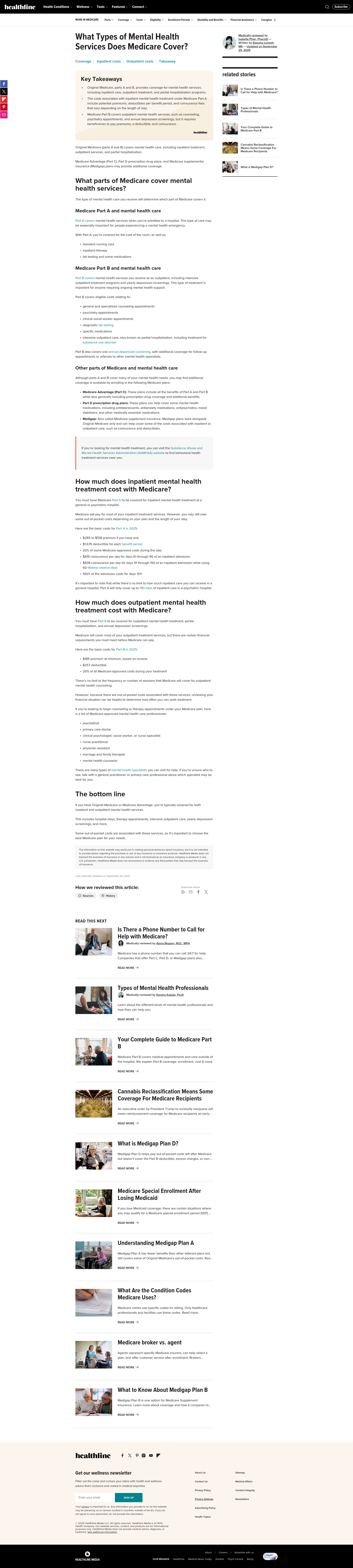
All 3 tools scored 100% when removing ads on the pages. This tells you that if you need to reliably remove ads on webpages, you can go with Playwright + uBlock Origin Lite, and you don't need a screenshot API for that.
It's worth noting though that when running Playwright and Selenium tests, a lot of screenshots were unusable for grading because the sites we tested employed bot protection measures. This is why grading Playwright and Selenium was done on a smaller set, and the unusable screenshots did not participate in grading and didn't affect the final scores.
Full-page capture
Below is the same webpage captured by the three tools (click to open in a new tab). All three tools failed in this particular case.



Capturing full pages turned out to be tough for all 3 tools, although the most common issue that we experienced was different for each tool.
Playwright scored 0% (0/20), with the absolute majority of screenshots missing lazy-loaded images beyond the viewport, which is expected considering that the built-in full-page functionality doesn't scroll the page top to bottom before making a screenshot. You could fix this by using the scroll-and-stitch approach: scroll the page top to bottom, screenshot each viewport separately, then stitch the viewport screenshots together.
Selenium scored 5% (1/20), but for a completely different reason than Playwright. Unlike Playwright, Selenium doesn't have the built-in full-page screenshot functionality. Instead, the commonly accepted workaround was used: navigate to the page, measure the page's height via CDP, resize the window to the page's height, then capture the screenshot.
The majority of screenshots made with Selenium did have visible lazy-loaded images in the screenshots, but most of the screenshots had the footer of the webpages cut off. The possible reason is this: when we measure the page's height, lazy-loaded images are not loaded yet. Later, when we resize the window, the lazy-loaded images start loading, as a result the final page height is taller than we originally measured. The solution could be this: measure the page's height and resize the window twice, once after the initial page load, and another time shortly after the first resize, possibly with a small delay added between resizes to let all lazy-loaded images fully load. Note though that this wasn't tested.
Screenshot Scout uses the scroll-and-stitch approach for capturing full-page screenshots. This ensures that all lazy-loaded images are present in the screenshots and no footer cut-offs are visible at the bottom of screenshots because there are no viewport resizes. Still, Screenshot Scout scored only 45% (9/20). A few pages were still missing some lazy-loaded images and blocks. A few pages had different CSS styling on some elements for some reason. A few screenshots had some inconsistencies at the seams where viewport screenshots are stitched, which is a common problem with the scroll-and-stitch method.
It's worth noting, though, that even with Selenium scoring only 5% and Screenshot Scout scoring only 45%, full-page screenshots produced by these tools, in my opinion, could still be used for the majority of production purposes, as the discrepancies from the original pages were minor.
Bot protection bypass
Below are captures of a bot protected page (click to open in a new tab). Notice how Playwright and Selenium are blocked, while Screenshot Scout successfully captured the page.
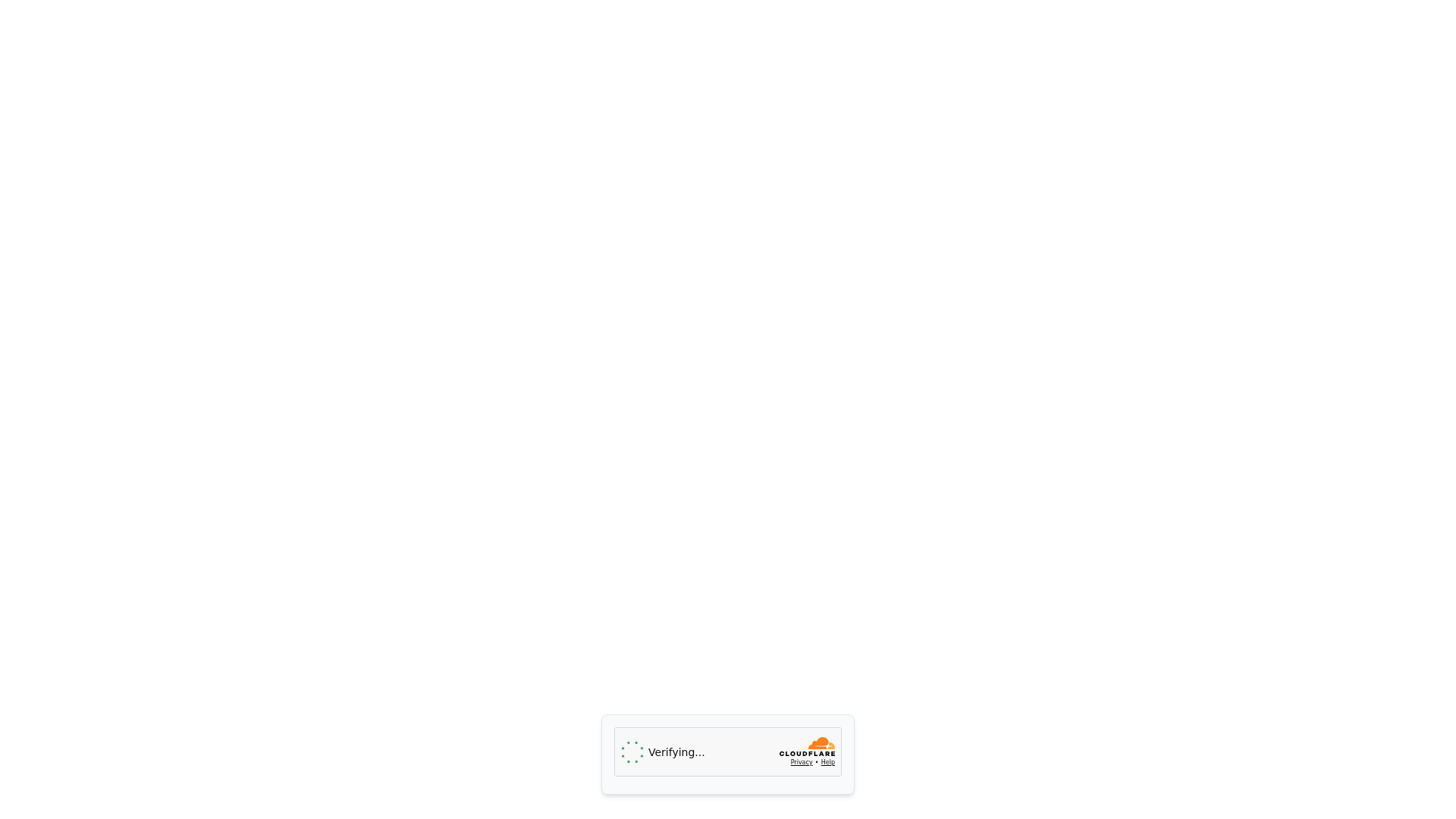
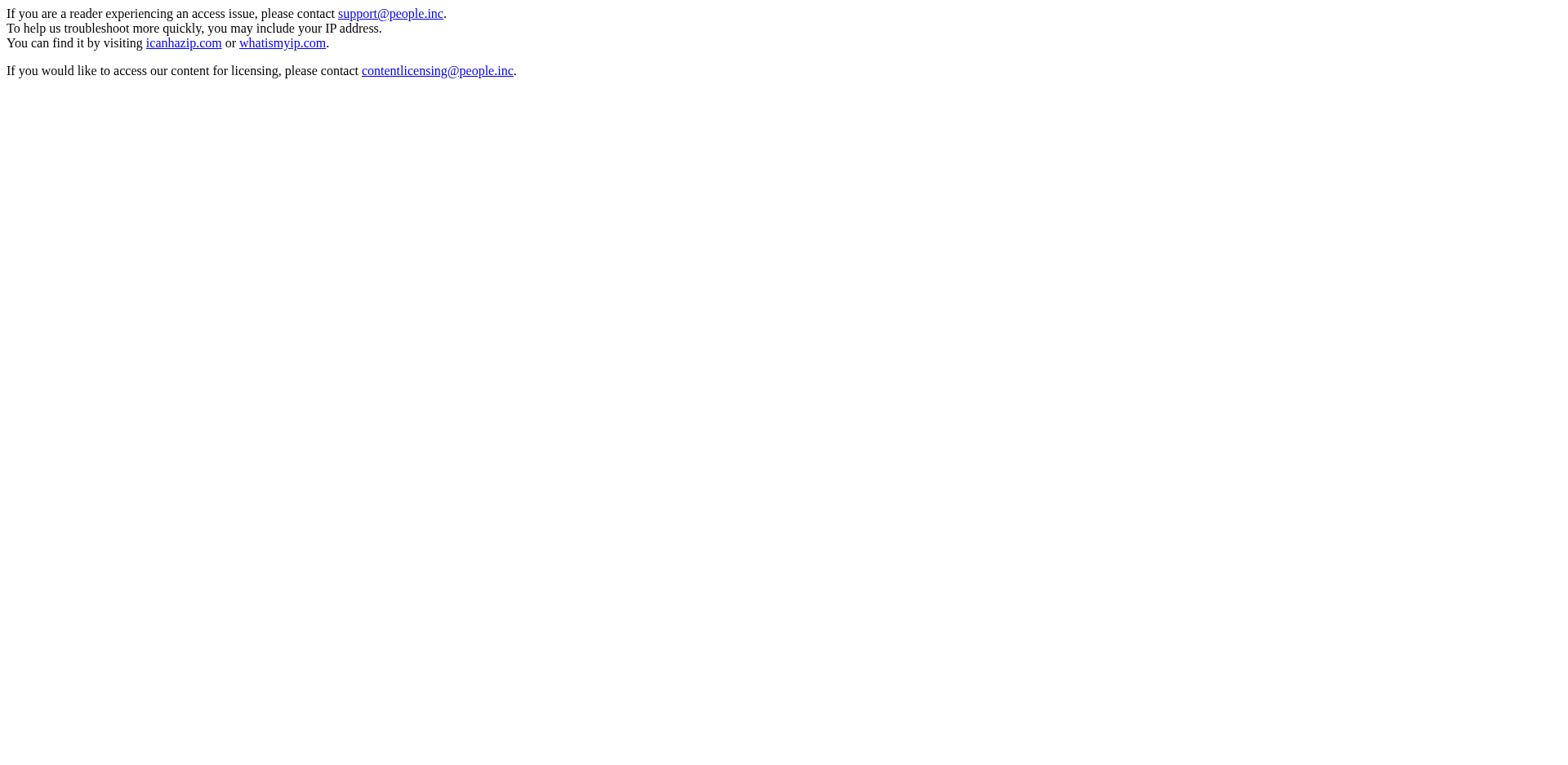
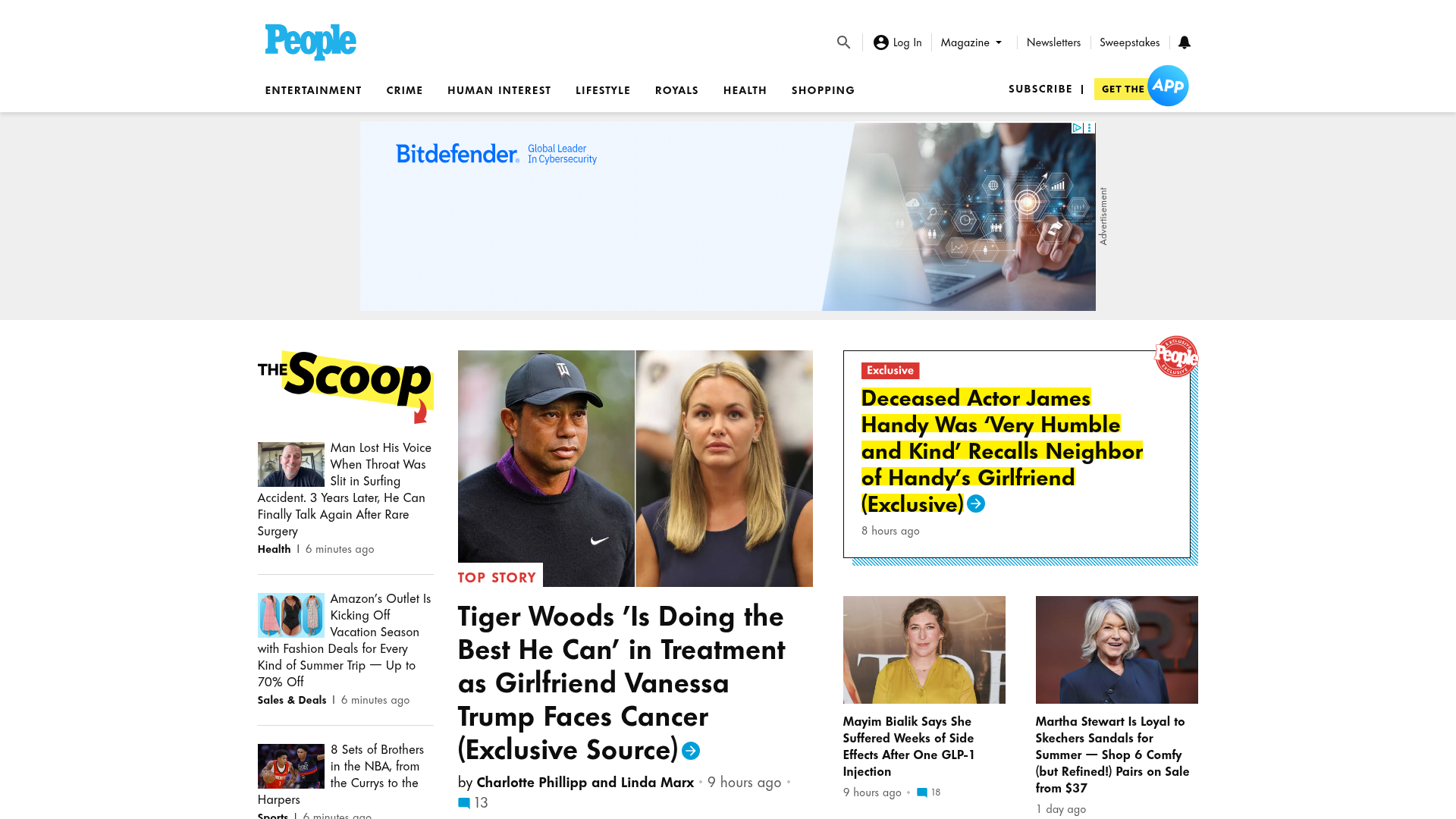
Playwright scored 74% (14/19) on the bot protection bypass benchmark, Selenium scored 11% (2/18), while Screenshot Scout scored 95% (18/19).
It's worth noting that Playwright and Selenium tests were run from a datacenter IP with a standard stealth plugin and no proxies. Screenshot Scout also ran on its default settings, without using proxies or trying to prevent CAPTCHAs.
Should you use Playwright, Selenium, or Screenshot Scout?
Based on the benchmarks we measured, as well as on my personal experience working with the tools, consider making your choice based on these scenarios:
- Choose Playwright if you need screenshots occasionally, are fine with the odd cookie banner not removed or some screenshot attempts being blocked by bot protection measures. Playwright is free, actively maintained, and the lightest and most reliable library.
- Choose Selenium if you are already invested in the Selenium stack. Otherwise, Playwright beats it on RAM requirements and bot protection.
- Choose Screenshot Scout if you need screenshots at scale, need cookie banners reliably removed and don't want to experience CAPTCHAs or other protective measures from the sites you screenshot.
When you are choosing between Playwright, Selenium, and Screenshot Scout, you are essentially choosing between running browser automation yourself or relying on a screenshot API.
Running browser automation yourself means you need to keep the library and the plugins you use updated at all times, otherwise the benchmarks you saw previously (cookie banner removal, ads removal, bot protection bypass) might decay over time. If you need screenshots at scale, you should make sure you have enough resources, which may or may not include running a separate VPS or cloud instance for screenshot rendering itself. When using a screenshot API, this is all handled for you, but it adds a dependency to your project, and may come at a price depending on how many screenshots you need monthly.
Frequently asked questions
Below are the answers to frequently asked questions about taking website screenshots in Python.
What's the best way to take a webpage screenshot in Python?
For most use-cases, use Playwright. It's free, actively maintained, has a built-in ability to capture full-page screenshots, and in our benchmarks it was the lightest and fastest browser automation library. If you need to capture screenshots at scale, want cookie banners reliably removed, and to rarely experience CAPTCHAs or other protective measures from the sites you screenshot, use a screenshot API like Screenshot Scout.
Playwright vs Selenium: which should I use for screenshots?
Use Playwright unless you are already heavily using Selenium in your project. Both libraries are equally fast (2.1s vs 2.2s per screenshot in our benchmarks), but Playwright is much lighter on memory (623MB peak RAM vs Selenium's 903MB) and held up much better when facing bot protective measures from the sites. Selenium also doesn't have a built-in ability to capture full-page screenshots.
Why is my Python screenshot missing images?
That's because most images are lazy loaded these days. If you're taking a regular viewport screenshot (not a full-page screenshot), consider either adding a short delay before capturing the screenshot, or change when the library you use considers the page as loaded (Playwright and Selenium consider the "load" event as the trigger, Screenshot Scout waits for there to be no more than 2 active network connections). If you are capturing a full-page screenshot using Playwright or Selenium, consider using the scroll-and-stitch method: scroll the page top to bottom, screenshot every viewport separately, then stitch the screenshots together.
Why do some sites employ bot protective measures?
This could be happening when you run Playwright or Selenium from datacenter IPs. Another reason could be using no stealth plugins, or the stealth plugin you use is misconfigured. Depending on the type of bot protective measures you are experiencing, you could consider using either residential proxies or a CAPTCHA solver. If you are using a screenshot API, all these issues are solved either to a large degree or even fully, depending on the screenshot API you choose.
Is there a pure-Python way to screenshot a website without having to use a real browser?
Not for real websites. Rendering modern JavaScript, HTML, CSS requires a browser engine, so you either need a browser automation framework, or a screenshot API that also runs a browser automation framework under the hood.
Can I screenshot my screen and not a webpage with Python?
Yes, but that's a different task than capturing a webpage screenshot. If you need to take a screenshot of what you see on your actual screen, you will need to use a screen-capture library like mss or pyautogui.