The best way to take screenshots in PHP for most use-cases is to use Browsershot, a PHP library that runs Puppeteer, a browser automation framework, under the hood.
To take a screenshot with Browsershot, first install the Browsershot package as well as Puppeteer (note that because Puppeteer is a Node.js framework, you must have Node.js installed):
composer require spatie/browsershot
npm install puppeteer
Then take a screenshot:
<?php

require 'vendor/autoload.php';

use Spatie\Browsershot\Browsershot;

$url = 'https://screenshotscout.com/';

Browsershot::url($url)
    ->windowSize(1920, 1080)
    ->save('screenshot.png');
The code above produces a 1920x1080px viewport screenshot and saves it to your local disk as screenshot.png.
Although Browsershot is the default option I would suggest for most screenshot tasks, there are other options as well that might fit better depending on your use-case:
| Tool | Performance | Reliability | Setup / DX | Cost | Best for |
|---|---|---|---|---|---|
| Browsershot | ★★★☆☆ | ★★☆☆☆ | ★★★★☆ | Free | Most DIY website screenshots |
| php-webdriver | ★★★★☆ | ★★★☆☆ | ★★★☆☆ | Free | Resource-constrained or high-volume DIY; existing Selenium/WebDriver stacks |
| chrome-php | ★★☆☆☆ | ★★☆☆☆ | ★★★☆☆ | Free | Pure-PHP setups (no Node.js or WebDriver) |
| Screenshot Scout (screenshot API) | Offloaded to the API provider's infrastructure | ★★★★☆ | ★★★★★ | Free / $ per use | Production, scale, reliability |
In the table above, the scores inside the Performance and Reliability columns are based on the tools' benchmarks that I tested, while the scores inside the Setup / DX column are my subjective opinion based on my experience working with the tools. The "Best for" conclusion is also my subjective opinion on when each tool works best, and is based on the performance, reliability, setup / DX, and price of each tool.
The two ways to take webpage screenshots in PHP
Although there are many tools that you could consider for taking a screenshot in PHP (we tested 4 of them, but there are more), you are not just choosing between the tools. You are choosing between 2 very different approaches:
- Run a headless browser yourself, or
- Offload running a headless browser to a third party: a screenshot API.
As you will see from our benchmarks below, running a headless browser yourself requires hundreds of megabytes of RAM, often up to 1GB of RAM or more for each screenshot rendered. It can also significantly strain your CPU, with a single screenshot render occupying almost 70% of a 2vCPU box for the duration of almost 1.6 seconds in our tests.
Another thing you should consider if you decide to run a headless browser yourself is that whichever tool you choose, if you need to remove cookie banners, ads, chat widgets, bypass CAPTCHAs, or reliably take full-page screenshots, you will need to use third-party extensions for most of these, and depending on the tool you choose, there might not even be an extension for that, and you would have to implement that functionality yourself.
On the plus side, running a headless browser yourself is free, unless you need scale, in which case you would need a separate VPS or cloud instance.
If you decide to go with a screenshot API instead, the screenshot rendering part is offloaded to the screenshot API's infrastructure, meaning there are few resource requirements on your end. Cookie banners, ads, chat widgets, CAPTCHAs, and full-page screenshots are all handled for you as well.
The downside is, unless you need just a hundred or so screenshots a month, using a screenshot API will come at a price.
Browsershot
Browsershot is a Spatie package that runs Puppeteer under the hood, and is my default choice for taking screenshots in PHP for most use-cases.
It provides the best developer experience (only a few simple lines of code to take a screenshot), is actively maintained, and has built-in support for full-page screenshots that some other available options lack. There's also an off-the-shelf solution that can help you reliably remove ads, and somewhat reliably remove cookie banners and chat widgets if you need that.
On the cons side, the built-in ability to capture full-page screenshots is not reliable, and all of your full-page screenshots will be missing lazy-loaded images. I also couldn't find any stealth plugin for Browsershot that could mask the headless browser in our benchmarks, which means that you may experience CAPTCHAs more often than when using some of the other tools that we tested.
Setup
Before you can take screenshots in PHP with Browsershot, you need to install the Browsershot package and Puppeteer:
composer require spatie/browsershot
npm install puppeteer
Viewport screenshot
Here's how you capture a viewport screenshot in PHP with Browsershot:
<?php

require 'vendor/autoload.php';

use Spatie\Browsershot\Browsershot;

$url = 'https://screenshotscout.com/';

Browsershot::url($url)
    ->windowSize(1920, 1080)
    ->save('screenshot.png');
In the code snippet above, ->windowSize(1920, 1080) sets the window size to 1920x1080px and save('screenshot.png') saves the screenshot as screenshot.png to your disk.
Full-page screenshot
Here's how you capture a full-page screenshot in PHP with Browsershot:
<?php

require 'vendor/autoload.php';

use Spatie\Browsershot\Browsershot;

$url = 'https://screenshotscout.com/';

Browsershot::url($url)
    ->windowSize(1920, 1080)
    ->fullPage()
    ->save('full_page_screenshot.png');
It's very similar to taking a viewport screenshot, with just this one difference: you call ->fullPage() before saving the screenshot.
Because Browsershot's ->fullPage() maps directly to Puppeteer's full-page screenshot functionality, and Puppeteer doesn't scroll the page top to bottom before capturing full-page screenshots, the lazy-loaded images on the page are never triggered, and as a result will not be visible in your full-page screenshots.
In our full-page screenshot benchmark, Browsershot scored 0% (0/20) because of that. To fix that, instead of using the ->fullPage() method, you will need to programmatically scroll the page top to bottom yourself, screenshot every visible viewport separately at every scroll, then stitch all the screenshots together. This is called the scroll-and-stitch method, and it is used by the majority of screenshot APIs.
Screenshot a specific element
Here's how you take a screenshot of an element on the page in PHP with Browsershot, and not the entire viewport:
<?php

require 'vendor/autoload.php';

use Spatie\Browsershot\Browsershot;

$url = 'https://screenshotscout.com/';
$selector = '#pricing';

Browsershot::url($url)
    ->windowSize(1920, 1080)
    ->select($selector)
    ->save('element_screenshot.png');
To capture a screenshot of an element, you first need to specify the CSS selector of the element you want to capture, then call the ->select($selector) method before saving the screenshot.
php-webdriver
The php-webdriver library is a PHP language binding for Selenium WebDriver, which allows you to control web browsers from PHP.
In our testing, it is the fastest across all tools and the least resource-demanding library in terms of RAM and CPU. There's an off-the-shelf solution to reliably remove ads, and somewhat reliably remove cookie banners and chat widgets. Because php-webdriver is the only headless-browser library that has an off-the-shelf PHP package for stealth capabilities, it also performed the best among the libraries in the ability to bypass bot protection measures from the sites we tried taking screenshots of.
On the negative side, it doesn't have a built-in capability to capture full-page screenshots, although there's a common workaround that produces acceptable full-page screenshots usable for most production tasks.
Although I have designated Browsershot as my default choice for most DIY screenshot tasks, I did so mostly because Browsershot is considered the default option for all things screenshots by the majority of the PHP/Laravel community, and because the code needed to produce screenshots looks elegant and "native". If we put that aside, however, php-webdriver performed better on nearly every metric in our benchmarks than Browsershot, and you should consider if it might be the better option for your specific use-case.
Setup
To be able to use php-webdriver for screenshots in PHP, you first need to install its package:
composer require php-webdriver/webdriverViewport screenshot
Here's how you take a viewport screenshot in PHP using php-webdriver:
<?php

require 'vendor/autoload.php';

use Facebook\WebDriver\Chrome\ChromeDriver;
use Facebook\WebDriver\Chrome\ChromeOptions;

$url = 'https://screenshotscout.com/';

$options = new ChromeOptions();
$options->addArguments([
    '--headless=new',
    '--window-size=1920,1080',
]);

$driver = ChromeDriver::start($options->toCapabilities());

try {
    $driver->get($url);
    $driver->takeScreenshot('screenshot.png');
} finally {
    $driver->quit();
}
Note that when taking viewport screenshots with php-webdriver, we can only specify the outer window size, not the viewport size. As a result, the code above produces screenshots that have these dimensions: 1904x929px.
Full-page screenshot
Here's how you take a full-page screenshot in PHP using php-webdriver:
<?php

require 'vendor/autoload.php';

use Facebook\WebDriver\Chrome\ChromeDriver;
use Facebook\WebDriver\Chrome\ChromeOptions;
use Facebook\WebDriver\WebDriverDimension;

$url = 'https://screenshotscout.com/';

$options = new ChromeOptions();
$options->addArguments([
    '--headless=new',
    '--window-size=1920,1080',
]);

$driver = ChromeDriver::start($options->toCapabilities());

try {
    $driver->get($url);

    $metrics = $driver
        ->getDevTools()
        ->execute('Page.getLayoutMetrics');

    $contentSize = $metrics['contentSize'];

    $driver->manage()->window()->setSize(new WebDriverDimension(
        (int) ceil($contentSize['width']),
        (int) ceil($contentSize['height'])
    ));

    $driver->takeScreenshot('full_page_screenshot.png');
} finally {
    $driver->quit();
}
Because php-webdriver doesn't have a native option to capture full-page screenshots, we use a common workaround:
- Navigate to the page
- Get the actual page width and height beyond just the visible viewport via CDP
- Resize the window to the actual page width and height
- Take a screenshot
This approach not only allows us to take a full-page screenshot in the absence of a built-in full-page screenshot ability, but also allows us to fix a major downside that you commonly see with full-page screenshots, which is the absence of lazy-loaded images in the screenshots. This happens because when you resize the window to the actual page size, it triggers all lazy-loaded images on the page, and therefore they become visible in the screenshot.
Despite that, php-webdriver scored 0% (0/19; 1 N/A). Even though the majority of screenshots did have all lazy-loaded images present, all of the screenshots had part of the footer cut off. This was happening because after we resized the window, some lazy-loaded images that were not loaded when we first measured the page started loading. As a result, the page height increased even further after the first measurement, resulting in part of the footer being cut off in the screenshots.
There's a way to fix this, though:
- Measure the page
- Resize the page to the measured width and height
- Wait briefly for the lazy-loaded images to fully load. A few seconds proved enough in my testing, but that may depend on the tested page.
- Measure and resize the page again
- Take a screenshot.
There are a few downsides to the entire measure-and-resize approach, even with the double-resize-and-measure fix:
- The double-resize-and-measure fix worked on the few pages that I tested, but highly dynamic pages might require more than 2 measure-and-resize iterations, and the delay required might be higher than the 2 seconds that worked for me. Considering that, capturing full-page screenshots might take a long time.
- When implementing the full-page screenshot rendering in Screenshot Scout, I was also considering the measure-and-resize approach, but I would encounter another issue: on very tall pages, somewhere around 100,000 pixels, the headless browser would crash. As a result, I decided to use the scroll-and-stitch approach, which doesn't have this issue.
In our testing, although php-webdriver scored 0% (0/19; 1 N/A), the majority of full-page screenshots had all the lazy-loaded images present, and the footer was only slightly cut off. So, depending on your specific use-case, these screenshots might still be usable, and you don't need to implement the double-resize-and-measure fix, or switch to the scroll-and-stitch method, which is reliable in terms of lazy-loaded images and no footer being cut off, but may introduce other issues as well (sticky headers and cookie banners being visible in every viewport or distortion at the seams where screenshots are stitched).
Screenshot a specific element
Here's how to take a screenshot of a specific element in PHP using php-webdriver:
<?php

require 'vendor/autoload.php';

use Facebook\WebDriver\Chrome\ChromeDriver;
use Facebook\WebDriver\Chrome\ChromeOptions;
use Facebook\WebDriver\WebDriverBy;

$url = 'https://screenshotscout.com/';
$selector = '#pricing';

$options = new ChromeOptions();
$options->addArguments([
    '--headless=new',
    '--window-size=1920,1080',
]);

$driver = ChromeDriver::start($options->toCapabilities());

try {
    $driver->get($url);

    $driver
        ->findElement(WebDriverBy::cssSelector($selector))
        ->takeElementScreenshot('element_screenshot.png');
} finally {
    $driver->quit();
}
You first need to specify the CSS selector you want to capture, then find that element on the page, then take the screenshot of that element.
chrome-php
chrome-php/chrome is a PHP library that lets you talk to the headless Chromium browser directly via the DevTools Protocol. No Node.js, no Puppeteer, no separate driver process is required. Just pure PHP + the Chromium binary.
From the description above, it might sound like it would be the most lightweight of all three libraries that we tested. Unfortunately, that's not the case. chrome-php/chrome was the heaviest on RAM and CPU, and also the slowest of all 3 libraries, albeit marginally.
There's the same off-the-shelf solution for chrome-php/chrome that is also available for all the other libraries we tested; it can reliably remove ads, and somewhat reliably remove cookie banners and chat widgets. Because there's no stealth plugin, it has very limited ability to bypass bot protection on sites, so if you screenshot a lot of sites that use those measures, it's probably best to look for a different screenshot tool.
This screenshot library has a built-in option to capture full-page screenshots, but because it doesn't scroll the page by default, it doesn't trigger lazy-loaded images on the page, which results in all those images being absent from your screenshots.
All in all, I advise you to use chrome-php/chrome only if you want to manage the headless Chromium browser directly via the DevTools Protocol for some reason, and don't want to use a browser automation framework (Puppeteer in the case of Browsershot) or Selenium/WebDriver.
Setup
First, install the package:
composer require chrome-php/chromeAlso make sure that the environment you are working in has a Chrome/Chromium browser installed.
Viewport screenshot
Here's how you take a viewport screenshot in PHP using chrome-php/chrome:
<?php

require 'vendor/autoload.php';

use HeadlessChromium\BrowserFactory;

$url = 'https://screenshotscout.com/';

$browserFactory = new BrowserFactory();
$browser = $browserFactory->createBrowser([
    'headless' => true,
    'windowSize' => [1920, 1080],
]);

try {
    $page = $browser->createPage();
    $page->navigate($url)->waitForNavigation();
    $page->screenshot()->saveToFile('screenshot.png');
} finally {
    $browser->close();
}
The code snippet above produces a screenshot with these dimensions: 1904x929px.
Full-page screenshot
Here's how you take a full-page screenshot in PHP using chrome-php/chrome:
<?php

require 'vendor/autoload.php';

use HeadlessChromium\BrowserFactory;

$url = 'https://screenshotscout.com/';

$browserFactory = new BrowserFactory();
$browser = $browserFactory->createBrowser([
    'headless' => true,
    'windowSize' => [1920, 1080],
]);

try {
    $page = $browser->createPage();
    $page->navigate($url)->waitForNavigation();

    $page->screenshot([
        'captureBeyondViewport' => true,
        'clip' => $page->getFullPageClip(),
    ])->saveToFile('full_page_screenshot.png');
} finally {
    $browser->close();
}
As mentioned above, chrome-php/chrome doesn't scroll the page top to bottom before capturing full-page screenshots, so the resulting screenshots miss any lazy-loaded images present on the page.
Screenshot a specific element
Here's how you take a screenshot of an element in PHP using chrome-php/chrome:
<?php

require 'vendor/autoload.php';

use HeadlessChromium\BrowserFactory;

$url = 'https://screenshotscout.com/';
$selector = '#pricing';

$browserFactory = new BrowserFactory();
$browser = $browserFactory->createBrowser([
    'headless' => true,
    'windowSize' => [1920, 1080],
]);

try {
    $page = $browser->createPage();
    $page->navigate($url)->waitForNavigation();

    $element = $page->dom()->querySelector($selector);

    $page->screenshot([
        'captureBeyondViewport' => true,
        'clip' => $element->getClip(),
    ])->saveToFile('element_screenshot.png');
} finally {
    $browser->close();
}
Screenshot Scout
Screenshot Scout is a screenshot API. You send a GET/POST request to an endpoint and get the requested screenshot in response. The screenshot is returned in the form of either a raw binary or a JSON that contains the link to the screenshot file.
All screenshot APIs, including Screenshot Scout, are built on top of a browser automation framework, and promise to fix all the issues that you have when running a headless browser yourself.
Here are the benefits of using Screenshot Scout (full disclosure: Screenshot Scout is our own product, but the pros and cons outlined below are relevant to whichever screenshot API you choose, to a degree):
- No load on your RAM/CPU: because screenshot rendering is offloaded to the screenshot API's infrastructure, the RAM/CPU load on your own infrastructure is marginal.
- Improved cookie banner removal: in our testing, Screenshot Scout proved to be significantly more reliable in cookie banner removal than other screenshot tools.
- Better bot protection bypass: Screenshot Scout was also better than the other tools at bypassing bot protection measures from the sites we attempted to screenshot.
- Better full-page screenshots: although Screenshot Scout didn't score perfectly, it produced correct full-page screenshots in 50% of screenshot attempts, while the other 50%, although not entirely correct, were still usable for the majority of production use-cases. At the same time, other tools scored 0% on this benchmark.
- No maintenance required: when running a headless browser yourself, you need to keep the dependencies up-to-date at all times, especially any third-party packages you might be using for removing annoyances, bypassing bot protection, etc. If not, the reliability of those packages will deteriorate over time. If you have any custom code on top of those packages, like removing cookie banners, for example, every time you encounter an edge case where a cookie banner is not removed, you will have to go back and update the code. When using a screenshot API, it's all handled for you.
- Additional screenshot functionality: most screenshot APIs provide additional functionality like caching, S3-compatible storage integration, geographical routing, and more.
Besides the benefits, there are also downsides to using Screenshot Scout:
- Slower per screenshot: in our testing, Screenshot Scout was slower than the other tools. There are a few reasons for this. First, by default, Screenshot Scout uses a different navigation method that produces better screenshots, but is slower. Second, there's latency within Screenshot Scout's infrastructure attributed to DB reads and writes, screenshot storage reads and writes (Cloudflare), and more.
- May cost money: if you need only a few hundred screenshots a month, Screenshot Scout is free. Otherwise, you will need to pay.
Here's the verdict: use Screenshot Scout when you need production-grade scale and reliability (annoyances removal, bot protection bypass, etc.). If not, use any other library we tested that fits you best.
Viewport screenshot
Here's how you take a viewport screenshot in PHP using Screenshot Scout:
<?php

$accessKey = getenv('SCREENSHOT_SCOUT_ACCESS_KEY');
$url = 'https://screenshotscout.com/';

$image = file_get_contents(
    'https://api.screenshotscout.com/v1/capture?' .
    http_build_query([
        'access_key' => $accessKey,
        'url' => $url,
    ])
);

file_put_contents('screenshot.png', $image);
It's as simple as this:
- Get your access key in your Screenshot Scout client panel.
- Send a GET request to the capture endpoint, pass your access key, target URL, and any other screenshot options along.
- Receive raw bytes in response and save them as a file.
Full-page screenshot
Here's how you take a full-page screenshot in PHP using Screenshot Scout:
<?php

$accessKey = getenv('SCREENSHOT_SCOUT_ACCESS_KEY');
$url = 'https://screenshotscout.com/';

$image = file_get_contents(
    'https://api.screenshotscout.com/v1/capture?' .
    http_build_query([
        'access_key' => $accessKey,
        'url' => $url,
        'full_page' => 'true',
    ])
);

file_put_contents('full_page_screenshot.png', $image);
The only thing you need to do is pass the full_page option to the capture endpoint. No need to scroll the page or resize the viewport, as you would when running a headless browser yourself.
Screenshot a specific element
Here's how you take an element screenshot in PHP using Screenshot Scout:
<?php

$accessKey = getenv('SCREENSHOT_SCOUT_ACCESS_KEY');
$url = 'https://screenshotscout.com/';
$selector = '#pricing';

$image = file_get_contents(
    'https://api.screenshotscout.com/v1/capture?' .
    http_build_query([
        'access_key' => $accessKey,
        'url' => $url,
        'selector' => $selector,
    ])
);

file_put_contents('element_screenshot.png', $image);
Benchmarks
To be able to decide which screenshot tool to suggest as the default option in this article, and which tool is best for which use-case, I measured Browsershot, php-webdriver, chrome-php, and Screenshot Scout on two groups of benchmarks: performance benchmarks and reliability benchmarks.
Here are the performance benchmarks I measured:
- Wall time (s): how long it takes between initiating a screenshot request and getting the final screenshot.
- Peak RAM (MB): how much RAM was used at peak during a screenshot request.
- CPU-seconds: how much local CPU time the benchmark process tree consumed during a screenshot request.
- Avg cores used: how many CPU cores were busy when requesting a screenshot. This is a calculated metric, not measured.
- CPU load (% of 2-core VPS): how busy the entire box was when requesting a screenshot. This is a calculated metric, not measured.
Here are the reliability benchmarks I measured:
- Cookie banner removal (%): the success rate of removing cookie banners from pages.
- Ad removal (%): the success rate of removing ads from pages.
- Full-page capture (%): the success rate of capturing correct full-page screenshots. We marked a screenshot as successful only when it captured the page exactly as it was, without any divergences. If a single lazy-loaded image was missing in the screenshot, or if the footer was even slightly cut off, the screenshot was marked as failed.
- Bot protection bypass (%): the success rate of bypassing any bot protection measures on pages. While we use the word "bypass" in the name of the metric and throughout the article, "bypass" really means avoiding any bot protection measures by correctly configuring the headless browser and using an off-the-shelf stealth package (if available). No active circumvention was attempted.
Methodology
Here's how we ran the benchmarks, graded the results, and how you can reproduce these results yourself:
- Environment: AMD EPYC-Milan, 2 vCPU, ~7.7 GB RAM, PHP 8.3.31, inside a Docker container built from the repo's Dockerfile (base image php:8.3-cli-bookworm, i.e. Debian 12 "bookworm"). The container was run on a Hetzner CCX13.
- Versions and date: Browsershot 5.4.0 (driving Puppeteer 25.1.0 on Node 22), php-webdriver 1.16.0, chrome-php 1.15.0, sapistudio/seleniumstealth 1.0.3 (bot protection only), symfony/process 7.4.13; pinned Chrome for Testing and ChromeDriver 149.0.7827.115; ad and cookie blocking via uBlock Origin Lite 2026.516.1652 (with the default plus cookie/overlay/social/notification annoyance rulesets enabled). Measured June 2026.
- Performance method: we captured the same page (Screenshot Scout's homepage) 20 times; all performance metrics were measured together, in isolation for each capture; then we calculated the median value for each metric; metrics captured the full process tree, including child browser processes; for each capture, we used the cold-start approach: launch the headless browser, capture the page, then close; before the first capture, two warm-ups were run that were recorded but not counted towards the median values.
- Reliability method: a fixed set of 20-24 real pages was used for each reliability benchmark: cookie banner removal, ad removal, full-page capture, bot protection bypass; each page was chosen because it had the specific feature that was tested; each page was captured once per tool tested; each tool was used with its default readiness trigger, with an additional 2-second wait before the capture, to ensure the tested feature had time to load (ads, cookie banners); the harness only produced the screenshots; the grading was done manually by me, visually inspecting each screenshot and marking it as pass, fail, or N/A.
- Reliability benchmark tests specifics: ad removal uses full-page screenshots as pages usually have ads sitting beyond the viewport; cookie banner removal and bot protection bypass tests use viewport screenshots; full-page captures run with all cleanup disabled; for blocking ads and cookie banners, all libraries use uBlock Origin Lite while Screenshot Scout uses
block_ads=trueandblock_cookie_banners=true. - The reliability benchmark fairness rule: for each reliability benchmark I used either an off-the-shelf package/plugin or a commonly accepted technique. No bespoke code was written to win a benchmark. Specifically, for bot protection bypass, php-webdriver used sapistudio/seleniumstealth plus matching Chrome options, while Browsershot and chrome-php ran bare because there's no comparable, widely adopted off-the-shelf stealth plugin for them; Screenshot Scout was run on its defaults, without using any techniques to prevent CAPTCHAs.
- N/A handling: if a page couldn't be graded because there was either an error when capturing the screenshot or we encountered bot protection measures before the page became visible, the page was graded as N/A and excluded from calculations. Final scores are passes divided by gradeable screenshots; the counts are shown in the tables below and in the accompanying CSV files, so everything is transparent.
- Who graded and how: manual visual inspection by me, Oleksii Velykyi, the founder of Screenshot Scout, and the author of this article.
- Reproducibility: the code, the Dockerfile, and the lists with the tested pages are public on GitHub at github.com/screenshotscout/php-screenshot-benchmarks. To reproduce the results you must rebuild the image, run the container, and re-run everything. The full raw output of the run used when writing this article is available as two downloads: the results (results.zip, CSVs plus run metadata) and every screenshot (screenshots.zip, ~430 MB).
Performance results
Here are the results of the performance tests:
| Tool | Wall time (s) | Peak RAM (MB) | CPU-seconds | Avg cores used | CPU load (% of 2-core VPS)* |
|---|---|---|---|---|---|
| Browsershot | 1.5 | 1028 | 1.94 | 1.26 | 63% |
| php-webdriver | 1.1 | 873 | 1.46 | 1.30 | 65% |
| chrome-php | 1.6 | 1231 | 2.21 | 1.38 | 69% |
| Screenshot Scout (API) | 2.6 | 27 | 0.05 | 0.02 | 1% |
* CPU load = avg cores used ÷ 2 vCPUs.
Let's look at each metric.
Wall time
php-webdriver is the fastest of the four tools tested at 1.1s per screenshot, while Screenshot Scout is the slowest at 2.6s per screenshot. The reason Screenshot Scout is the slowest can be attributed to two facts:
- Screenshot Scout uses a different navigation method than the other three tools. By default, Browsershot/php-webdriver/chrome-php use the load event as the signal that the page is fully loaded and we can proceed to capturing the screenshot. Screenshot Scout, on the other hand, waits for the network to go quiet, until there are no more than 2 active network connections. The load event happens sooner than the network goes quiet, hence the lower wall times for the libraries; however, this approach may produce lower-quality screenshots with some lazy-loaded images missing. Screenshot Scout's approach produces better-quality screenshots with the lazy-loaded images often fully loaded, but it is slower.
- When you send a GET/POST request to Screenshot Scout's capture endpoint, Screenshot Scout may write and read from the DB, write and read the screenshot image from the object storage, as well as perform other actions that may introduce latency within Screenshot Scout's infrastructure. The testing of Browsershot/php-webdriver/chrome-php was done completely locally, on a VPS, with no DB or object storage involved, so this latency did not exist.
The surprising outcome of the test was the speed of chrome-php. Because it has the least heavy parts and communicates with the browser directly via CDP, one would expect it to be the fastest option. Yet, this was not the case in our test.
Peak RAM
chrome-php is the heaviest option on RAM, with the peak at 1231 MB per screenshot, which, again, I wasn't expecting. Screenshot Scout, on the other hand, is the lightest on RAM at 27 MB, which is expected as screenshot rendering is completely offloaded in this case.
CPU usage
chrome-php is not only the slowest option with the highest RAM requirements; it also has the highest CPU requirements at 2.21 CPU-seconds per screenshot. Screenshot Scout, on the other hand, consumed only 0.05 CPU-seconds per screenshot, because rendering is done on the API's infrastructure.
To put CPU-seconds in perspective, 2.21 CPU-seconds per screenshot, the result we saw for chrome-php, is equivalent to 1.38 vCPU-cores completely busy rendering a screenshot. On the 2vCPU VPS where we ran this benchmark, this translates to 69% of the entire box completely busy with screenshot rendering for the duration of 1.6 seconds.
The figures above are averages, and they don't tell the whole story. Here's what htop looked like when I ran the performance benchmark test for chrome-php:
It's also worth noting here that Screenshot Scout, whose homepage we tested for this benchmark, runs on Vercel and is extremely lightweight. The majority of real-world pages, however, are much heavier and often take longer to render and consume more CPU.
Summary
When you decide to choose Screenshot Scout over Browsershot/php-webdriver/chrome-php, you trade increased latency for a significant RAM/CPU offload from your infrastructure. When you choose Browsershot/php-webdriver/chrome-php over Screenshot Scout, you win on latency, but must make sure you have enough RAM/CPU capacity. If not, rendering screenshots on your infrastructure may degrade the performance of everything else on your server or cloud instance.
Among the libraries, php-webdriver is the winner: it's the fastest and lightest option. chrome-php, on the other hand, is the most resource-hungry library in our tests.
Another interesting point worth noting is that the PHP libraries we tested produced screenshots faster than the ones in our Python screenshot benchmarks: 1.1-1.6 seconds per screenshot for PHP libraries against 2.1-2.2 seconds for Python libraries. At the same time, PHP libraries are heavier on RAM: 873-1231 MB per screenshot for PHP libraries against 623-903 MB for Python libraries.
Reliability results
Here are the results of the reliability tests:
| Tool | Cookie banner removal (%) | Ad removal (%) | Full-page capture (%) | Bot protection bypass (%) |
|---|---|---|---|---|
| Browsershot | 45.8% (11/24) | 100% (14/14; 6 N/A) | 0% (0/20) | 11.1% (2/18; 2 N/A) |
| php-webdriver | 45.8% (11/24) | 100% (14/14; 6 N/A) | 0% (0/19; 1 N/A) | 77.8% (14/18; 2 N/A) |
| chrome-php | 43.5% (10/23; 1 N/A) | 100% (14/14; 6 N/A) | 0% (0/20) | 11.1% (2/18; 2 N/A) |
| Screenshot Scout | 95.8% (23/24) | 100% (20/20) | 50% (10/20) | 89.5% (17/19; 1 N/A) |
Let's see how each tool did on each test.
Cookie banner removal
Below is the same page captured across all 4 tools (click to open in a new tab). Note how a cookie banner covers the entire page in all 3 screenshots made with the libraries, while Screenshot Scout successfully removed the cookie banner.
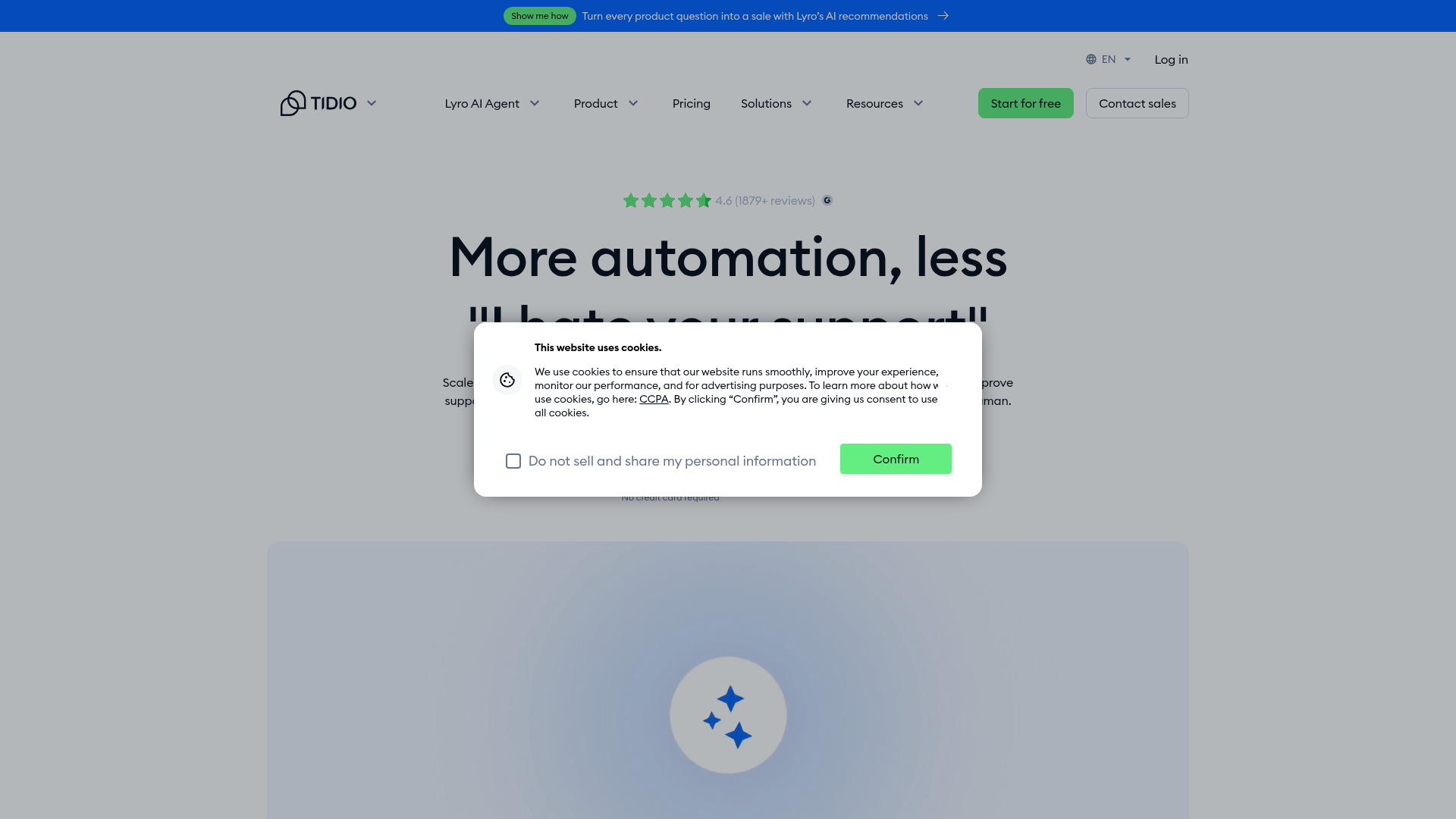
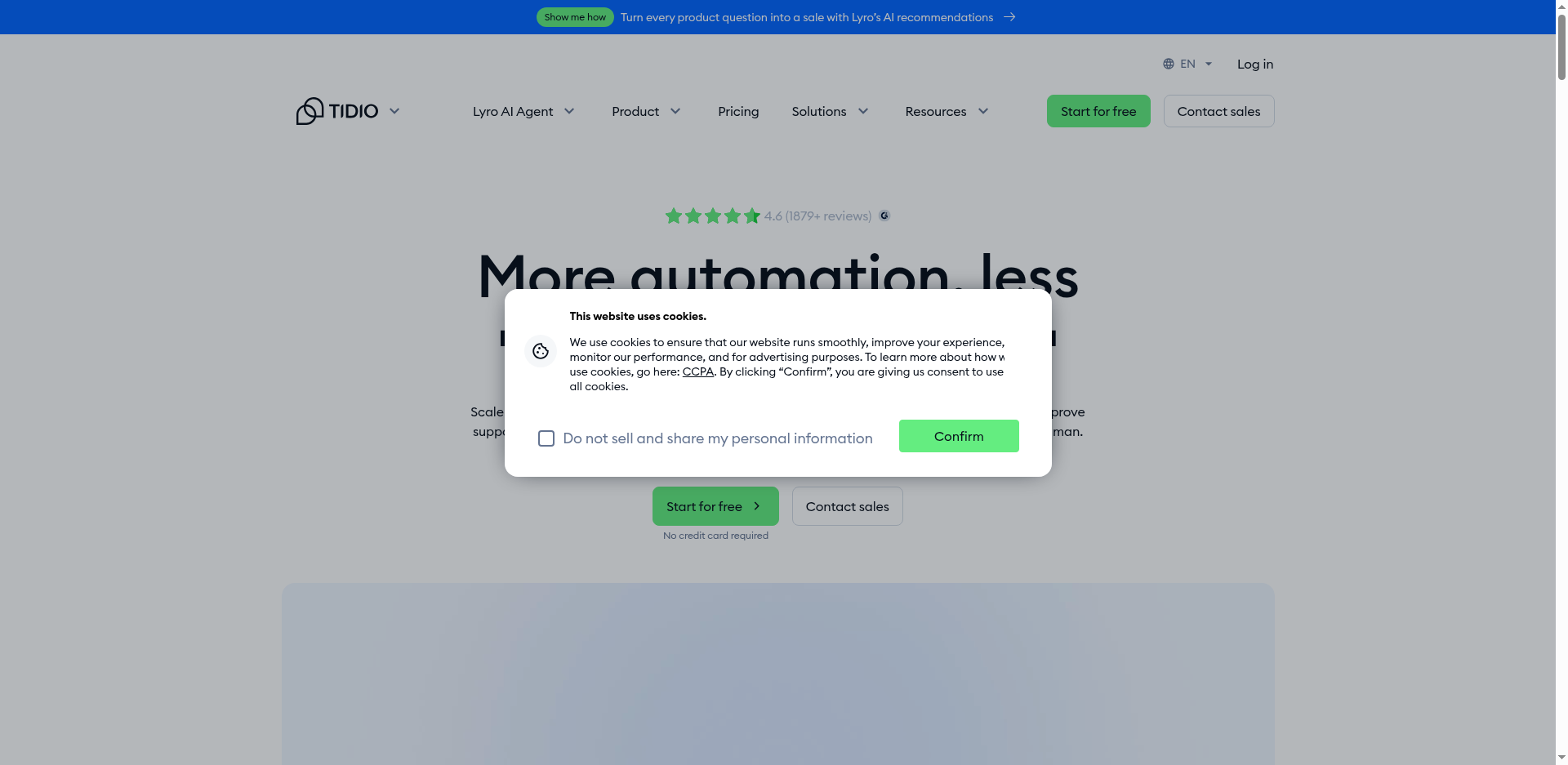
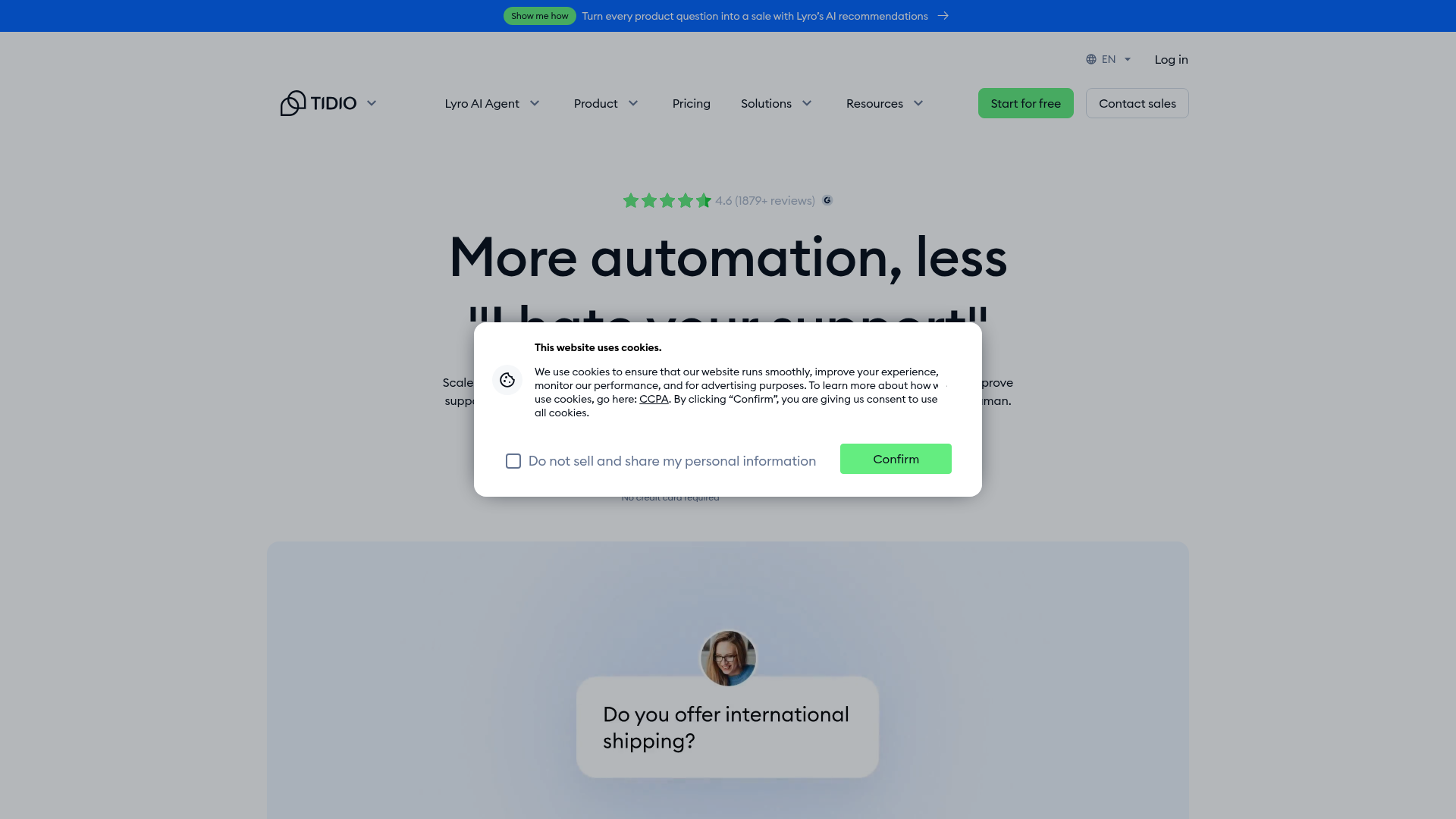
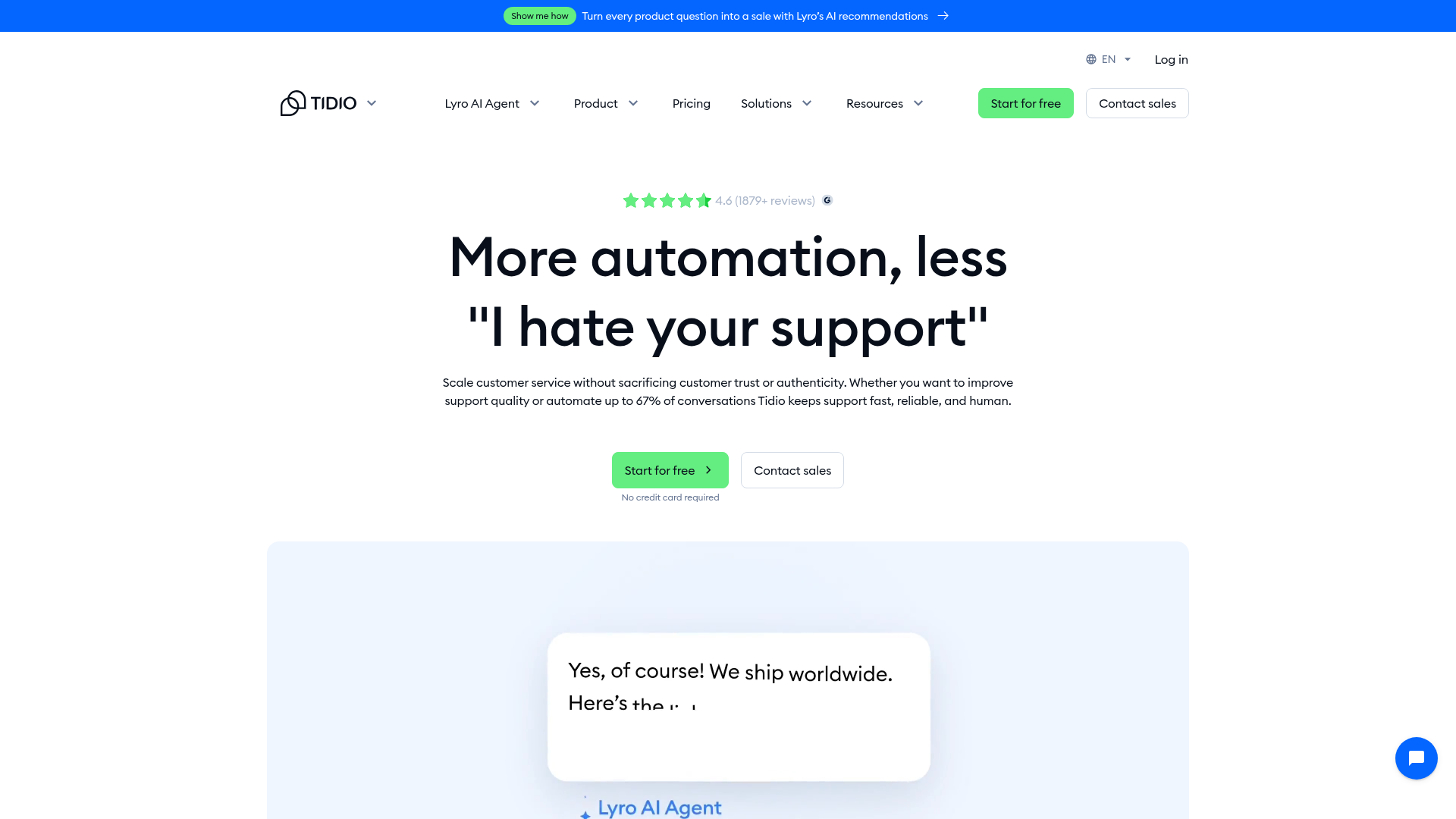
On the cookie banner removal test, Browsershot scored 45.8% (11/24), php-webdriver scored 45.8% (11/24), chrome-php scored 43.5% (10/23; 1 N/A), and Screenshot Scout scored 95.8% (23/24).
Browsershot/php-webdriver/chrome-php used uBlock Origin Lite, which is clearly not enough to reliably remove cookie banners in the majority of cases. To push the score closer to Screenshot Scout, you will need to code a custom JavaScript clicker that will identify cookie banners on the page and click the Accept/Deny/Close buttons to close the remaining cookie banners. Note that some cookie banners may reside inside the shadow DOM and may be hard to click with JavaScript.
Ad removal
Below is the same page captured across all tools we tested (click to open in a new tab), with ads reliably removed in all cases.
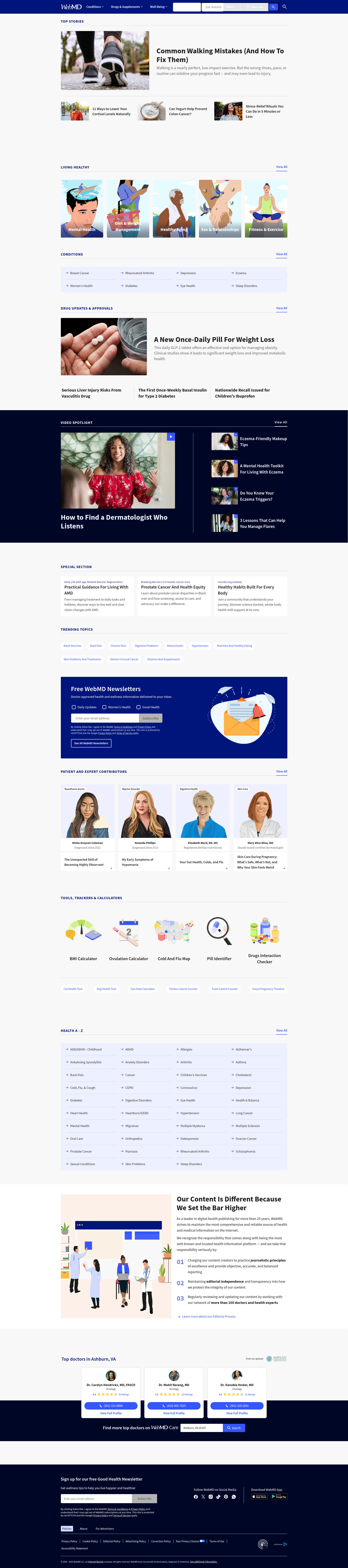
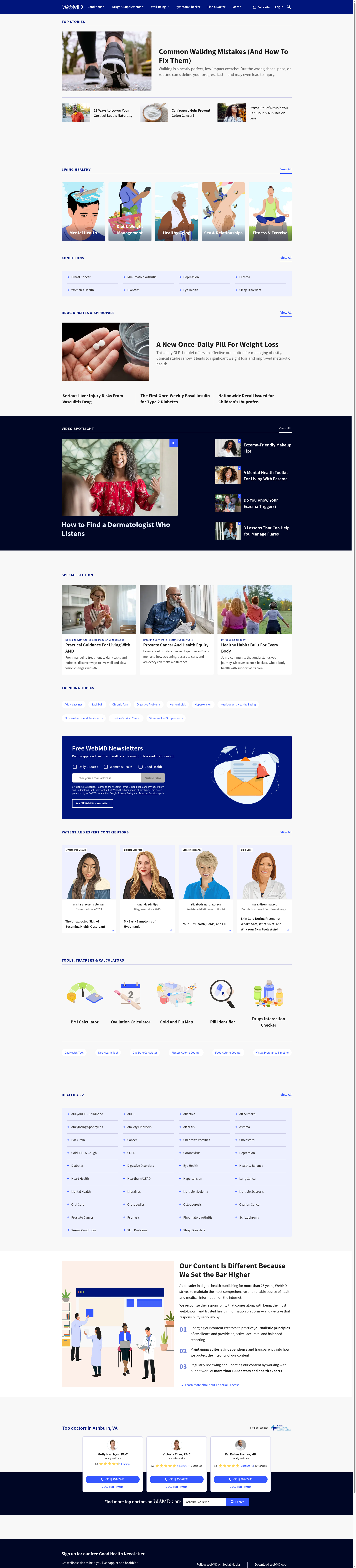
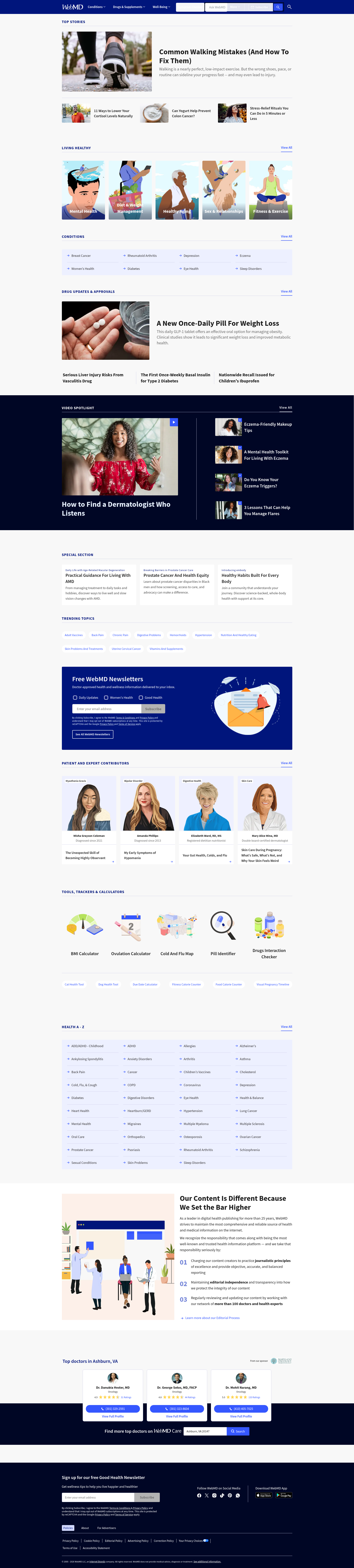
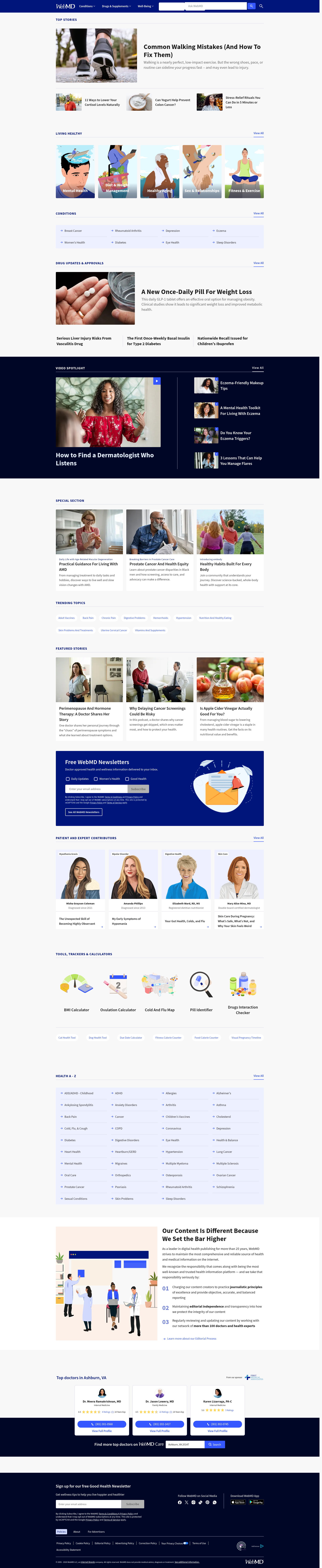
All 4 tools scored 100% and successfully removed all the ads on the page. In the case of the libraries we tested, all libraries use uBlock Origin Lite for removing ads on pages, so it's no surprise the score is the same across all libraries.
So if your main goal is to remove ads on pages, there's no need to go for a screenshot API. Just use one of the libraries.
A few things worth noting here, though:
- The score for the libraries was calculated based on a smaller set of graded screenshots (14 vs 20 for Screenshot Scout), as a portion of screenshots were not gradeable due to bot protection measures from the sites.
- In some cases, even though the ads were successfully removed, visible empty space was present in places where ads were meant to show. This usually happens when a site pre-allocates fixed space for an ad, and doesn't collapse it when the ad is not shown/blocked.
Full-page capture
Below are full-page screenshots of the same page across the 4 tools (click to open in a new tab). In this particular case, all 4 tools failed, though each for a different reason.




In the full-page capture test, Browsershot scored 0% (0/20), php-webdriver scored 0% (0/19; 1 N/A), chrome-php scored 0% (0/20), and Screenshot Scout scored 50% (10/20).
Here are the reasons for each tool's score and how to fix it:
- Browsershot: because Browsershot doesn't scroll the page top to bottom before capturing full-page screenshots, all captured screenshots had lazy-loaded images missing. To fix that, you need to scroll the page using JavaScript before the final capture, or use the scroll-and-stitch approach.
- php-webdriver: because php-webdriver doesn't have a built-in full-page screenshot option, a common workaround was used. We load the page, measure the page height, resize the browser window, then capture the viewport. This resulted in all of the screenshots missing part of the footer, which happens because after we first measure the page height and resize the window, additional lazy-loaded images start loading, which increases the page height even further. This can be easily fixed. Instead of doing a one-time measure-and-resize, do it twice, with a small delay in between. I tested this, and it worked, although the reliability of this method may vary from page to page.
- chrome-php: similarly to Browsershot, all the captured screenshots were missing lazy-loaded images, hence the score. The fix is the same as with Browsershot: scroll the page before capture.
- Screenshot Scout: Screenshot Scout scored 50%, which is better than the 0% score for the other tools, but is still not perfect. The reasons for each failed screenshot are documented in the
reliability_raw.csvfile that comes as part of the results.zip archive accompanying this article, and are more varied than for the other tools. The main one is this: Screenshot Scout uses the scroll-and-stitch approach when capturing full-page screenshots, meaning we scroll the page top to bottom, capture the visible viewport at each scroll, then stitch all the captured screenshots together. This results in all lazy-loaded images being fully loaded, and no footer being truncated, but introduces another issue: distortion at the seams where we stitch the screenshots. This is a common issue and can be mitigated only to a degree when using this method.
Even though the scores are not high for the tested tools, it's worth noting this: when visually examining the screenshots made with php-webdriver and Screenshot Scout, despite the low final scores given, the quality of the absolute majority of the screenshots should be acceptable for most production use-cases. In the case of php-webdriver, the footer was truncated only slightly in most cases, and in the case of Screenshot Scout, the distortion at the seams was rare, and other issues were minor.
Bot protection bypass
Here's the same page captured by all 4 tools when testing the ability to bypass bot protection measures (click to open in a new tab). As you can see, Browsershot and chrome-php were blocked by the site, while php-webdriver and Screenshot Scout successfully captured the page.

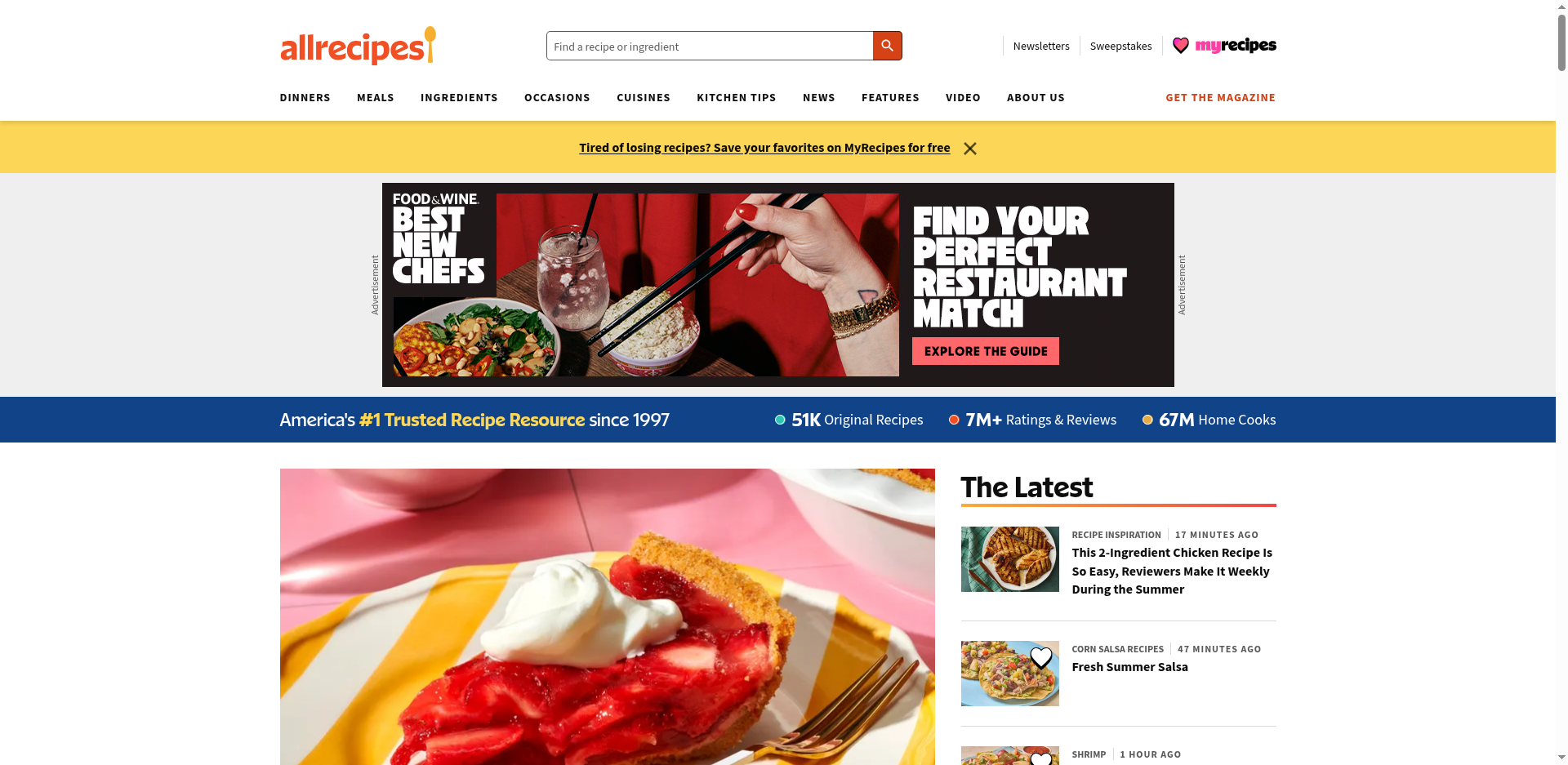

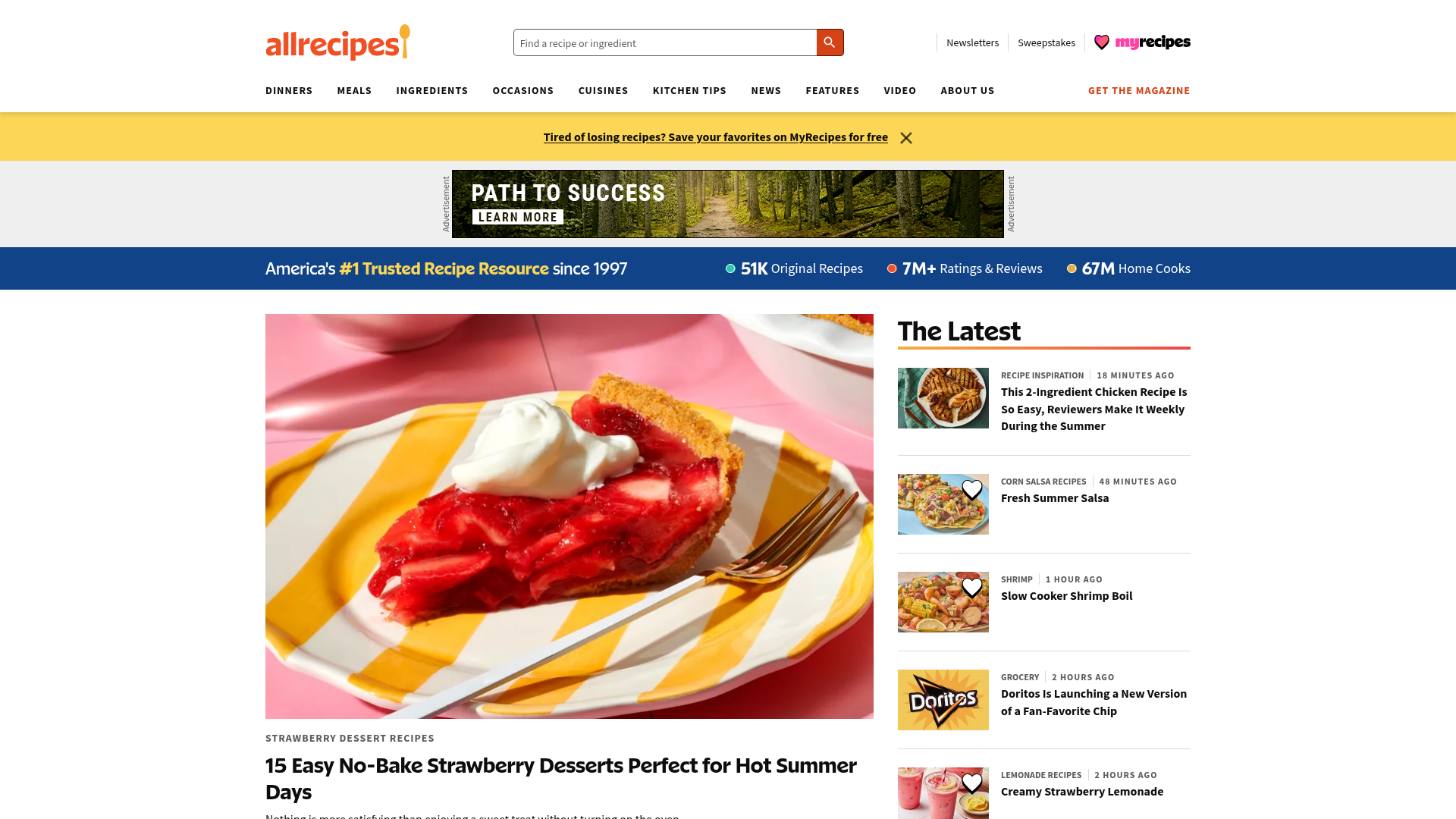
On the ability to bypass bot protection measures, Browsershot scored 11.1% (2/18; 2 N/A), php-webdriver scored 77.8% (14/18; 2 N/A), chrome-php scored 11.1% (2/18; 2 N/A), and Screenshot Scout scored 89.5% (17/19; 1 N/A).
Here are the reasons for each tool's performance and how to improve it:
- Browsershot: I couldn't find any off-the-shelf stealth package for Browsershot, so the tool was used bare. When you do so, it usually exposes that the browser is a headless browser, and some sites may not like it. To fix this, you will have to manually do what off-the-shelf stealth packages usually do, which is masking any attributes of a headless browser. Here's where you start: capture a screenshot of this page with the tool you use. Then write custom code to make sure everything is in the green.
- php-webdriver: even though the off-the-shelf package I used for php-webdriver is somewhat effective at bypassing bot protection measures, it still makes sense to see how the page I referenced above sees your headless browser, and make sure everything is in the green.
- chrome-php: similarly to Browsershot, I couldn't find an off-the-shelf stealth package; do the same thing for chrome-php that I outlined above for Browsershot.
- Screenshot Scout: even though Screenshot Scout scored the highest across the tested tools, there are ways to reduce CAPTCHAs even further.
Should you use Browsershot, php-webdriver, chrome-php, or Screenshot Scout?
Deciding between Browsershot, php-webdriver, chrome-php, or Screenshot Scout depends on your specific use-case. Use the decision matrix below:
- Use Browsershot if you don't mind the occasional cookie banner not being blocked, and you also don't mind seeing CAPTCHAs from time to time. Otherwise, it's free, actively maintained, and the code required is tidy and looks PHP-native. Note, though, that to be able to use Browsershot, you must be able to run Node/Puppeteer alongside PHP.
- Use php-webdriver if you need a faster and lighter option than Browsershot, or you're already on a Selenium/WebDriver stack. You will also see fewer CAPTCHAs than with Browsershot, but the code may seem more verbose than when using Browsershot.
- Use chrome-php if you need a pure-PHP solution with no Node and no separate driver process. Note, though, that it has the highest RAM/CPU requirements and has the same issues with cookie banners and CAPTCHAs as Browsershot.
- Use Screenshot Scout if you need production-grade quality and scale. It's better than the other tools at removing cookie banners, avoiding CAPTCHAs, and capturing correct full-page screenshots, and has near-zero requirements on your own infrastructure in terms of RAM/CPU. On the cons side, it's slower per screenshot and may cost money depending on the volume of screenshots you need.
Remember that you are not just choosing between the tools. You are choosing between running a headless browser yourself or using a screenshot API.
Running a headless browser yourself means you need to have enough resources in terms of RAM/CPU. It also means that whichever functionality is not readily available for the tool you choose, you will need to write custom code yourself. You also must keep the tool and the off-the-shelf packages updated at all times, because if not, the reliability of those packages will degrade over time.
When using a screenshot API, this is all handled for you, but it may cost you money depending on your volume of screenshots.
Frequently asked questions
Below are answers to common questions about taking website screenshots in PHP.
What's the best way to take a webpage screenshot in PHP?
For most DIY screenshot tasks, if you need screenshots on occasion, if you don't mind the occasional cookie banner obscuring the screenshot, and you also don't mind being blocked by CAPTCHAs from time to time, use Browsershot. If you need production-grade screenshot quality and also a high volume of screenshots, use Screenshot Scout.
Browsershot vs php-webdriver vs chrome-php: which should I use for screenshots?
Use Browsershot for most of your screenshot tasks. It's well maintained and widely used, its code looks PHP-native, and it uses Node/Puppeteer under the hood. Use php-webdriver if you need a faster and more lightweight option in terms of RAM/CPU than Browsershot, and you don't mind somewhat verbose code. Use chrome-php if you want to communicate with a headless browser directly via the DevTools Protocol and avoid Node/Puppeteer or a separate driver process, and don't mind that it's the slowest and most resource-hungry option.
Why is my PHP screenshot missing images?
Most real-world pages contain lazy-loaded images that start loading only when they come into view. Because most tools don't scroll the page before capture, the lazy-loaded images never load. To fix that, either scroll the page before capture, resize the viewport height to the page's actual height (not advised), or use a screenshot API, specifically Screenshot Scout, which scrolls the page by default.
Why do I sometimes see a CAPTCHA or block message in my screenshots?
Whichever tool you use, you are essentially using a headless browser, which is easy to detect unless deliberately masked. Some sites don't care, others do, and when they see that you are using a headless browser, they either block you completely or show a CAPTCHA. To fix that, either use an off-the-shelf stealth package (not always available), or use Screenshot Scout, which proved most effective at not triggering bot protection measures in our testing.
Is there a pure-PHP way to screenshot a website without a real browser?
No, not for real-world pages. To screenshot a page, you must be able to render JavaScript and CSS, and for that you need a real browser. So you either need to use a headless browser yourself via a library, or use a screenshot API that does exactly that under the hood.