
In C#, the option that fits most use-cases is Playwright. It's Microsoft's browser automation framework, and its .NET binding controls a real browser directly.
To take a screenshot in C# with Playwright, add the package, build once, and install the Chromium browser it controls:
dotnet add package Microsoft.Playwright --version 1.61.0
dotnet build
pwsh bin/Debug/net10.0/playwright.ps1 install chromium
Then take a screenshot:
using Microsoft.Playwright;

using IPlaywright playwright = await Playwright.CreateAsync();
await using IBrowser browser = await playwright.Chromium.LaunchAsync(new BrowserTypeLaunchOptions { Headless = true });
IPage page = await browser.NewPageAsync(new BrowserNewPageOptions
{
    ViewportSize = new ViewportSize { Width = 1920, Height = 1080 }
});
await page.GotoAsync("https://screenshotscout.com/");
await page.ScreenshotAsync(new PageScreenshotOptions { Path = "playwright-screenshot.png" });
The code above captures a 1920x1080px viewport and writes it to your disk as playwright-screenshot.png.
Playwright is the default I'd reach for, but it isn't the only reasonable choice. The other three tools each fit a specific situation better:
| Tool | Performance | Reliability | Setup / DX | Cost | Best for |
|---|---|---|---|---|---|
| Playwright for .NET | ★★★★☆ | ★★★☆☆ | ★★★★☆ | Free | Most DIY website screenshots in C# |
| PuppeteerSharp | ★★★☆☆ | ★★★☆☆ | ★★★☆☆ | Free | Teams who want the Puppeteer interface in .NET |
| Selenium WebDriver | ★★★☆☆ | ★★★☆☆ | ★★★☆☆ | Free | Existing Selenium/WebDriver stacks |
| Screenshot Scout (screenshot API) | Offloaded to the API provider's infrastructure | ★★★★☆ | ★★★★★ | Free / $ per use | Production scale, RAM/CPU offload, no upkeep |
One note on the table: the Performance and Reliability scores come out of the benchmarks I ran, while the Setup / DX score is my own opinion from writing the code for each tool. The "Best for" call is subjective too, weighing performance, reliability, setup, and price together.
The two ways to take webpage screenshots in C#
I tested 4 tools (there are more) for this article, but before you pick a tool you're picking one of two approaches:
- Run a headless browser yourself, or
- Offload the headless browser to a third party: a screenshot API.
Running the browser yourself is expensive on resources. As the benchmarks below show, a single screenshot needs hundreds of megabytes of RAM, and for one of the libraries it crossed 1GB. The CPU cost is similar: at the peak, one capture kept roughly two-thirds of a 2-vCPU box busy for the second-and-a-half or so it took to render.
There's a second thing to weigh with the DIY route. Anything beyond a basic screenshot (stripping cookie banners and ads, getting past CAPTCHAs, or reliably capturing a full page) usually means adding another off-the-shelf package. In C#, those packages exist and, as you'll see, several of them work: there's a dedicated cookie-banner extension, and stealth packages that got Playwright and PuppeteerSharp past most of the bot protection in our benchmarks.
Doing it yourself is free, at least until you need scale, at which point you're renting a VPS or a cloud instance to run the browser on anyway.
Use a screenshot API instead and the rendering moves onto the API's machines, so your own resource use stays tiny. Cookie banners, ads, chat widgets, CAPTCHAs, and full-page capture are all handled for you.
The downside is money. A screenshot API is free up to a point, often somewhere around a hundred screenshots a month, though the exact allowance differs between providers. After that, you pay.
Playwright for .NET
Playwright is Microsoft's browser automation framework. For screenshots in C#, its official .NET binding is my default.
Of the libraries I tested, it gives the best developer experience (a screenshot is a few lines of tidy async code), it's actively maintained, and it has built-in full-page capture. It was also the most balanced on performance: the lightest of the three libraries on RAM, in the middle on CPU, and close to the fastest on wall time.
The surprise was bot protection. Running Playwright with an off-the-shelf stealth package, it scored 89.5%, tied with Screenshot Scout and far ahead of Selenium. So Playwright isn't just the easiest to work with, it's also the one that performed best against real sites.
Its one clear weakness is full-page capture. In the benchmark it scored 0%, because Playwright's full-page screenshot doesn't scroll the page from top to bottom first, so lazy-loaded images never load and go missing from the final image. More on that, and the fix, below.
Setup
If you skipped the quick example above, add the package, build once, and install the browser before running anything in this section:
dotnet add package Microsoft.Playwright --version 1.61.0
dotnet build
pwsh bin/Debug/net10.0/playwright.ps1 install chromium
The playwright.ps1 script is generated into your build output, so you build first, then run it to fetch Chromium. It needs PowerShell (pwsh) on the machine.
Viewport screenshot
Here's how you capture a viewport screenshot in C# with Playwright:
using Microsoft.Playwright;

using IPlaywright playwright = await Playwright.CreateAsync();
await using IBrowser browser = await playwright.Chromium.LaunchAsync(new BrowserTypeLaunchOptions { Headless = true });
IPage page = await browser.NewPageAsync(new BrowserNewPageOptions
{
    ViewportSize = new ViewportSize { Width = 1920, Height = 1080 }
});
await page.GotoAsync("https://screenshotscout.com/");
await page.ScreenshotAsync(new PageScreenshotOptions { Path = "playwright-screenshot.png" });
ViewportSize sets the viewport to 1920x1080px, and Path writes the file to disk. The using and await using declarations close the page, browser, and Playwright when the program exits.
Full-page screenshot
Here's how you capture a full-page screenshot in C# with Playwright:
using Microsoft.Playwright;

using IPlaywright playwright = await Playwright.CreateAsync();
await using IBrowser browser = await playwright.Chromium.LaunchAsync(new BrowserTypeLaunchOptions { Headless = true });
IPage page = await browser.NewPageAsync(new BrowserNewPageOptions
{
    ViewportSize = new ViewportSize { Width = 1920, Height = 1080 }
});
await page.GotoAsync("https://screenshotscout.com/");
await page.ScreenshotAsync(new PageScreenshotOptions
{
    Path = "playwright-full-page.png",
    FullPage = true
});
The only change from a viewport capture is FullPage = true. It's worth understanding what that flag does and doesn't do, though.
Playwright captures the full page without scrolling it top to bottom first. On modern pages that matters, because images below the fold are lazy-loaded: they don't start downloading until they scroll into view. Playwright never scrolls, so those images never load, and they're absent from the screenshot.
That's why Playwright scored 0% (0/20) on the full-page benchmark. There are two ways around it. One is to scroll the page yourself, capture each viewport as you go, and stitch the pieces together (scroll-and-stitch, which is what most screenshot APIs do under the hood). The other is the measure-and-resize workaround I show in the Selenium section.
Screenshot a specific element
Here's how you capture a single element in C# with Playwright, rather than the whole viewport:
using Microsoft.Playwright;

using IPlaywright playwright = await Playwright.CreateAsync();
await using IBrowser browser = await playwright.Chromium.LaunchAsync(new BrowserTypeLaunchOptions { Headless = true });
IPage page = await browser.NewPageAsync(new BrowserNewPageOptions
{
    ViewportSize = new ViewportSize { Width = 1920, Height = 1080 }
});
await page.GotoAsync("https://screenshotscout.com/");
await page.Locator("#pricing").ScreenshotAsync(new LocatorScreenshotOptions
{
    Path = "playwright-element.png"
});
You point a Locator at the CSS selector you want, then take the screenshot on that locator instead of the page. Here it captures the #pricing section and nothing else.
PuppeteerSharp
PuppeteerSharp is a .NET port of Puppeteer. It talks to a headless Chromium over the DevTools Protocol and, like Puppeteer, downloads and manages the browser binary for you, so you get the Puppeteer interface in C# without any Node.js.
If you already know Puppeteer from Node, it will feel familiar. On bot protection it did well too, at 72.2% with the puppeteer-extra stealth plugin, behind Playwright but well ahead of Selenium. Those are the reasons to reach for it.
The downsides are worth weighing. PuppeteerSharp was the heaviest of the three libraries on CPU and was between the other two on RAM. Its native full-page capture has the same problem as Playwright's (no scrolling, so lazy-loaded images are missing), which left it at 0% on that benchmark. And there's a version caveat, but it only matters if you need stealth. The widely used puppeteer-extra stealth plugin is verified against the 20.2.x releases, so for the benchmark I pinned PuppeteerSharp to 20.2.6 rather than the current 25.x line. The newer PuppeteerSharp compiled without issue but didn't pass a basic headless stealth check. If you don't need the stealth plugin, you can run the current version and skip the pin.
All in all, I'd pick PuppeteerSharp if you specifically want the Puppeteer interface in .NET with a managed Chromium and no Node.js, and you're fine pinning a version to keep the stealth plugin working.
Setup
Add the package:
dotnet add package PuppeteerSharp --version 20.2.6PuppeteerSharp downloads and manages its own Chrome for Testing build. The example below triggers that download with BrowserFetcher.
Viewport screenshot
Here's how you capture a viewport screenshot in C# with PuppeteerSharp:
using PuppeteerSharp;
using PuppeteerSharp.BrowserData;

BrowserFetcher fetcher = new();
InstalledBrowser installedBrowser = await fetcher.DownloadAsync();
await using IBrowser browser = await Puppeteer.LaunchAsync(new LaunchOptions
{
    Headless = true,
    ExecutablePath = installedBrowser.GetExecutablePath(),
    DefaultViewport = new ViewPortOptions { Width = 1920, Height = 1080 }
});
await using IPage page = await browser.NewPageAsync();
await page.GoToAsync("https://screenshotscout.com/");
await page.ScreenshotAsync("puppeteer-screenshot.png");
BrowserFetcher.DownloadAsync() fetches a Chrome for Testing build on first run, and DefaultViewport sets the capture to 1920x1080px.
Full-page screenshot
Here's how you capture a full-page screenshot in C# with PuppeteerSharp:
using PuppeteerSharp;
using PuppeteerSharp.BrowserData;

BrowserFetcher fetcher = new();
InstalledBrowser installedBrowser = await fetcher.DownloadAsync();
await using IBrowser browser = await Puppeteer.LaunchAsync(new LaunchOptions
{
    Headless = true,
    ExecutablePath = installedBrowser.GetExecutablePath(),
    DefaultViewport = new ViewPortOptions { Width = 1920, Height = 1080 }
});
await using IPage page = await browser.NewPageAsync();
await page.GoToAsync("https://screenshotscout.com/");
await page.ScreenshotAsync("puppeteer-full-page.png", new ScreenshotOptions
{
    FullPage = true
});
PuppeteerSharp behaves exactly like Playwright here. It doesn't scroll before capturing, so lazy-loaded images below the fold never load and end up missing. It scored 0% on the benchmark for that reason, and the same two fixes apply: scroll-and-stitch it yourself, or use the measure-and-resize approach from the Selenium section.
Screenshot a specific element
Here's how you capture a single element in C# with PuppeteerSharp:
using PuppeteerSharp;
using PuppeteerSharp.BrowserData;

BrowserFetcher fetcher = new();
InstalledBrowser installedBrowser = await fetcher.DownloadAsync();
await using IBrowser browser = await Puppeteer.LaunchAsync(new LaunchOptions
{
    Headless = true,
    ExecutablePath = installedBrowser.GetExecutablePath(),
    DefaultViewport = new ViewPortOptions { Width = 1920, Height = 1080 }
});
await using IPage page = await browser.NewPageAsync();
await page.GoToAsync("https://screenshotscout.com/");
IElementHandle? element = await page.WaitForSelectorAsync("#pricing");
if (element is null)
{
    throw new InvalidOperationException("Selector not found: #pricing");
}

await element.ScreenshotAsync("puppeteer-element.png");
You wait for the element matching your selector, then take the screenshot on that element handle. The null check handles the nullable result and gives a clear error if the selector isn't on the page.
Selenium WebDriver
Selenium is the veteran browser automation project, and its .NET binding lets you control a real browser from C#. Since Selenium 4.6 it comes with Selenium Manager, which finds and downloads a matching browser and driver for you, so there's no separate driver to manage.
Selenium was the most mixed of the four tools. It was the fastest on wall time (1.6s) but the heaviest on RAM (1046MB). It has no native full-page screenshot, yet the common measure-and-resize workaround made it the best full-page performer of any DIY tool here, at 84.2%. And on bot protection it was the worst by a wide margin: 11.1%, even running the undetected-chromedriver stealth package. I explain why in the bot protection section.
On cookie banners and ads it matched the other libraries, since all three use the same off-the-shelf extensions. The main downside is verbosity: Selenium takes more code than Playwright for the same result, and full-page capture is code you write yourself.
Setup
To use Selenium for screenshots in C#, add the package:
dotnet add package Selenium.WebDriver --version 4.45.0Selenium Manager sets up the driver, so there's nothing else to install. Just make sure a Chrome or Chromium build is available where you run.
Viewport screenshot
Here's how you capture a viewport screenshot in C# with Selenium:
using OpenQA.Selenium;
using OpenQA.Selenium.Chrome;

ChromeOptions options = new();
options.AddArgument("--headless=new");
options.AddArgument("--window-size=1920,1080");
using ChromeDriver driver = new(options);
driver.Navigate().GoToUrl("https://screenshotscout.com/");
driver.GetScreenshot().SaveAsFile("selenium-screenshot.png");
A couple of things to note. With Selenium you set the window size, not the viewport, so the captured page area comes out smaller than the 1920x1080 window you set. When I ran this example, it was 1904x929. Also, the using declaration on ChromeDriver matters: it disposes the driver and quits Chrome when the block ends. Skip it and the Chrome process lingers after your program exits, which turns into a problem the moment you take screenshots in a loop.
Full-page screenshot
Here's how you capture a full-page screenshot in C# with Selenium:
using OpenQA.Selenium;
using OpenQA.Selenium.Chrome;

const string url = "https://screenshotscout.com/";
const int viewportWidth = 1920;
const int viewportHeight = 1080;

ChromeOptions options = new();
options.AddArgument("--headless=new");
options.AddArgument($"--window-size={viewportWidth},{viewportHeight}");
using ChromeDriver driver = new(options);
driver.Navigate().GoToUrl(url);
ResizeToFullPage(driver, viewportWidth, viewportHeight);
Thread.Sleep(2000);
ResizeToFullPage(driver, viewportWidth, viewportHeight);
Thread.Sleep(2000);
driver.GetScreenshot().SaveAsFile("selenium-full-page.png");

static void ResizeToFullPage(ChromeDriver driver, int viewportWidth, int viewportHeight)
{
    Dictionary<string, object?> metrics = (Dictionary<string, object?>)driver.ExecuteCdpCommand(
        "Page.getLayoutMetrics",
        new Dictionary<string, object?>())!;
    IReadOnlyDictionary<string, object?> contentSize = (IReadOnlyDictionary<string, object?>)metrics["contentSize"]!;
    int contentWidth = (int)Math.Ceiling(Convert.ToDouble(contentSize["width"]));
    int contentHeight = (int)Math.Ceiling(Convert.ToDouble(contentSize["height"]));
    int frameWidth = Convert.ToInt32(driver.ExecuteScript("return window.outerWidth - window.innerWidth;"));
    int frameHeight = Convert.ToInt32(driver.ExecuteScript("return window.outerHeight - window.innerHeight;"));

    driver.Manage().Window.Size = new System.Drawing.Size(
        Math.Max(contentWidth, viewportWidth) + frameWidth,
        Math.Max(contentHeight, viewportHeight) + frameHeight);
}
Since Selenium has no native full-page option, this uses a common workaround:
- Navigate to the page.
- Read the real page width and height (beyond the visible viewport) over the DevTools Protocol with
Page.getLayoutMetrics. - Resize the window to that size, plus the browser frame.
- Take a normal screenshot.
This does two things. It gives you a full-page capture without a native option, and it fixes the missing-lazy-loaded-images problem, because expanding the window to the full page height brings the below-the-fold content into view and triggers those images to load.
Notice it measures and resizes twice, with a 2-second wait in between. That's deliberate. Resize once and part of the footer tends to get cut off, because after the first resize some images that weren't loaded during the first measurement start loading, and the page grows taller than what you just measured. A second measure-and-resize, after a short wait, catches the new height. This two-pass version is what took Selenium to 84.2% (16/19; 1 N/A) on the full-page benchmark, the best of any DIY tool here. A single pass would have left footers clipped.
A word on fairness, since this choice affects Selenium's score. The strictly textbook Selenium workaround is a single measure-and-resize pass, which is what we ran in the earlier Python screenshot benchmarks, where it often clipped the footer for exactly the reason above. The second pass is a small, obvious improvement, and it's what a competent developer would write once they run into the problem. Holding Selenium to the weaker single pass just because it's the canonical version would understate it, so I ran the two-pass version in both the example and the benchmark. It still fits my fairness rule: measure-and-resize is the commonly accepted technique here, and a second pass is the obvious way to handle the footer growing after the first resize, not custom code written to lift the score.
The measure-and-resize approach has a few downsides, even with two passes:
- Very dynamic pages might need more than 2 passes, or a wait longer than 2 seconds, so capturing this way can be slow.
- On some pages the window ends up slightly taller than the content, leaving a thin white band below the footer.
- I looked at measure-and-resize for Screenshot Scout's own full-page rendering and decided against it. The reason: on very tall pages, somewhere around 100,000 pixels, resizing the window to that height reliably crashes the headless browser. Scroll-and-stitch, which we use instead, doesn't have that problem.
One alternative deserves a mention, though I didn't test it, so treat it as a pointer. Selenium has native full-page screenshot support, but only on Firefox, via FirefoxDriver. Chrome and Edge don't expose it, and the benchmark ran on Chrome, so it wasn't on the table.
Screenshot a specific element
Here's how you capture a single element in C# with Selenium:
using OpenQA.Selenium;
using OpenQA.Selenium.Chrome;

ChromeOptions options = new();
options.AddArgument("--headless=new");
options.AddArgument("--window-size=1920,1080");
using ChromeDriver driver = new(options);
driver.Navigate().GoToUrl("https://screenshotscout.com/");
IWebElement element = driver.FindElement(By.CssSelector("#pricing"));
((ITakesScreenshot)element).GetScreenshot().SaveAsFile("selenium-element.png");
You find the element by CSS selector, then take the screenshot on that element rather than the driver.
Screenshot Scout
Screenshot Scout is a screenshot API. You make a single GET or POST request to one endpoint, and the screenshot comes back in the response, either as raw bytes or as JSON carrying a link to the image.
Under the hood, every screenshot API (Screenshot Scout included) runs on a browser automation framework, and exists to fix the problems you'd otherwise face running that browser yourself.
Here's what you get with Screenshot Scout (full disclosure: it's our own product, though most of the pros and cons below hold for any screenshot API, to some degree):
- No rendering load on your RAM/CPU: because rendering happens on the API's infrastructure, your side just sends an HTTP request. Your machine never launches a browser, so it uses a fraction of the RAM and CPU a local library needs. In the benchmark that was 59MB against 689-1046MB, and 0.31 CPU-seconds against 2.15-2.34.
- The most reliable cookie banner removal: Screenshot Scout stripped cookie banners on 95.8% of pages, the best of the four. The libraries were close (more on that below), but the API was still ahead.
- High bot-protection bypass rate on its defaults: Screenshot Scout scored 89.5%, tied with Playwright and ahead of PuppeteerSharp and Selenium. You can raise that further with its CAPTCHA-prevention techniques, which the benchmark didn't use.
- More reliable full-page than the browser-native options: Playwright and PuppeteerSharp both scored 0% (missing lazy-loaded images), and Screenshot Scout scored 47.4%. Full disclosure, though: Selenium's measure-and-resize workaround scored higher than us here, at 84.2%. Screenshot Scout uses scroll-and-stitch, which avoids the missing-image and footer problems but can leave a seam where captures join.
- No maintenance: run the browser yourself and you're responsible for keeping the tool and every off-the-shelf package current (the ones stripping annoyances, the stealth packages, and so on), or their reliability decays. With an API, the provider handles that upkeep.
- Extra built-in functionality: most screenshot APIs bundle things like caching, S3-compatible storage, and geographic routing. Screenshot Scout exposes roughly 70 screenshot options.
There are downsides to using Screenshot Scout too:
- Slower per screenshot: it was the slowest of the four at 3.1s, for two reasons. On its default settings, it waits for the network to settle rather than capturing as soon as the load event happens (a better screenshot, but a slower one), and its own infrastructure adds latency the local libraries don't have, from database and storage reads and writes.
- May cost money: a few hundred screenshots a month is free. Past that, you'll pay.
Here's the verdict: reach for Screenshot Scout when you'd rather keep rendering off your own RAM and CPU and not maintain a stack of add-ons yourself. In C#, that offload, not better screenshots, is the real reason to use a screenshot API, because a well-configured library handles most of what you need.
Setup
Screenshot Scout needs no browser and no third-party package, just the HttpClient built into .NET. Sign up, copy your access key from the client panel, and set it as the SCREENSHOT_SCOUT_ACCESS_KEY environment variable that the examples below read.
Viewport screenshot
Here's how you capture a viewport screenshot in C# with Screenshot Scout:
using System.Net;

string accessKey = Environment.GetEnvironmentVariable("SCREENSHOT_SCOUT_ACCESS_KEY")
    ?? throw new InvalidOperationException("SCREENSHOT_SCOUT_ACCESS_KEY is not set.");
string url = "https://api.screenshotscout.com/v1/capture"
    + "?access_key=" + WebUtility.UrlEncode(accessKey)
    + "&url=" + WebUtility.UrlEncode("https://screenshotscout.com/");
byte[] png = await new HttpClient().GetByteArrayAsync(url);
await File.WriteAllBytesAsync("screenshot-scout-screenshot.png", png);
There are only two steps:
- Send a GET request to the capture endpoint with your access key, the target URL, and any other options.
- Get raw bytes back and write them to a file.
Full-page screenshot
Here's how you capture a full-page screenshot in C# with Screenshot Scout:
using System.Net;

string accessKey = Environment.GetEnvironmentVariable("SCREENSHOT_SCOUT_ACCESS_KEY")
    ?? throw new InvalidOperationException("SCREENSHOT_SCOUT_ACCESS_KEY is not set.");
string url = "https://api.screenshotscout.com/v1/capture"
    + "?access_key=" + WebUtility.UrlEncode(accessKey)
    + "&url=" + WebUtility.UrlEncode("https://screenshotscout.com/")
    + "&full_page=true";
byte[] png = await new HttpClient().GetByteArrayAsync(url);
await File.WriteAllBytesAsync("screenshot-scout-full-page.png", png);
You add one option, full_page=true, and the API handles the scrolling and stitching. No resizing the window or scrolling the page, as you would when running the browser yourself.
Screenshot a specific element
Here's how you capture a single element in C# with Screenshot Scout:
using System.Net;

string accessKey = Environment.GetEnvironmentVariable("SCREENSHOT_SCOUT_ACCESS_KEY")
    ?? throw new InvalidOperationException("SCREENSHOT_SCOUT_ACCESS_KEY is not set.");
string url = "https://api.screenshotscout.com/v1/capture"
    + "?access_key=" + WebUtility.UrlEncode(accessKey)
    + "&url=" + WebUtility.UrlEncode("https://screenshotscout.com/")
    + "&selector=" + WebUtility.UrlEncode("#pricing");
byte[] png = await new HttpClient().GetByteArrayAsync(url);
await File.WriteAllBytesAsync("screenshot-scout-element.png", png);
You pass the CSS selector through the selector option, and the API returns just that element.
Benchmarks
To decide which tool to recommend by default, and which suits which job, I measured Playwright, PuppeteerSharp, Selenium, and Screenshot Scout across two groups of benchmarks: performance and reliability.
The performance benchmarks:
- Wall time (s): how long it takes from sending the request to getting the final image back.
- Peak RAM (MB): the highest RAM the whole process tree used during a single screenshot.
- CPU-seconds: total local CPU time the process tree used for one screenshot.
- Avg cores used: how many CPU cores were busy on average during a capture. Calculated, not measured directly.
- CPU load (% of 2-core VPS): how busy the whole box was, as a percentage of its 2 vCPUs. Also calculated.
The reliability benchmarks:
- Cookie banner removal (%): how often the cookie banner was gone from the screenshot.
- Ad removal (%): how often the ads were gone.
- Full-page capture (%): how often the full-page screenshot matched the page exactly. I graded this one strictly: a single missing lazy-loaded image, or a footer clipped even a little, counted as a fail.
- Bot protection bypass (%): how often the tool got through bot protection. I use "bypass" as shorthand. I made no active attempt to bypass the protection; each tool was configured correctly and given an off-the-shelf stealth package where one existed.
Methodology
Here's how the benchmarks ran and how you can reproduce them:
- Environment: everything ran in a Docker container built from the repo's Dockerfile (base image
mcr.microsoft.com/dotnet/sdk:10.0, i.e. Ubuntu 24.04 "noble") on a Hetzner CCX13: an AMD EPYC-Milan with 2 vCPU and ~7.7GB RAM. The container ran .NET 10.0.9. - Versions and date: Playwright for .NET 1.61.0, PuppeteerSharp 20.2.6, and Selenium.WebDriver 4.45.0. Stealth, used only for the bot protection test, was Soenneker.Playwrights.Extensions.Stealth 4.0.100 for Playwright, PuppeteerExtraSharp 3.1.1 for PuppeteerSharp, and Selenium.UndetectedChromeDriver 1.1.4 for Selenium. Playwright used its own bundled Chromium; PuppeteerSharp and Selenium used the current stable Chrome for Testing (version 150.0.7871.49), set up by Selenium Manager. I used the stable build rather than PuppeteerSharp's older bundled Chromium because with that older version the cookie-banner extension removed banners in most cases on my local Windows machine but did nothing inside the Docker container on the VPS; the stable build worked in both. Ad blocking used uBlock Origin Lite 2026.516.1652, and cookie-banner cleanup used I Still Don't Care About Cookies v1.1.9. Measured July 2026.
- Performance method: I took a viewport screenshot of the same page, Screenshot Scout's homepage, 20 times per tool. Every metric was measured together, in isolation per capture, and I took the median of each. Sampling covered the whole process tree, browser children included. Each capture was a cold start (launch, capture, close), and 2 warm-up captures ran first, recorded but left out of the medians.
- Reliability method: each of the four reliability tests used a fixed set of 20 to 24 real pages, each picked because it had the specific feature being tested. Every page was captured once per tool. Each tool used its practical signal for when the page is ready (Playwright, PuppeteerSharp, and Selenium wait for the load event; Screenshot Scout uses its API default), plus a fixed 2-second wait before capturing so the feature had time to show up. The harness only produced the screenshots. I graded them by hand, one at a time, marking each pass, fail, or N/A.
- Per-benchmark specifics: ad removal is judged on full-page screenshots, since ads usually appear below the first viewport; cookie banner and bot protection use viewport screenshots; the full-page benchmark runs with ad and cookie-banner removal disabled, and no stealth packages either. In the ad and cookie-banner tests, the libraries use uBlock Origin Lite for ads and I Still Don't Care About Cookies for cookie banners, while Screenshot Scout uses
block_ads=trueandblock_cookie_banners=true. - The fairness rule: for each test I used either an off-the-shelf package or a commonly accepted technique, and wrote no bespoke code to win a benchmark. For Selenium's full-page test that meant the two-pass measure-and-resize, the obvious minimal fix rather than the strict single-pass textbook version (more on that above). For bot protection, each library ran its matching stealth or undetected package, and Screenshot Scout ran on defaults, without any of the techniques to prevent CAPTCHAs. PuppeteerExtraSharp bundles a CAPTCHA solver, but I left it out of the official runs for legal and ethical reasons, so treat PuppeteerSharp's number as stealth-only.
- N/A handling: if a page couldn't be graded, because the capture errored or bot protection appeared in the screenshot instead of the page, I marked it N/A and left it out of the calculations. Every score is passes divided by gradeable screenshots, and the counts are in the tables below and in the raw CSV files you can download further down.
- Who graded: every screenshot was reviewed and scored by hand, by me, Oleksii Velykyi, the founder of Screenshot Scout and the author of this article.
- Reproducibility: the code, the Dockerfile, and the page lists are public on GitHub at github.com/screenshotscout/csharp-screenshot-benchmarks. To reproduce, rebuild the image, run the container, and re-run everything. The full raw output behind this article is available as two downloads: the results (results.zip, CSVs plus run metadata) and every screenshot (screenshots.zip).
Performance results
Here are the performance results:
| Tool | Wall time (s) | Peak RAM (MB) | CPU-seconds | Avg cores used | CPU load (% of 2-core VPS)* |
|---|---|---|---|---|---|
| Playwright | 1.7 | 689 | 2.31 | 1.33 | 67% |
| PuppeteerSharp | 1.7 | 996 | 2.34 | 1.34 | 67% |
| Selenium | 1.6 | 1046 | 2.15 | 1.35 | 68% |
| Screenshot Scout (API) | 3.1 | 59 | 0.31 | 0.10 | 5% |
* CPU load = avg cores used ÷ 2 vCPUs.
Let's look at each metric.
Wall time
Selenium was the quickest of the four at 1.6s, with Playwright and PuppeteerSharp just behind at 1.7s, and Screenshot Scout the slowest at 3.1s. Screenshot Scout is slower for two reasons:
- It considers the page loaded at a different time. The libraries capture the moment the load event happens, while Screenshot Scout waits for the network to go quiet. The load event happens sooner, which is why the libraries have lower wall times, but it can also mean capturing before every lazy-loaded image has finished downloading. So the libraries trade a little quality for speed.
- It does more than render. During the benchmark, the local library runs made no database or S3-compatible storage reads or writes. A Screenshot Scout request also reads and writes its database and S3-compatible storage, and that adds latency.
It's worth noting the three libraries finished within about 100ms of each other, so wall time on its own isn't much of a reason to pick between them. The gaps that matter are in RAM and CPU.
Peak RAM
Selenium was the heaviest library on RAM at 1046MB per screenshot, with PuppeteerSharp just behind at 996MB. Playwright was the lightest of the three at 689MB. Screenshot Scout was far below all of them at 59MB, which is expected: it never launches a browser locally, so what you're seeing is just the .NET client process making an HTTP request, not a Chromium rendering a page.
CPU usage
The libraries were close together on CPU: PuppeteerSharp highest at 2.34 CPU-seconds, Playwright at 2.31, and Selenium lowest at 2.15.
To put it simply, 2.34 CPU-seconds per screenshot means about 1.34 cores fully busy for as long as the capture runs. On the 2-vCPU box I tested on, that's 67% of the whole machine occupied rendering a single screenshot for the roughly 1.7 seconds it takes.
Those are averages, and they hide the peaks. Here's htop while I ran the Playwright performance test, with both logical cores in the low 80s%:
Screenshot Scout used 0.31 CPU-seconds per screenshot, and that number needs a caveat, because it's the easiest one here to misread. It isn't rendering: rendering happens on Screenshot Scout's infrastructure. It's the local .NET process starting up on each capture (the benchmark launches a fresh process per screenshot) plus the HTTP call. Every tool pays that .NET startup cost, so for Screenshot Scout, where nothing else happens locally, 0.31 is about as low as the local cost can go. That's a fraction of the libraries' cost. In a long-running service where the runtime is already running, the API path's local cost drops toward nothing, while the libraries keep paying for a full Chromium launch and render every time.
It's worth noting the page I tested, Screenshot Scout's homepage, runs on Vercel and is very light. Most pages you'd screenshot in the wild are heavier, and they'll take longer and use more CPU than these numbers suggest.
Summary
Choosing Screenshot Scout over the libraries trades some latency for a large RAM offload, and, in any long-running service, a large CPU offload too. Choosing a library avoids that latency, but only if you have enough RAM and CPU. If you don't, rendering locally will degrade everything else on that box.
Among the libraries, Playwright is the most balanced: the lightest on RAM, middle on CPU, and close to the fastest. Selenium is the fastest on wall time and the lowest on CPU-seconds, but the highest on RAM. PuppeteerSharp is quick but the heaviest on CPU and second-heaviest on RAM, which is what lowers its performance score.
It's also worth noting how C# compares to other languages. The libraries here were quicker per screenshot than the ones in our Java screenshot benchmarks (1.6-1.7s against 2.8-3.1s), and they fall between the results of our PHP screenshot benchmarks and Python screenshot benchmarks. A lot of that is startup cost: like Java, C# launches a fresh runtime on every cold-start capture, but the .NET runtime starts up far more cheaply than the JVM, which is why the same cold-start cost is smaller here. On RAM they're broadly comparable across languages. In a long-running process the wall-time gaps would shrink, but cold start is what you'd see in a per-request setup like a serverless function.
Reliability results
Here are the reliability results:
| Tool | Cookie banner removal (%) | Ad removal (%) | Full-page capture (%) | Bot protection bypass (%) |
|---|---|---|---|---|
| Playwright | 87.5% (21/24) | 100% (13/13; 7 N/A) | 0% (0/20) | 89.5% (17/19; 1 N/A) |
| PuppeteerSharp | 87.5% (21/24) | 100% (14/14; 6 N/A) | 0% (0/20) | 72.2% (13/18; 2 N/A) |
| Selenium | 87% (20/23; 1 N/A) | 100% (14/14; 6 N/A) | 84.2% (16/19; 1 N/A) | 11.1% (2/18; 2 N/A) |
| Screenshot Scout | 95.8% (23/24) | 100% (19/19; 1 N/A) | 47.4% (9/19; 1 N/A) | 89.5% (17/19; 1 N/A) |
Let's look at each test.
Cookie banner removal
Below is the same page captured by all 4 tools (click to open in a new tab). On this particular page the banner is still covering the content in the three library screenshots, while it's gone in the Screenshot Scout one.
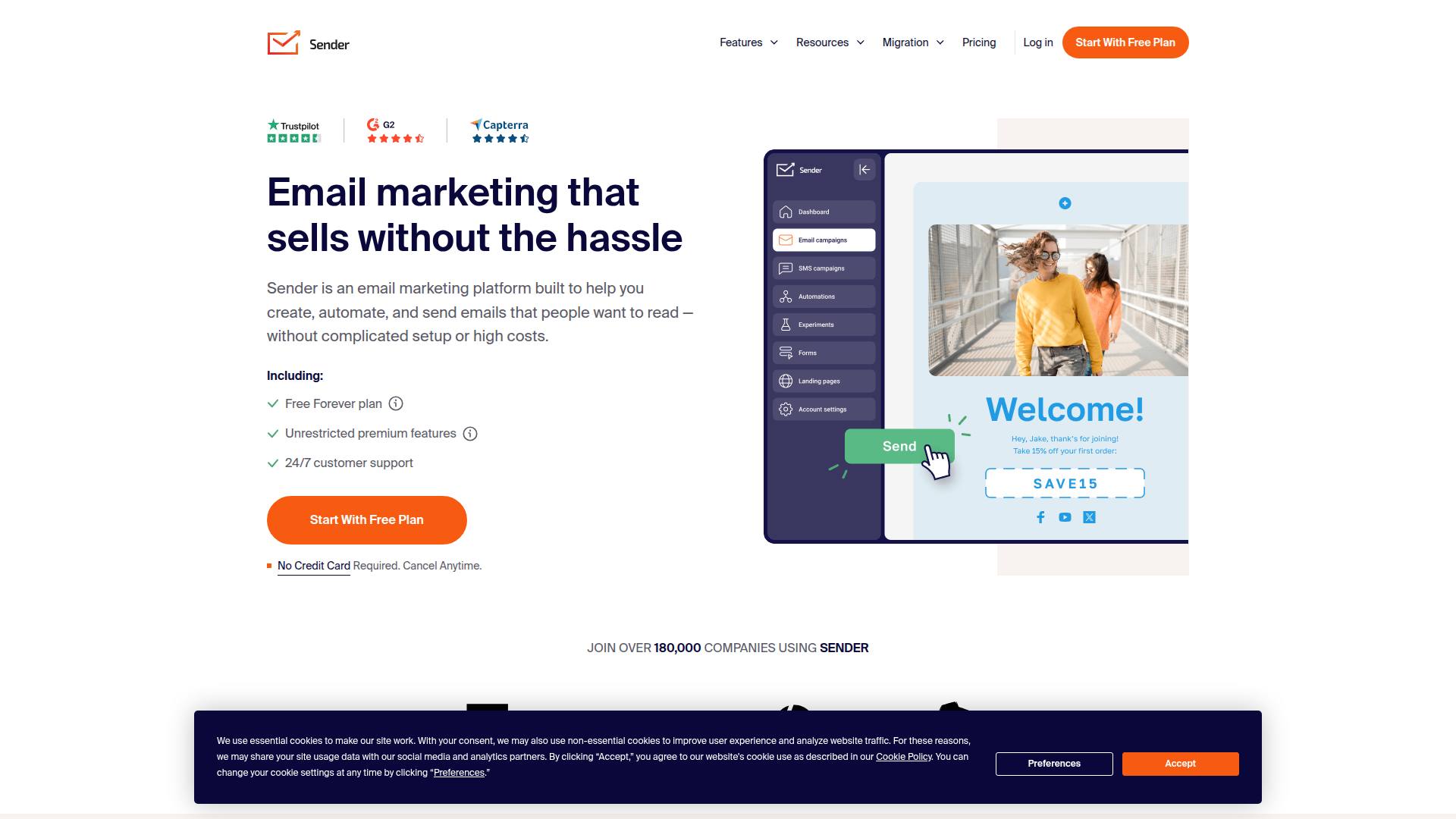
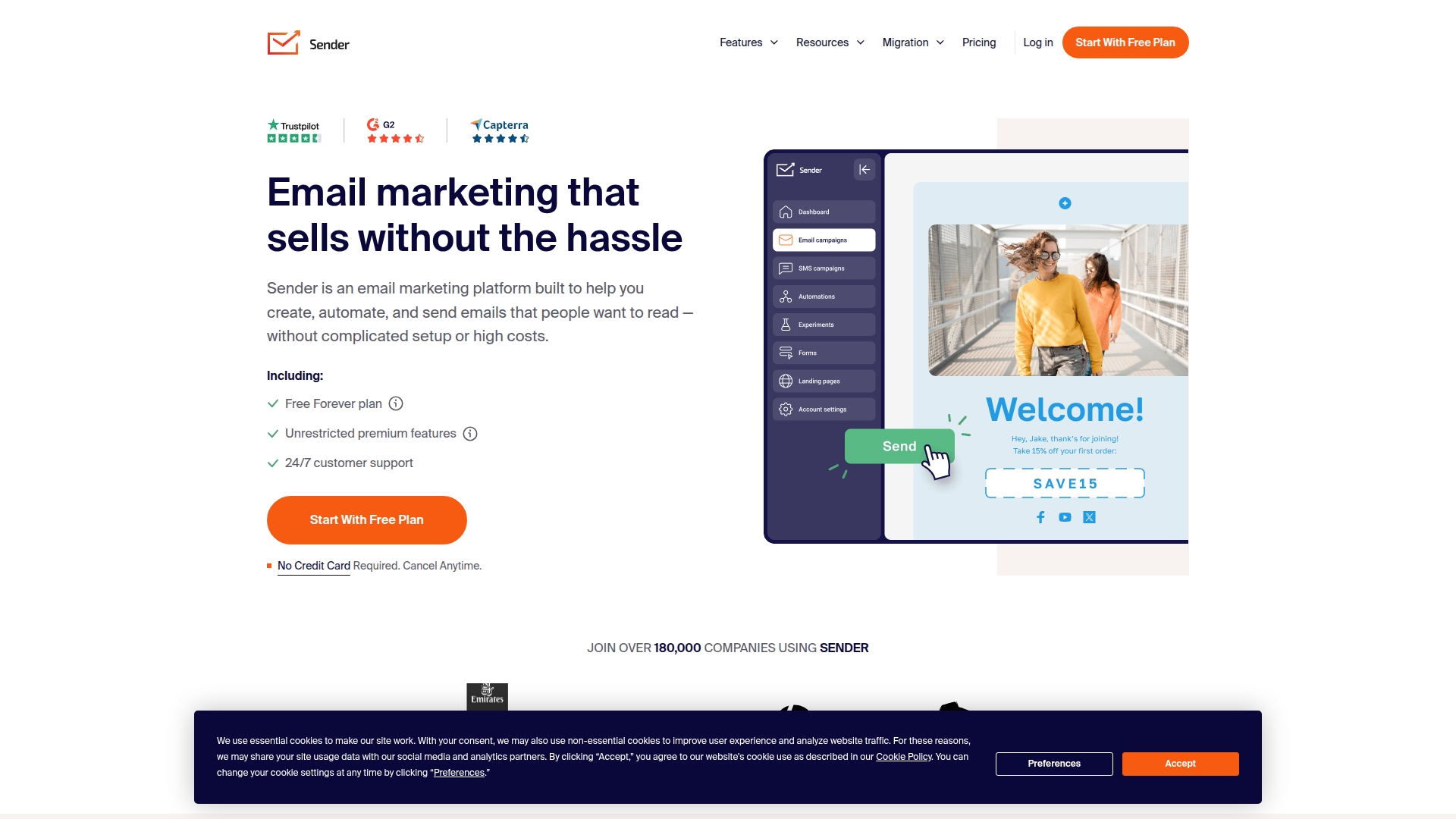
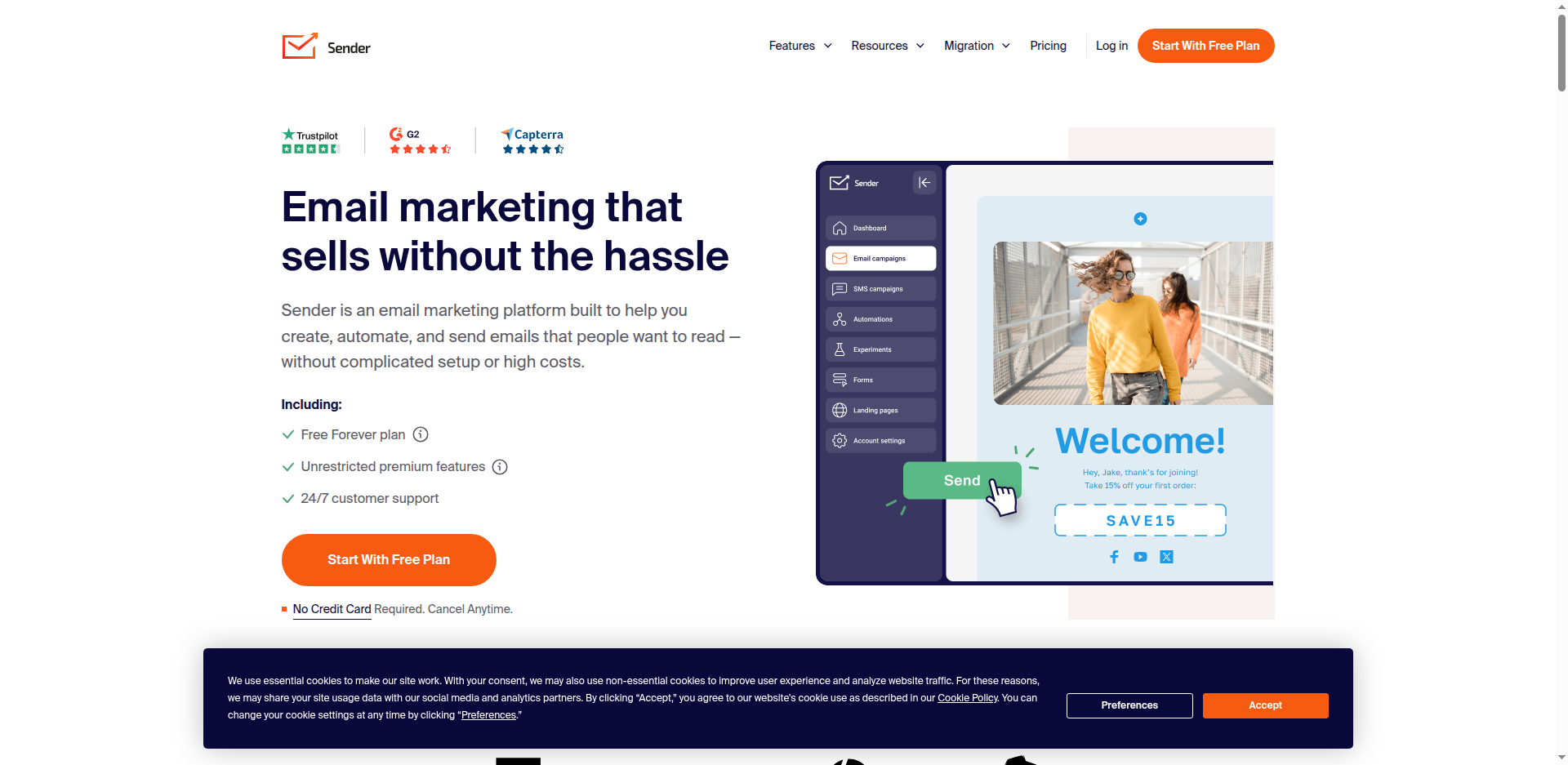
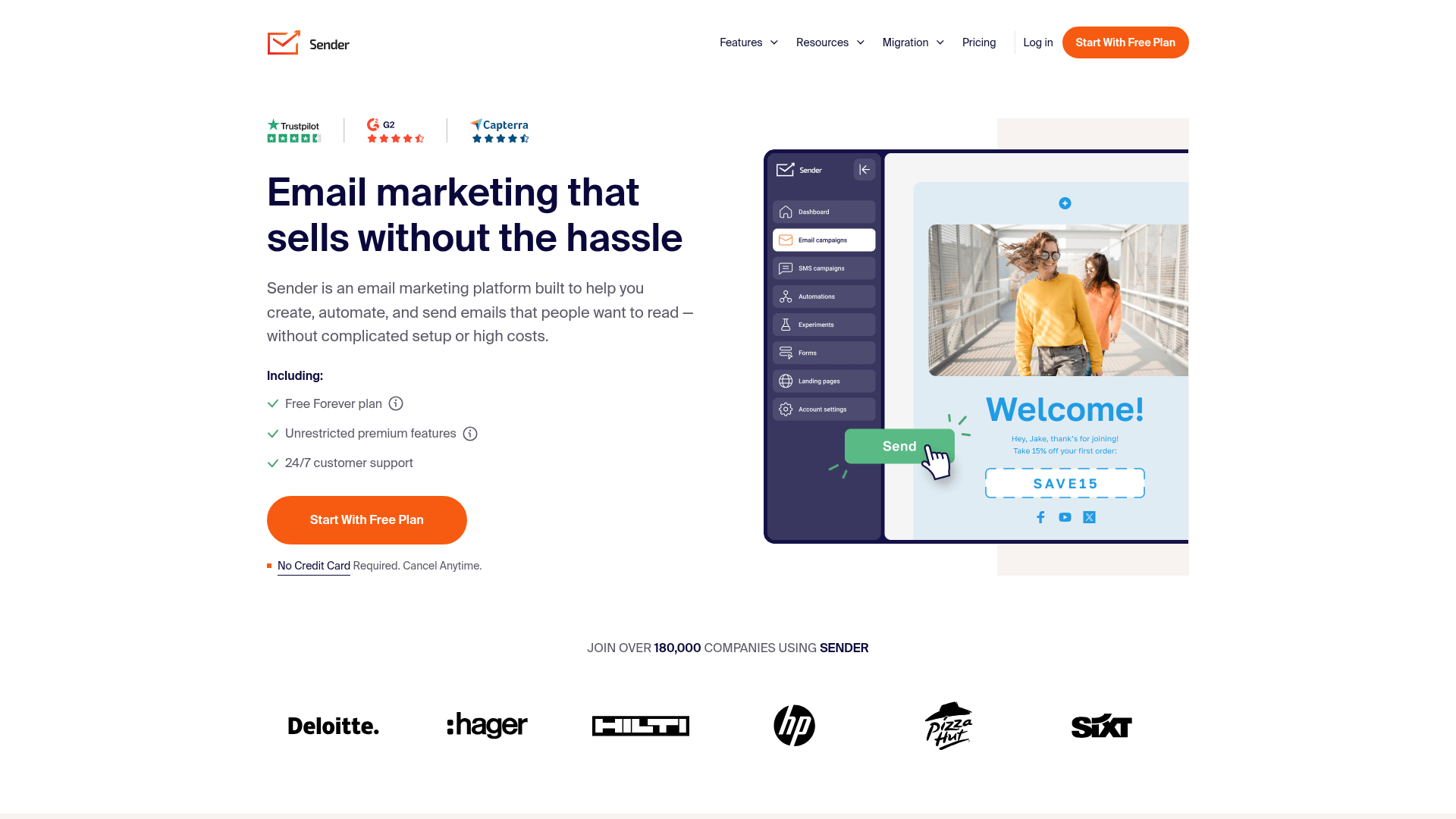
On the cookie banner test, Playwright and PuppeteerSharp both scored 87.5% (21/24), Selenium 87% (20/23; 1 N/A), and Screenshot Scout 95.8% (23/24).
The libraries' strong result here comes down to one choice. For cookie cleanup they used the I Still Don't Care About Cookies extension, which is built specifically to clear consent banners, both the common third-party consent boxes and many of the custom ones sites build themselves. In our Python, PHP, and Java screenshot benchmarks, the libraries used uBlock Origin Lite with its cookie and annoyance rulesets instead, a more general blocker, and scored around 45%. With the dedicated extension, the C# libraries came in near 88%. The image above is one of the pages they still missed. Note that this is visual removal for the screenshot, not real consent management. Screenshot Scout still finished on top at 95.8%, but the gap is small. In other words, on cookie banners a well-set-up library is close to the API in C#.
Ad removal
Below is the same page captured by all 4 tools (click to open in a new tab), with the ads gone in every case.




All 4 tools scored 100% and cleared the ads. The three libraries all use uBlock Origin Lite here, so identical scores are expected.
So if all you need is ad removal, you don't need a screenshot API. Any of the libraries will do it.
A few things are worth noting, though:
- The N/A counts are high on this test (6 to 7 for the libraries, 1 for Screenshot Scout). A lot of the ad-test pages are heavy news and content sites, and on the library captures many of them couldn't be graded, so they were dropped. Every gradeable screenshot passed, but that's on a smaller set for the libraries than for the API.
- When an ad is removed, its container doesn't always collapse, so some screenshots show a blank gap where the ad used to be. That varies site to site.
- Only ad-network ads were removed. Some native ads, served directly by the site rather than through a network, were still there. So 100% here means the ad-network ads were cleared, not that every promotional element on the page was gone.
Full-page capture
Below is the same page captured full-page by all 4 tools (click to open in a new tab). On this particular page, Selenium and Screenshot Scout got it right, while Playwright and PuppeteerSharp missed the lazy-loaded images below the fold.




On the full-page test, Playwright scored 0% (0/20), PuppeteerSharp 0% (0/20), Selenium 84.2% (16/19; 1 N/A), and Screenshot Scout 47.4% (9/19; 1 N/A).
This is the one benchmark where a library outscored Screenshot Scout. Here's what happened with each tool, and how to fix it:
- Playwright: it doesn't scroll before capturing, so every screenshot was missing lazy-loaded images. Two fixes: scroll-and-stitch (scroll top to bottom, capture each viewport, stitch them together), or the measure-and-resize workaround from the Selenium section.
- PuppeteerSharp: same as Playwright, missing lazy-loaded images on every page, hence the 0%. The same two fixes apply.
- Selenium: the best of the group at 84.2%, thanks to the two-pass measure-and-resize shown earlier. The failures were minor: a footer whose social buttons didn't load, a thin white band below one footer, and a single page where lazy-loaded images were still missing.
- Screenshot Scout: 47.4%, ahead of the two browser-native options at 0% but behind Selenium's workaround. Its failures were more varied, recorded in the
reliability_raw.csvinside the results.zip: a few missing lazy-loaded images, a distorted header menu, a misaligned seam mid-page, and a blank band near a footer. Screenshot Scout uses scroll-and-stitch, which avoids the missing-image problem but brings its own: the occasional seam where two captures meet.
It's worth noting that despite the imperfect scores, when I looked at the actual Selenium and Screenshot Scout images, most would be fine for typical production use. Selenium's misses were small, and Screenshot Scout's seam distortion was uncommon, with the rest minor.
Bot protection bypass
Below is a bot-protected page captured by all 4 tools (click to open in a new tab). Playwright, PuppeteerSharp, and Screenshot Scout all got the real page, while Selenium was blocked.
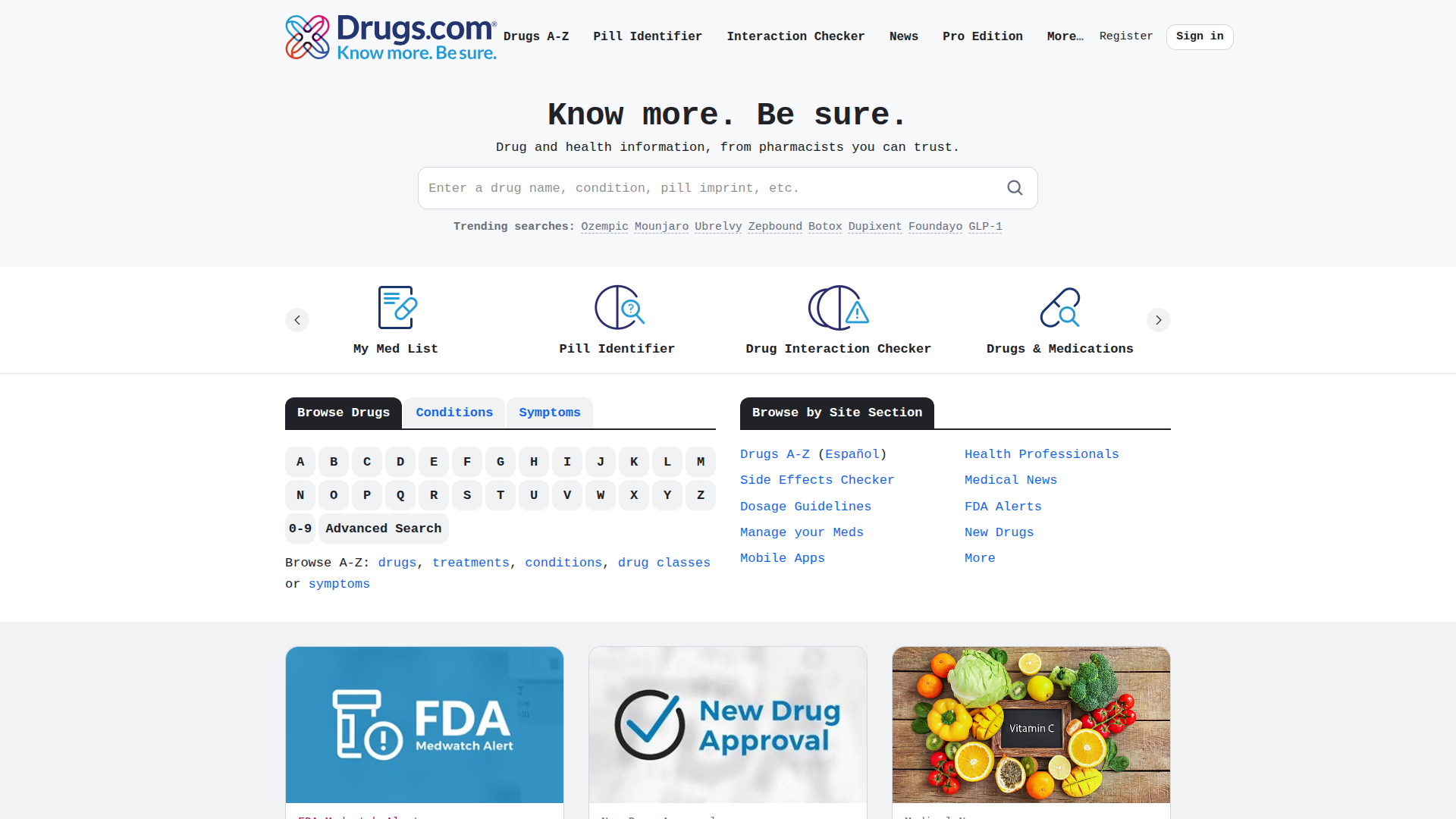
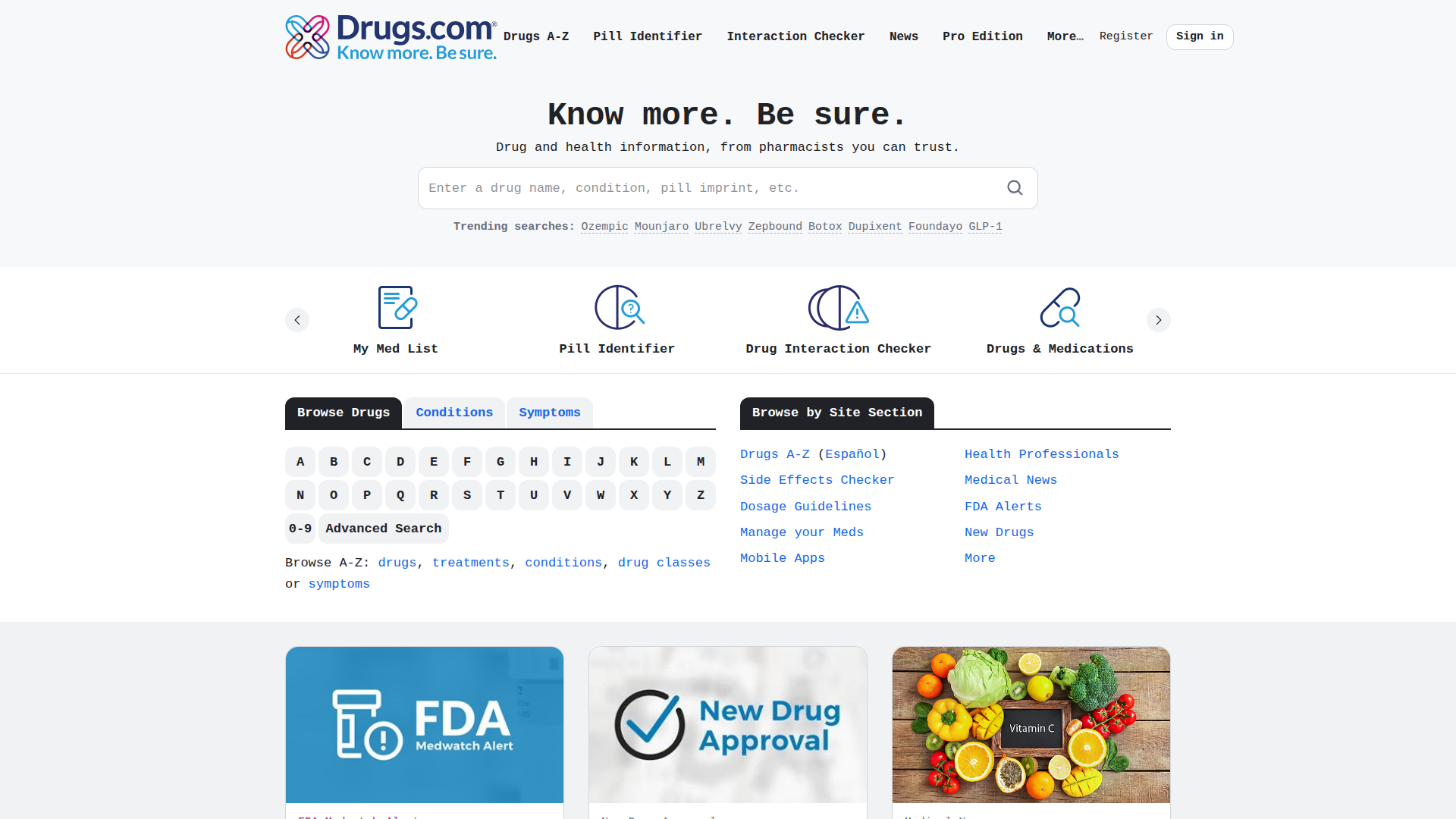
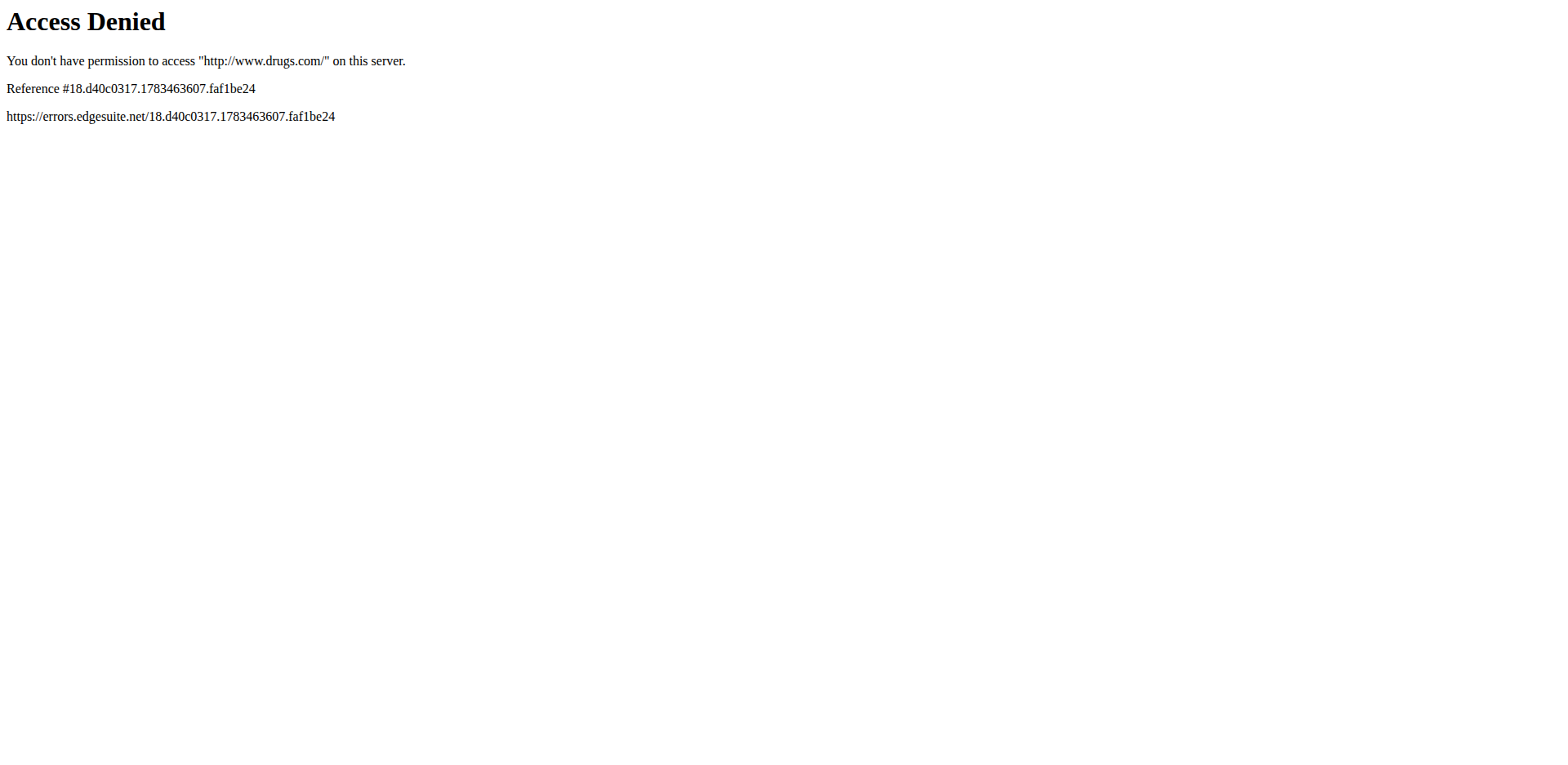
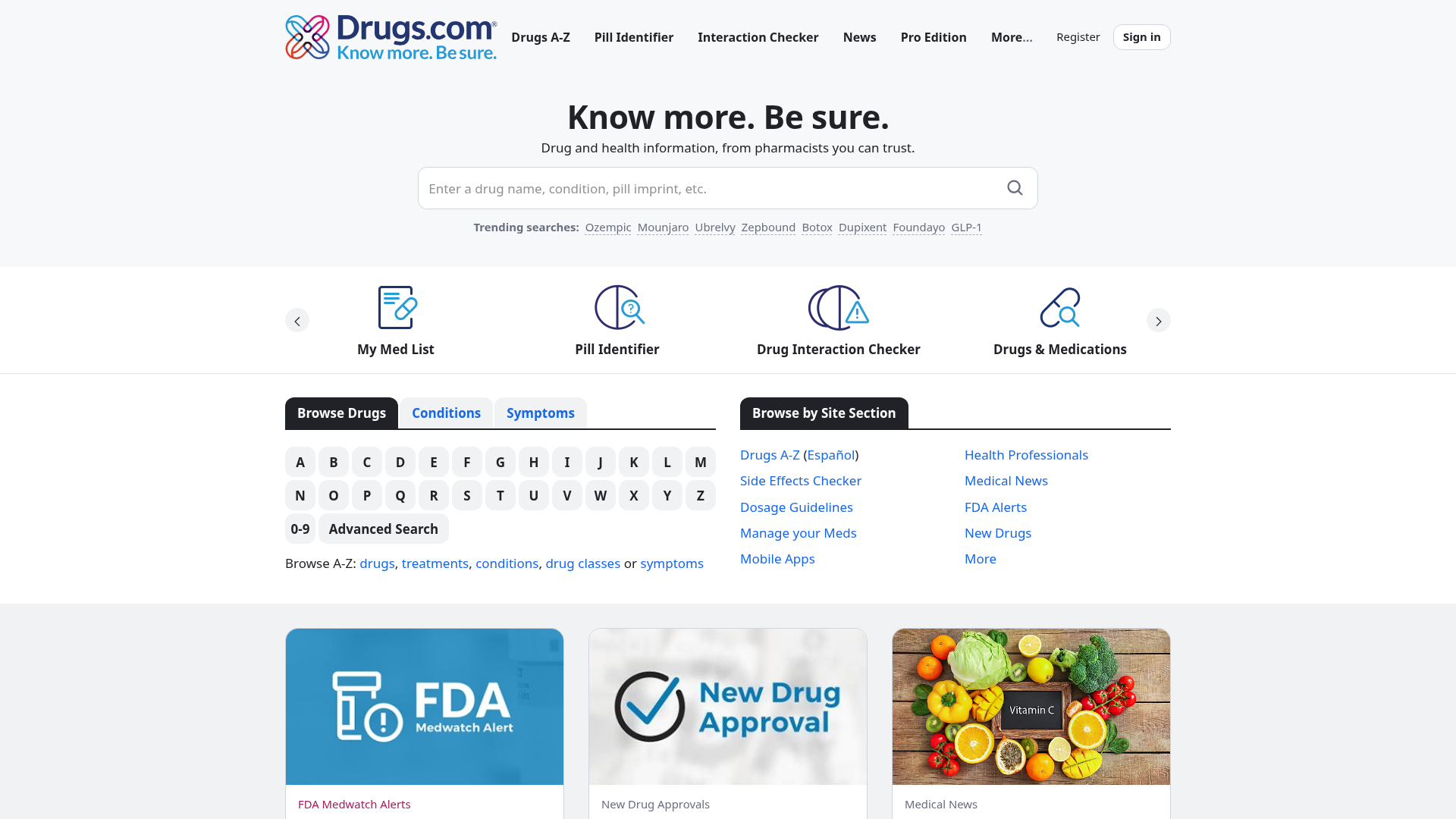
On the bot protection test, Playwright scored 89.5% (17/19; 1 N/A), PuppeteerSharp 72.2% (13/18; 2 N/A), Selenium 11.1% (2/18; 2 N/A), and Screenshot Scout 89.5% (17/19; 1 N/A).
This is the biggest split of the whole article. Two of the libraries got past most bot protection: Playwright with the Soenneker stealth package matched Screenshot Scout at 89.5%, and PuppeteerSharp with the puppeteer-extra stealth plugin managed 72.2%. Playwright and Screenshot Scout even failed on the same two sites, which suggests those two just run protection neither could get past.
Selenium was the exception, at 11.1%, and it was running a stealth package too: undetected-chromedriver. So I checked by hand whether that package was doing anything. I captured bot.sannysoft.com, a client-side fingerprint test page, with Selenium twice, once plain and once with undetected-chromedriver.
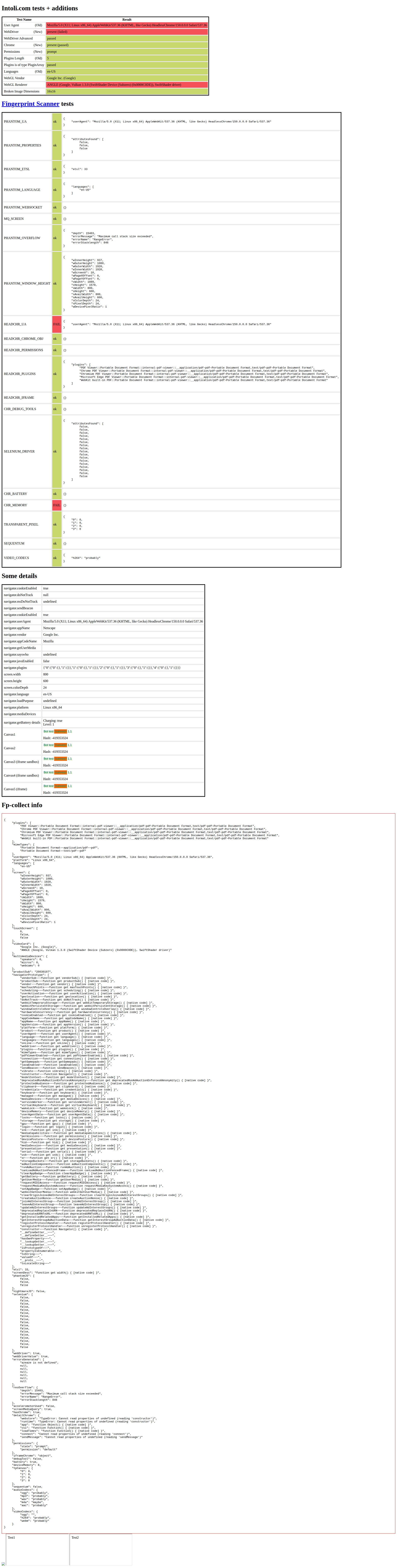
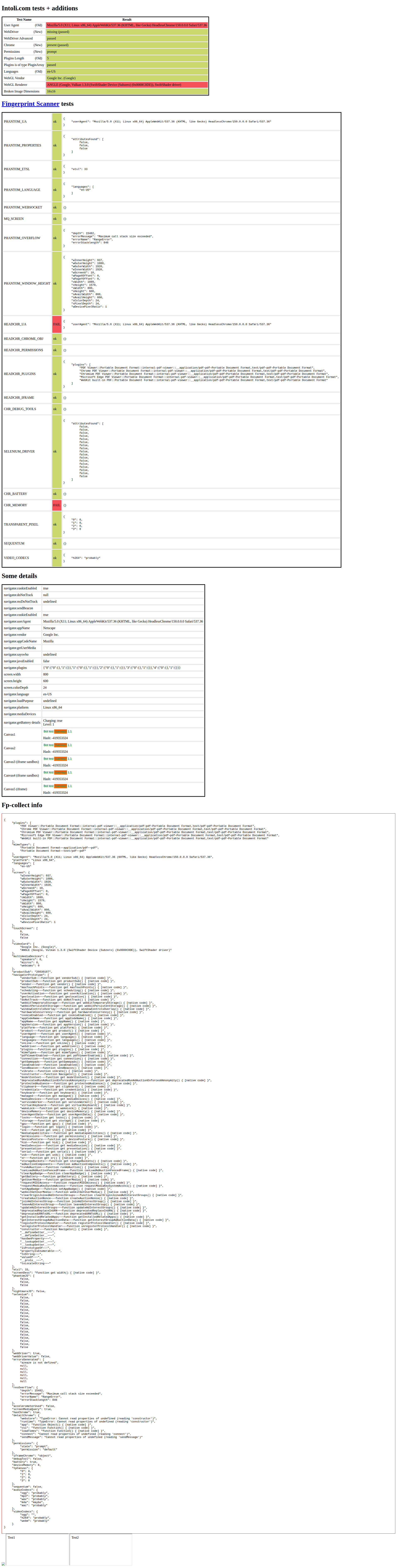
The difference between the two is small. Undetected-chromedriver flipped exactly one row: navigator.webdriver went from "present (failed)" to "missing (passed)". Everything else stayed the same. The User Agent still showed HeadlessChrome, and the WebGL renderer still reported the SwiftShader software renderer, both still flagged red. So the package barely made a difference on either the fingerprint page or the real sites, where it scored 11.1%.
One caveat on the whole bot protection test: the score depends on the IP you run from (we used a datacenter IP), and sites change their protection over time, so read this as a point-in-time snapshot, and don't expect the same effectiveness in your own production use.
Summary
How reliable a library is depends on which one you use and which packages you add to it. With the right off-the-shelf extensions, some came close to the API in these tests: Playwright with a stealth package matched it on bot protection, the libraries all cleared ads, and the dedicated cookie extension put them near it on cookie banners. Selenium's full-page workaround even scored higher than the API. Where a library scores lower, custom code can improve it further, and with an AI assistant, writing something like a cookie-banner clicker or a scroll-and-stitch routine takes less effort than it once did. A well-configured library, with a little code on top, can get close to the API on reliability.
So reliability isn't the main reason to reach for the API. The reason is offload and maintenance: it keeps rendering off your own CPU and RAM, and it maintains the library and every extension for you.
The rates above are a snapshot, and they change over time. Bot protection changes, browsers update, and the filter lists and stealth packages fall behind as sites change, so without regular updates, DIY blocking and stealth scores get worse. With a screenshot API, that upkeep is handled for you.
Should you use Playwright, PuppeteerSharp, Selenium, or Screenshot Scout?
Which one you pick comes down to your use-case. Here's the decision matrix:
- Use Playwright if you want the best all-around library for screenshots in C#. It has the cleanest, most modern interface of the three, it's actively maintained, it was the best-balanced performer (lightest on RAM, middle on CPU, close to the fastest), and with a stealth package it matched the API on bot protection. The one weakness is full-page: its built-in capture misses lazy-loaded images, so you'll add a workaround for that.
- Use PuppeteerSharp if you specifically want the Puppeteer interface in .NET with a managed Chromium and no Node.js. It did well on bot protection with the puppeteer-extra plugin, but it was the heaviest library on CPU, and it has the same missing-lazy-loaded-images issue on full-page.
- Use Selenium if you're already on a Selenium or WebDriver stack. Just know it was the heaviest on RAM and, despite undetected-chromedriver, the weakest on bot protection by a wide margin.
- Use Screenshot Scout if you'd rather keep rendering off your own RAM and CPU and not maintain a stack of add-ons yourself. In C#, that offload and the zero upkeep are the real reasons to use it, not better screenshots: it stripped cookie banners the most reliably and matched the best library on bot protection with no stealth to maintain, but a well-configured Playwright is close on both. On the cons side, it's slower per screenshot, it may cost money depending on volume, and Selenium's full-page workaround scored higher in our tests.
Those four options really come down to one decision: run a headless browser yourself, or use a screenshot API.
Running the browser yourself means having the RAM and CPU to run it. It also means writing the code for whatever your tool doesn't do for you, and keeping the tool and its off-the-shelf packages current, or their reliability degrades. The upside in C# is that those packages are mature, so there's less you have to write from scratch.
With a screenshot API, all of that is handled for you, but it may cost money depending on volume.
Frequently asked questions
Below are answers to common questions about taking website screenshots in C#.
What's the best way to take a website screenshot in C#?
For most cases, use Playwright for .NET. It's free, actively maintained, and the lightest library on RAM in our benchmarks. With off-the-shelf extensions it removed ads completely and cleared cookie banners about 88% of the time, and with a stealth package it got past bot protection about 90% of the time. If you'd rather keep rendering off your own machine and not maintain the add-ons yourself, use a screenshot API like Screenshot Scout instead.
Should I use Playwright, PuppeteerSharp, or Selenium in C#?
Default to Playwright. It's the cleanest to work with and the best-balanced of the three. Choose PuppeteerSharp only if you specifically want the Puppeteer interface in .NET, and Selenium only if you're already on a WebDriver stack.
How do I take a full-page screenshot in C#?
Playwright and PuppeteerSharp have a built-in full-page flag, but it misses lazy-loaded images. Selenium on Chrome has no native option; the two-pass measure-and-resize technique worked best in our tests. If you use a screenshot API, it usually has a full-page option that captures the whole page for you, lazy-loaded content included.
Why is my C# screenshot missing images?
Almost always, it's lazy-loaded images. With a viewport capture, they hadn't finished downloading in time; with a full-page capture, they never even began, because nothing scrolled them into view. For a viewport capture, the fix is to wait for the network to settle rather than the load event (where your tool allows it), or to add a short delay before capturing. For a full-page capture, the fix is measure-and-resize (expand the window to the full page height) or scroll-and-stitch (scroll down, capturing as you go, then stitch the pieces together); either one brings the below-the-fold images into view so they load. And if you'd rather not deal with any of that, a screenshot API covers both cases for you.
How do I avoid bot blocks or CAPTCHAs when screenshotting in C#?
In our tests it depended heavily on the tool. Playwright with the Soenneker stealth package and PuppeteerSharp with the puppeteer-extra plugin got past most sites (89.5% and 72.2%), while Selenium with undetected-chromedriver managed only 11.1%. So a stealth package can help in C#, but the results vary by tool and move with datacenter IPs and site changes. Residential proxies, or a commercial unlocker like Bright Data's Web Unlocker, tend to help more than stealth alone, though nothing is guaranteed.
Is there a pure-C# way to screenshot a website with no browser?
Not for real websites. Something has to render the HTML, CSS, and JavaScript, and that something is a browser engine, so either you run one yourself with Playwright, PuppeteerSharp, or Selenium, or you call a screenshot API that runs one for you.
Can C# take a screenshot of the screen, not a webpage?
Yes, but that's a different job. Desktop capture on Windows uses System.Drawing and Graphics.CopyFromScreen, not a browser. This guide is about capturing webpages.